Command
• Go to commands

-
Click add.
-
Select one or more devices.
-
Select a template.
-
Specify the command.
-
The master password is in the main contract settings (administrator panel).
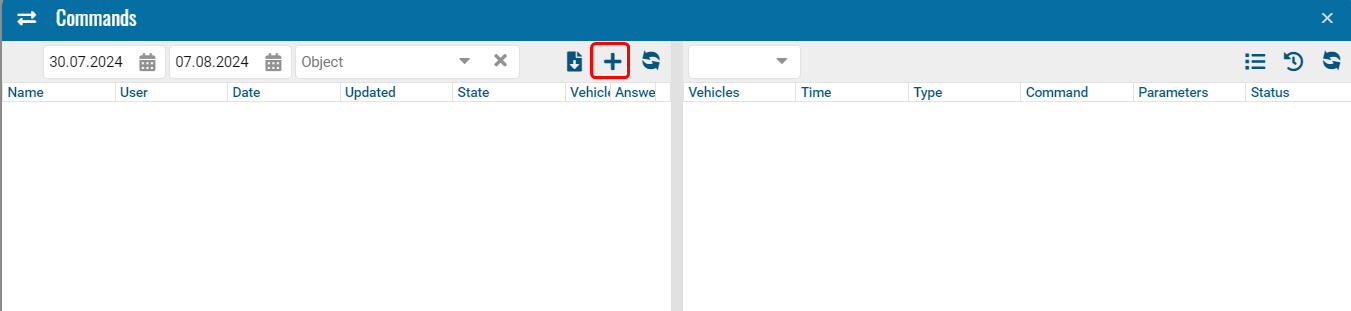

Select a ready-made template or create a new one, click "Download".
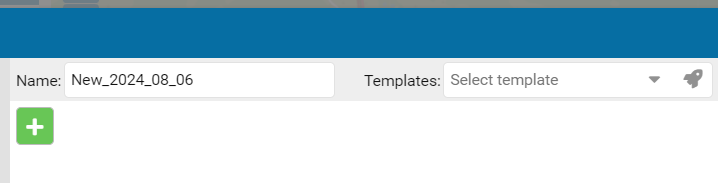
Creating templates for sending commands
• Click +
• Click on the create button
• Specify a name

Template Permissions Use global templates for each language in commands.

One of the conditions for commands with specified parameters is to enclose the parameters in percentage brackets, where n is a number, s is a string.

Commands for an object
• Go to the user interface.
• Go to the context menu of the object.
• Select commands.

• Select a team.
• Send.
• View history - select a period and click the search icon.

Admin panel settings
1. Add module to account
2. Configure sms gateway. Currently smsgateway24 is supported.
You need device ID and token from smsgateway24 subscription:
https://<address>/ax/commands/smsstatus.php?cmd=incoming
https://<address>/ax/commands/smsstatus.php?cmd=status
Fill this parameters in module configuration section:
Configuring templates
To configure the templates:
1. Click on the configuration button, located on the right side
2.Open the "commands" tab
3.Click on the "+" symbol, then this window will open, allowing us to edit or add a new command:
In this window, we can add a new command, edit the text of the message, select for which vehicles the message will be sent in the left panel.
1. By clicking on the "send" button, the system will send the message that we have previously written to the vehicles selected in the left panel
2. The "save template" option will allow us to save the template, which will make it easier for us to send this command in the future without re-entering the data.
When selecting this option, the system will ask us to assign a name to our new template.
Note:
Only administrator can generate templates and assign rights to them to a user and that each template is created for only one type of device. Templates should be created for each type of device. In the tree, devices are grouped by type:
How to load a previously created template?
1. You need to select the devices
2. The desired template is chosen.
3. lick on "load template"
How to delete a command? (available only to the administrator)
In the list on the left we can find the list of templates created previously, it is enough to click on the icon to delete an unwanted command.
How to delete a template? (available only to the administrator).
After the devices are selected, in "templates" it will show us the existing templates, there we can delete by clicking on the icon:
User rights on templates
To configure user rights on the templates it is necessary:
1. In settings, select the button "staff and groups" and select the user to whom we will configure the rights.
2. The "user editing" window will open and we will go to the "commands" option, there we can find the templates and select which templates this user will have the right to:
Option “Send command”
With a left click on the vehicle we can find the option "send command" which will allow us to see the history of sent messages, and besides that, forward messages.
To see how to use the Commands module and send GPRS commands, watch the video “Using the Commands module: how to send GPRS commands” on YouTube.
The video demonstrates how to send commands to devices and track the history of sent commands in the system.
Additionally, watch the video “How to create command templates” to quickly learn how to set up and save command templates for faster usage, making it easier to send commands without manually entering them each time.
|