Configuring driving quality rules
Driving quality rules define which driver actions are considered violations and how they affect the overall driving quality score.
Each rule monitors a specific parameter received from the device installed in the vehicle, such as speed, acceleration, or idle time. When the configured conditions are met, the system records a driving event.
For each rule, you can configure:
-
the parameter to monitor
-
the conditions for recording an event
-
the event type
-
the message displayed in reports
-
the number of fine points and the fine calculation method
You can create as many rules as needed and configure them according to your vehicles, installed hardware, and business requirements.
Opening the driving quality settings
1. In your account, double-click the required vehicle in the object list
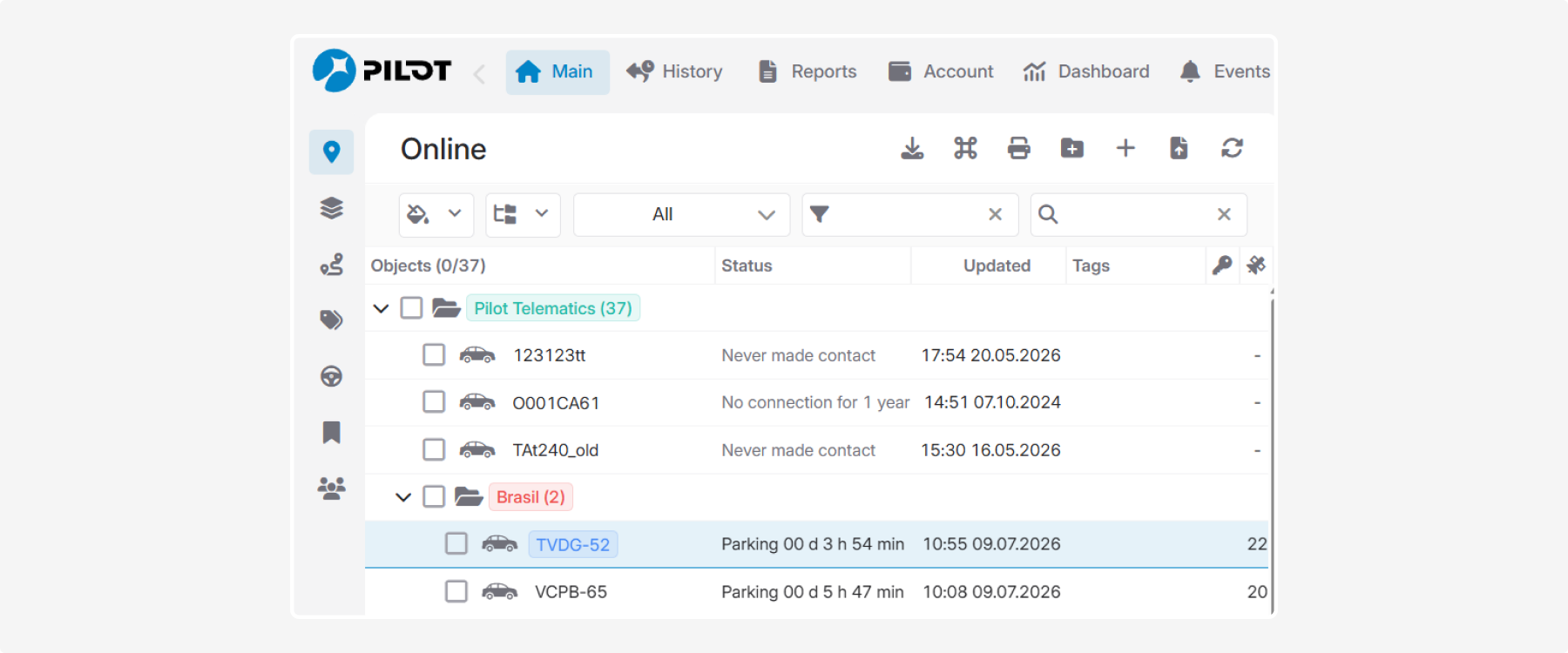
2. Open the Eco Driving tab in the vehicle card

On this tab, you can create and manage the rules used to detect driving violations.
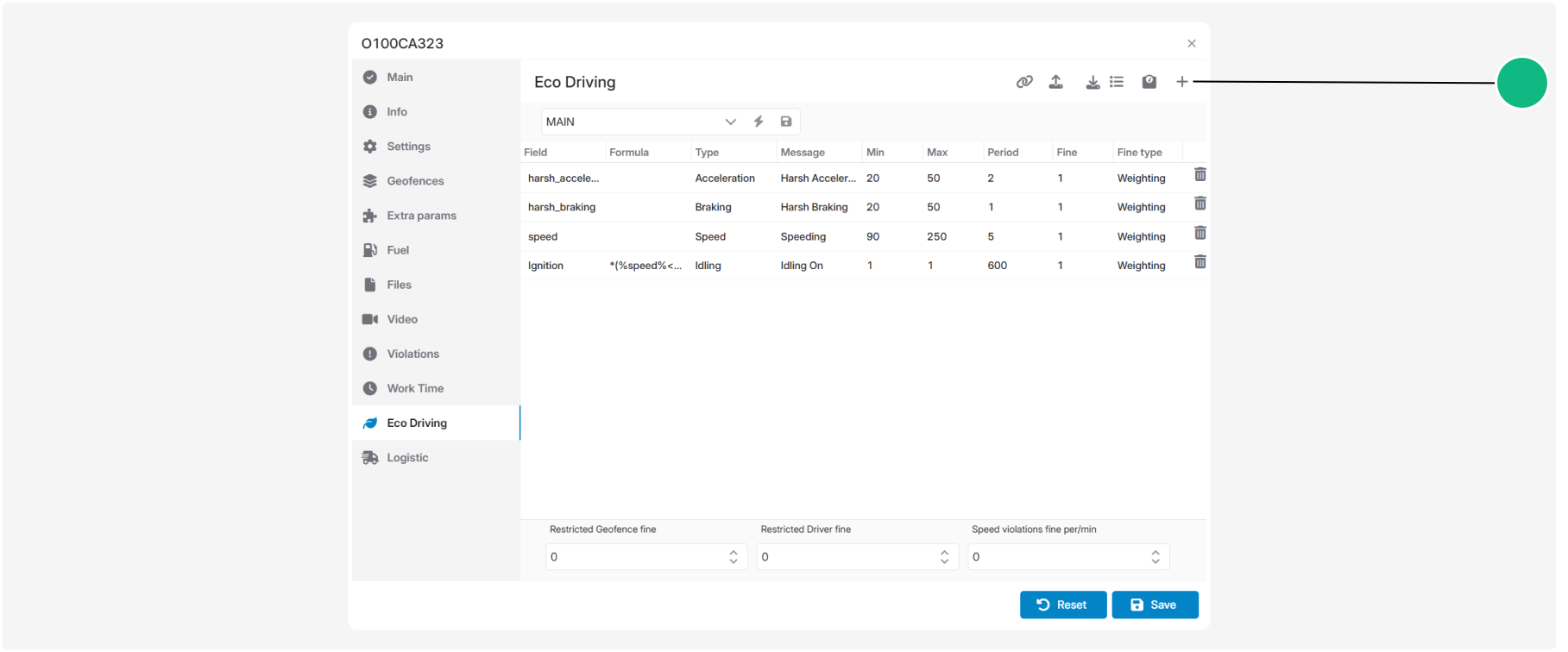
Driving quality rules
The center of the window contains the list of driving quality rules. Each row represents a separate rule used to analyze data received from the installed device. When the configured conditions are met, the system records a driving event.
You can create any number of rules and configure them to match your vehicles and installed hardware.
Rule parameters
|
Column
|
Description
|
|
Field
|
The sensor or parameter to monitor, such as speed, acceleration, ignition status, or any other value received from the device
|
|
Formula
|
An optional mathematical or logical expression used to process the value before it is evaluated
|
|
Type
|
The driving event type that is recorded when the rule conditions are met. Event types are used to classify violations and calculate Eco Driving metrics. You can use the built-in event types or create your own
|
|
Message
|
The text displayed in reports when the event is recorded, for example Harsh Braking or Speeding
|
|
Min
|
The minimum value at which the rule is triggered
|
|
Max
|
The maximum value that is still considered a violation. For example, if the range is set to 132–250 km/h, the event is recorded when the vehicle speed falls within that range
|
|
Period
|
The time interval, in seconds, during which repeated occurrences are treated as a single event. For example, if 600 seconds is specified for idling, another idle event will not be recorded until 10 minutes have passed
|
|
Fine
|
The number of penalty points assigned when the event occurs. A value of 0 records the event without assigning fine points
|
|
The method used to calculate penalty points
|
The following event types are commonly used in Eco Driving reports:
-
Acceleration — harsh acceleration
-
Braking — harsh braking
-
Cornering — harsh cornering
-
Speed — speeding
You can also create custom event types if required.
Each rule uses one of the following fine calculation methods.
Plain
Assigns the fixed number of Fine points specified in the Fine field each time the rule is triggered.
For example, if fine is set to 5, each recorded violation adds 5 Fine points.
Use this method when every violation should result in the same number of Fine points.
Weighting
Calculates Fine points based on the severity of the violation. The greater the deviation from the configured threshold, the more Fine points are assigned.
Use this method when more severe violations should have a greater impact on the driving quality score.
Factor
Calculates fine points using the following formula: Violation value × Fine
Example:
-
Violation value: 5
-
Fine: 2
Result: 10 fine points
Use this method when the number of fine points should increase proportionally to the severity of the violation.
You can create as many driving quality rules as required.
To create a rule:
1. Open the Eco-Driving tab and click Add rule 
2. A new row appears in the rule list
3. Configure the rule parameters
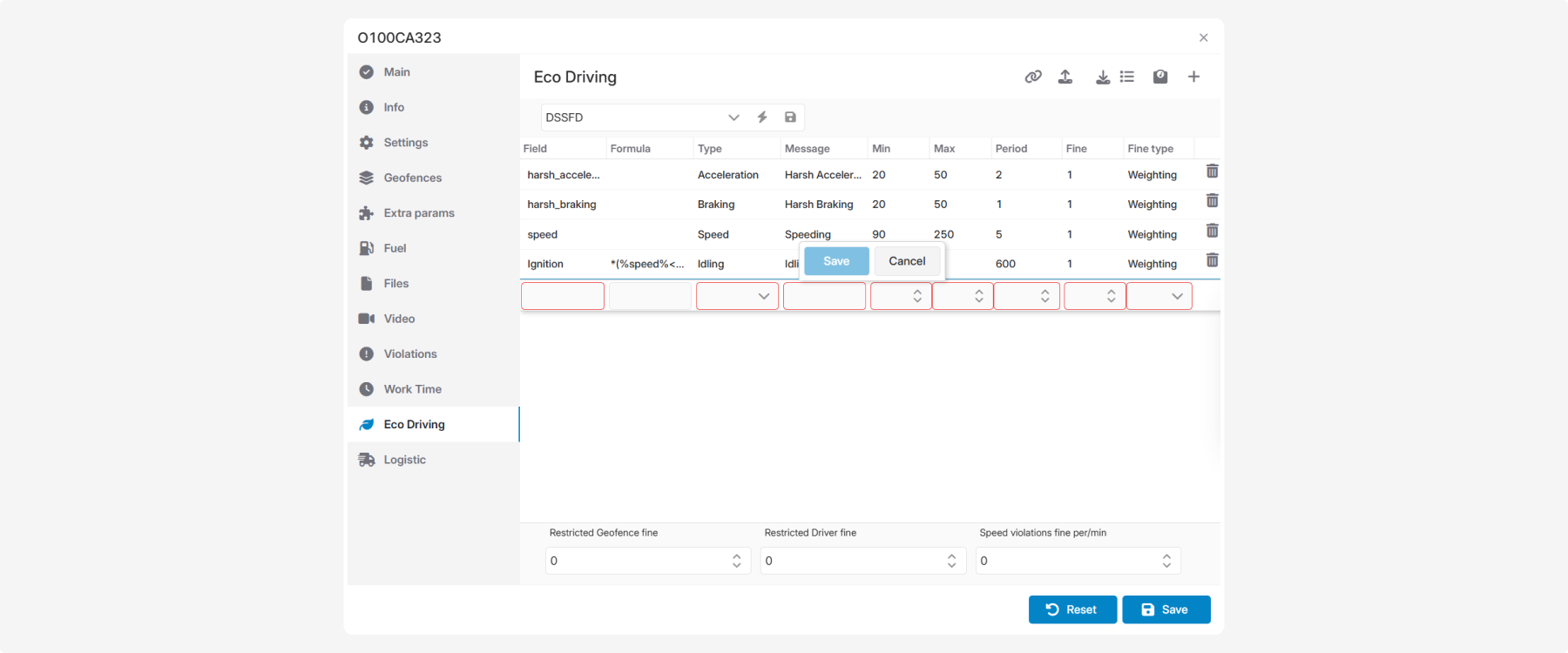
Specify:
1. the Field to monitor
2. a Formula, if required
3. the Event type. If the required type does not exist, you can create a new one
4. the Message displayed in reports
5. the Minimum and Maximum values that define when the event is recorded
6. the Period for merging repeated events
7. the Fine value and Fine type
Click Save to apply the changes.
After saving, the rule is used to process all new data received from the device.
To edit a rule, modify the required values directly in the corresponding fields and save the changes.
To delete a rule, click the Delete icon  in the corresponding row and save the changes.
in the corresponding row and save the changes.Additional fines
The lower part of the window contains additional Fine settings that are applied independently of individual driving quality rules.
The following options are available:
-
Restricted geofence fine — assigns fine points when a vehicle enters a restricted geofence
-
Restricted driver fine — assigns fine points when the vehicle is operated by a driver who is not authorized to use the selected vehicle
-
Speed violations fine per/minute — assigns additional аine points for exceeding the configured speed limit

After entering the required values, click Save to apply the changes.