How to add a partner
In the Partners section, you can create a new partner account.
1. Click the Add button in the Partners section
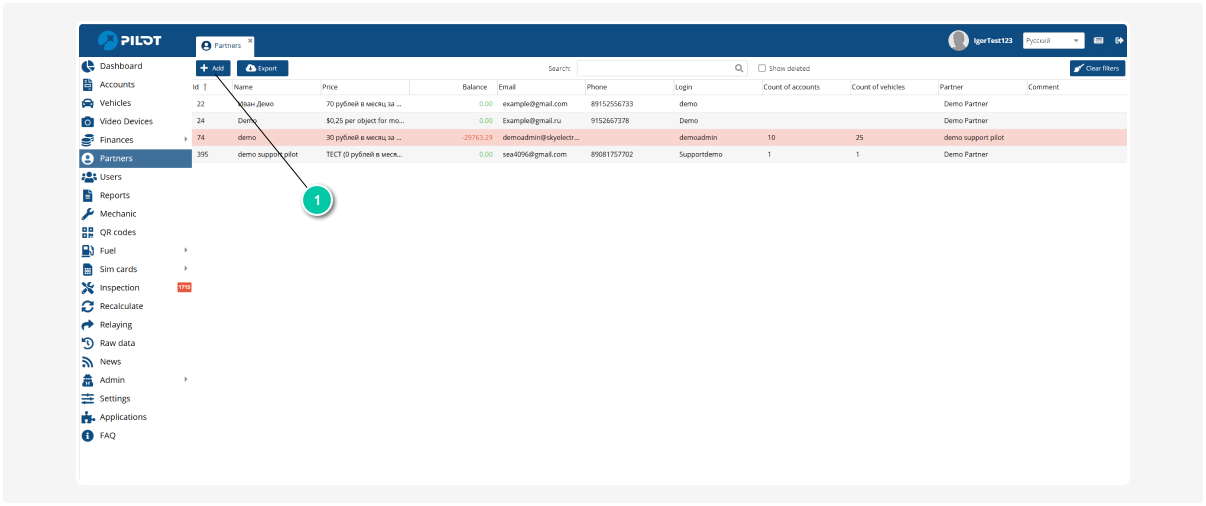
2. In the window that opens, go to the Main settings tab

3. Fill in the required partner agreement details:
General Information
• Name — the agreement or company name (as it will appear in the system)
• Email — partner’s email address
• Phone — contact phone number
• Deposit — advance payment amount (if applicable)
• IIN — Individual Identification Number
• KPP — company registration code
• VAT — specify the percentage
• 1C Code — code for synchronization with the 1C accounting system (if integration is used)
• Region — select from the list
Access and assignment settings
• Block Partner — completely blocks the partner’s access to the system
• Block users of accounts partner— blocks login for all users created under this partner account
• Partner — the main partner to which the agreement will be assigned (used in sub-partner structures)
Financial and pricing parameters
• Currency — main billing currency
• Additional currencies — select additional currencies if needed
• Price — pricing plan applied to the agreement. Choose the price list that will be used for objects. The price can be assigned to a specific account or to a partner (in this case, it applies to all their accounts). The tariff applies only to new objects. Existing vehicles keep their previously assigned pricing plans.
• Partner price— additional tariff within the partner program
• Organization type — select the legal form from the list
• Account type — choose the billing model from the dropdown list
Login credentials
• Password o for Users — select password complexity level: simple or complex
• Show user password — choose whether passwords are visible or hidden
• Login — enter the login used to access the partner’s Admin panel (required field)
• Password — administrator account password
4. After completing all required fields, click Save.

Once saved, you will be able to assign contracts to the partner, connect objects, and create users.