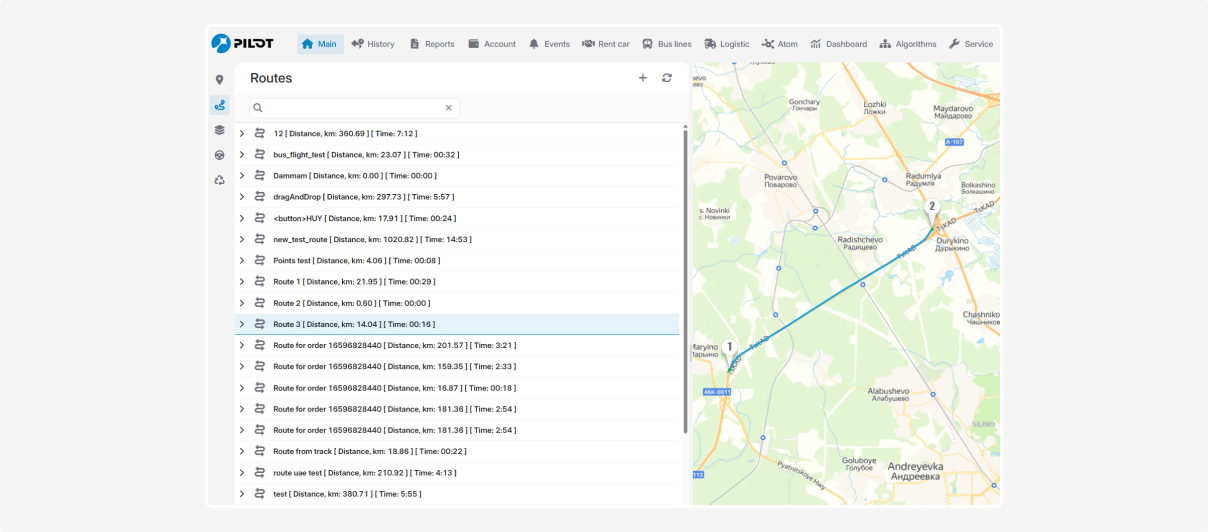
How to create a route from a track in History
You can create a route not only through the Routes module (as described in the previous article), but also directly from a track in the History section.
How to create a route in History
1. Go to the History section and select an asset from the list by checking the box next to it
2. Set the required time interval to search for tracks and click Search

3. The system will display a list of track records for the selected asset

4. Find the track for the required date. Right-click on it to open the track menu
5. Select Create route from the menu
6. The route will open on the map and will be displayed in grey

7. If you want to create a route based on only part of the track, select the start and end points of the required segment by clicking on the track line.
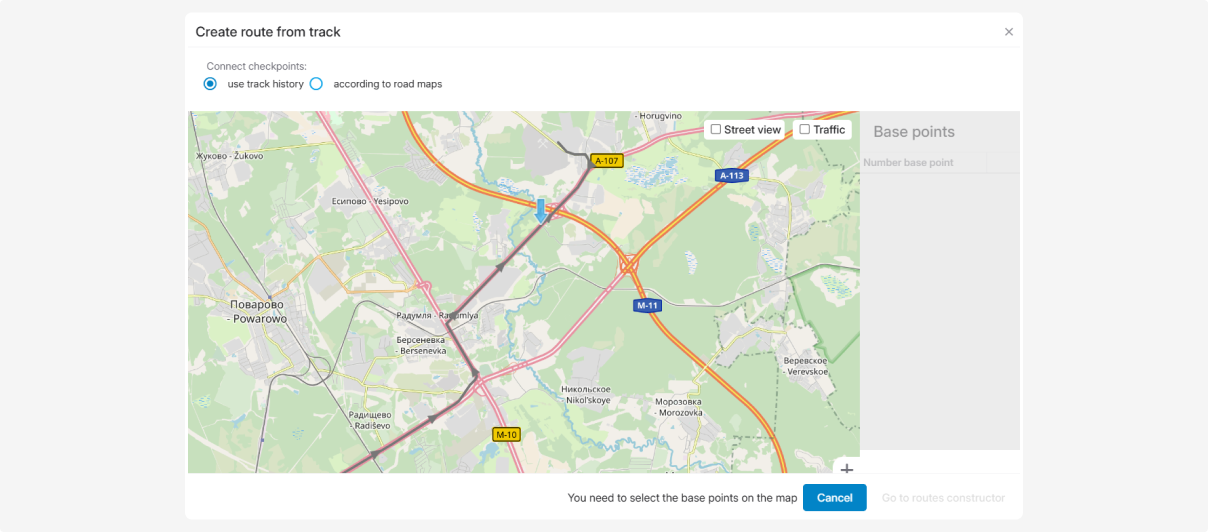
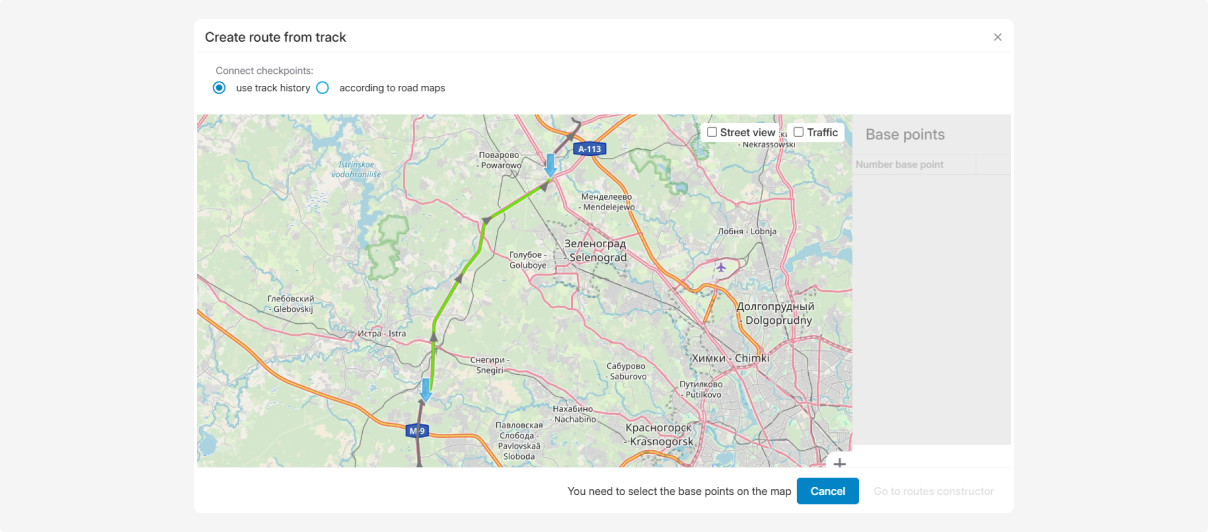
8. After selecting the segment, click Go to route builder to configure the route parameters
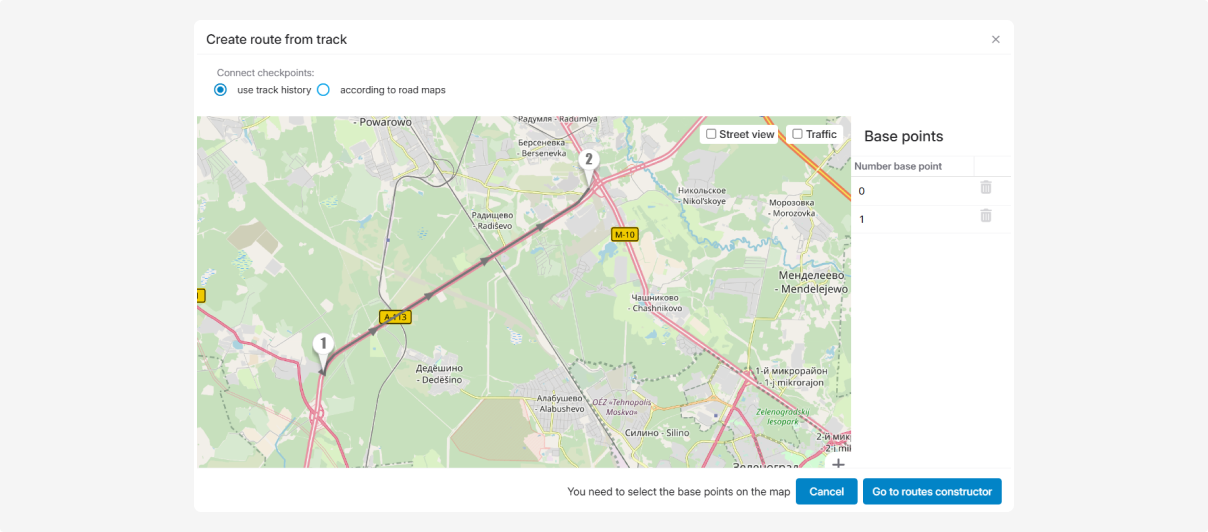
9. In the route builder, set the required parameters and click Save

Your route will now be saved and will appear in the routes list.