How to view history
History shows information about an object’s past movements and statuses, including routes, stops, and sensor readings for a selected period.
A track is a line on the map that shows the object’s movement path. It consists of points marking where the object was at different times.
To view an object’s movement history:
1. Go to the History section in the top panel. Select the object from the list

2. Set the time range. Choose the desired time period by clicking the calendar icon
3. Click the Search button
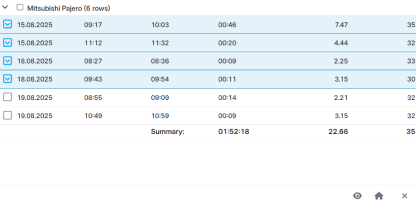
4. In the search results, select the track records you want to view. Check the boxes next to the tracks you’re interested in.

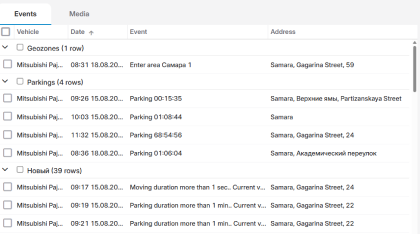
After you select the tracks, the following elements will appear on the screen: