How to watch live video
After you have saved the cameras in the object card, they become available in the system.
In the object list, a camera icon appears next to the vehicle name:
• Green camera — device is active, video is available
• Gray camera — device is inactive
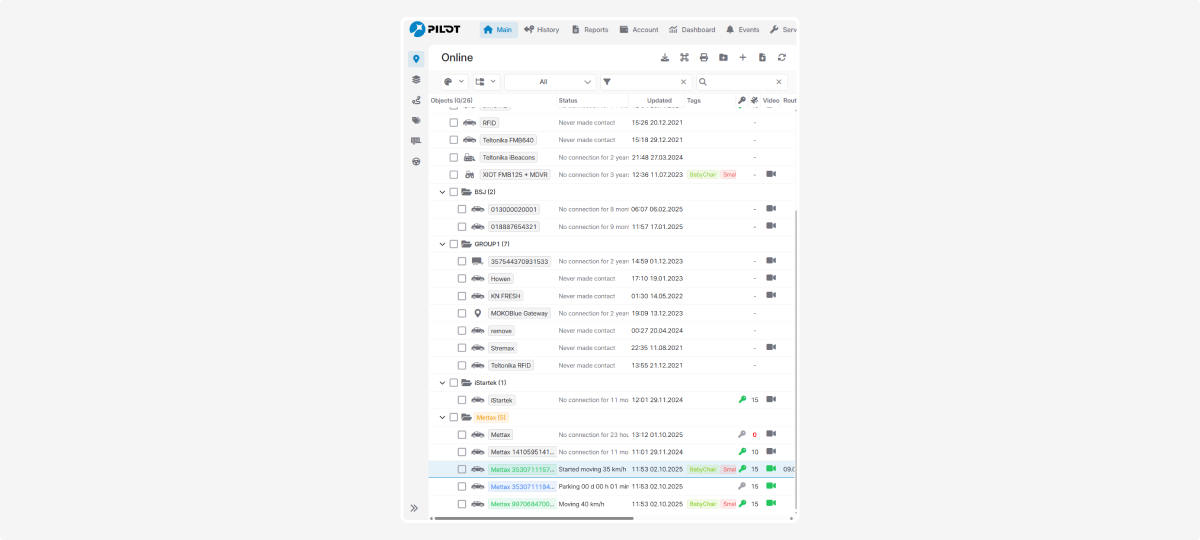
How to open live video
1. In the object list, click on the camera icon
2. The video player will open with a real-time stream
The player displays all available camera channels (for example: road, cabin, side or rear views — depending on the equipment).
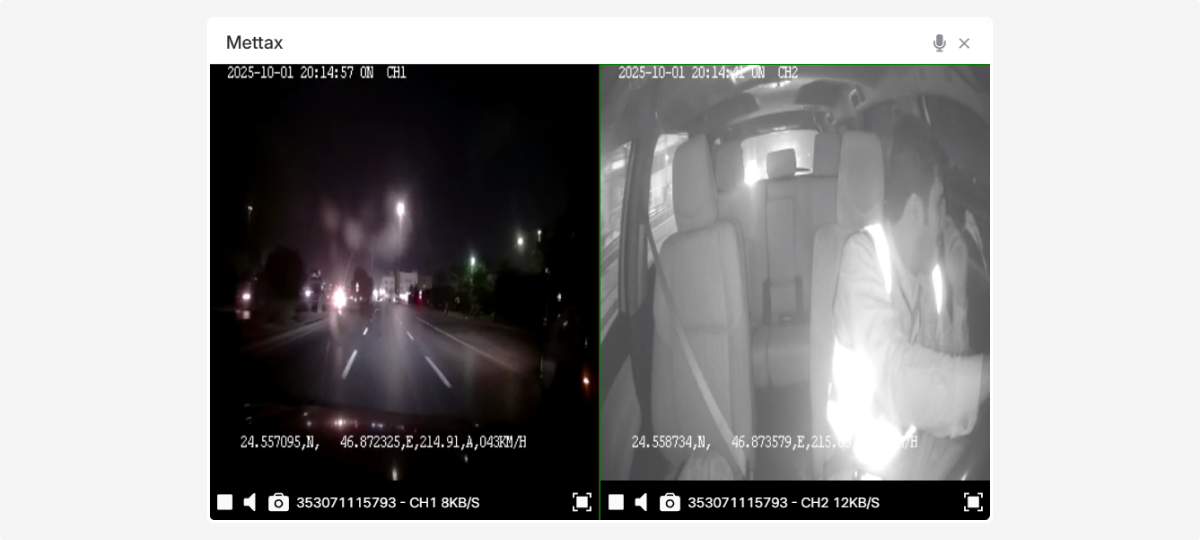
In the video you will see:
-
Live duration
• Time and date of the recording
• Channel number
• GPS coordinates — latitude and longitude
• Vehicle speed in km/h
Streaming time limit
You can configure automatic stopping for online video after a specified time. This helps limit viewing duration and control how long live video remains active.
To configure the limit, click the settings icon  in the upper-right corner of the video player.
in the upper-right corner of the video player.
The Streaming time limit window opens. In this window, you can enable automatic stopping and set the streaming duration.

To enable automatic stopping, select Automatically stop streaming.

Then specify:
• Duration — the streaming duration before stopping
• Unit — the unit of time, for example minutes or hours
After configuring the settings, click Save.
The current online streaming duration is displayed in the video player title in the following format:
Live duration: current time / configured limit

For example, Live duration: 00:00:11 / 00:30:00 means that the stream has been running for 0 minutes and the configured limit is 30 minutes.
If automatic stopping is enabled, the system will stop the online video after the specified time.
Video player controls
In the player, you can use the following functions:
 Start /
  Stop — start or stop the stream
 Sound — adjust the volume or mute
 Screenshot — capture the current frame
🔲 Full screen — expand the player to full screen
Two-way communication
In the top-right corner of the player, there is an intercom icon  . Using this feature, you can have two-way communication with the driver: hear them and speak to them.
. Using this feature, you can have two-way communication with the driver: hear them and speak to them.