How to work with a route
This article explains how to work with routes in the system, what actions you can perform, and which tools are available.
Route menu
On the Routes tab, you can see all created routes.
To open the menu and perform actions on a route, right-click on the desired route.

Actions with a route
Here are the main actions you can perform from the route menu:
Center map on route
Select this option to focus the map on the route. The map will automatically center on the route.
Edit route
Click Edit in the menu to open the route builder.

In this mode, you can:
-
change route parameters
-
add or remove points
-
adjust other settings
Recalculate route
To recalculate a route and analyze its data, open the Recalculations menu.
All objects assigned to the route will be displayed here.

For each asset, you can:
-
start a recalculation, or
-
view the recalculation history
Right-click an asset to open the actions menu.

-
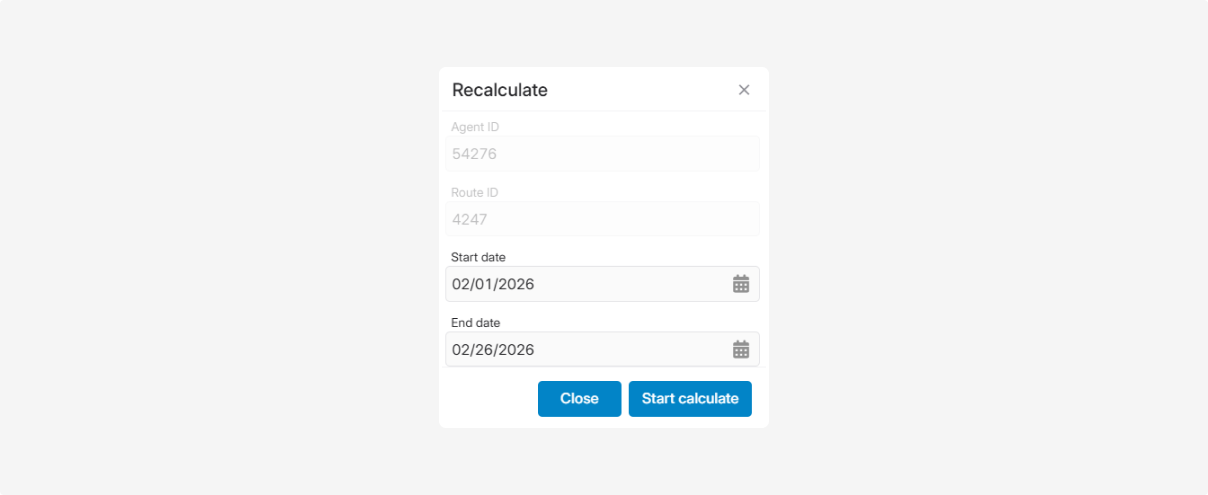
Start recalculation — select the start and end dates; the system will recalculate route completion for this period
-
List calculates — shows when and which recalculations were performed for this route

1 — Start recalculate
2 — Focus vehicle track
To recalculate again, select a previous recalculation and click Start recalculate.
Focus vehicle track — this button shows the vehicle’s movement track for the recalculated period. It is active when at least one recalculation has been completed.
Delete
If a route is no longer needed, it can be deleted.
Confirm deletion, and the route along with all its points and assigned assets will be removed.
Viewing a route and its points
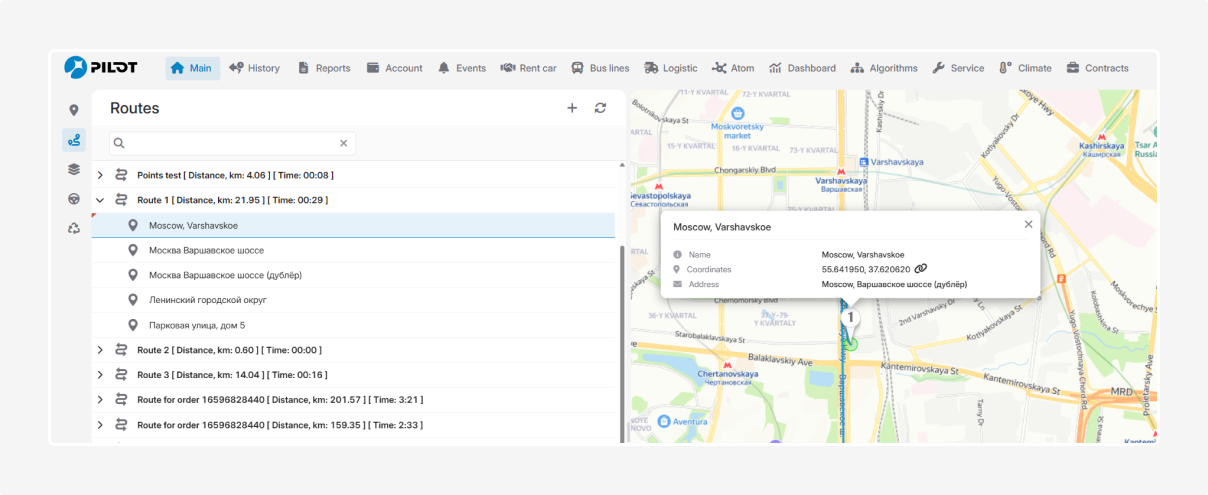
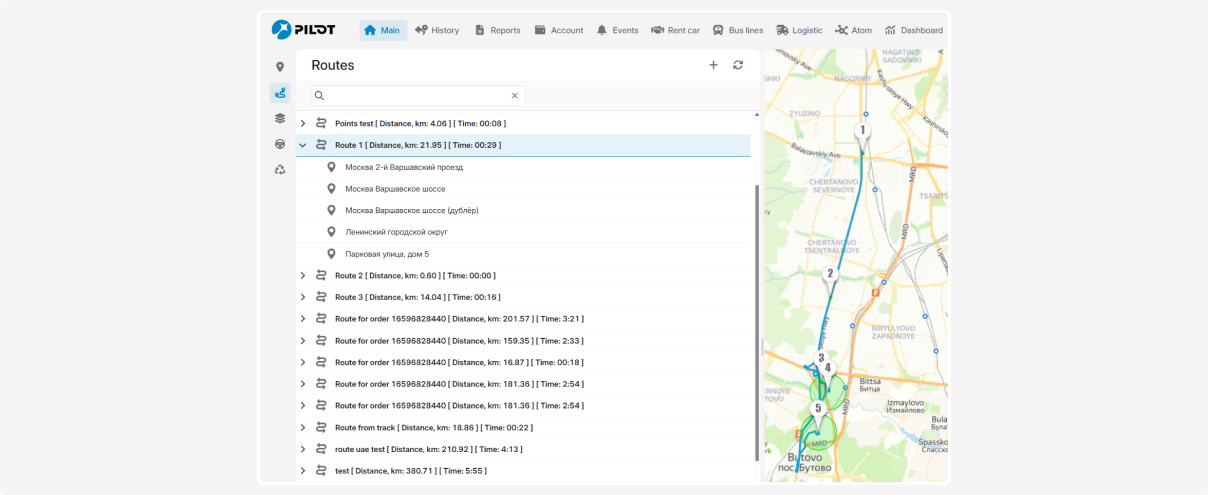
On the Routes tab, all created routes are displayed in a list.
-
To expand a route and see its points, click


-
Selecting a route will display it on the map
-
Clicking a specific point in the list will automatically focus the map on that point

Show points on map
Check the Show points box to display individual route points on the map.

Uncheck it to view the route without points.
Rename a point
Right-click a point in the list, select Rename, enter the new name, and click OK.