Logging in
To sign in to your account, follow these steps:
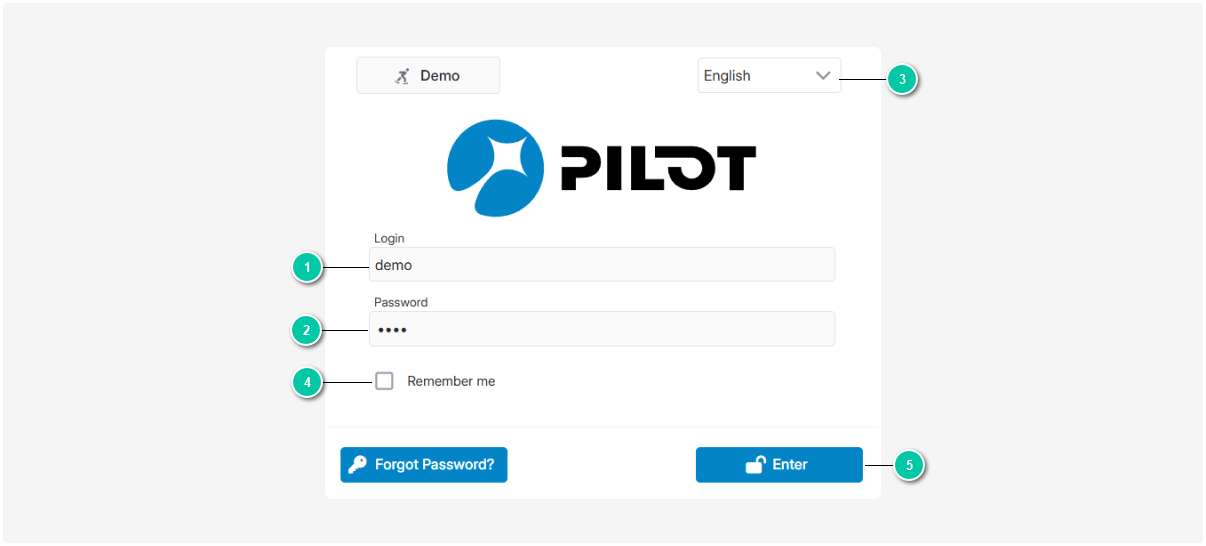
 .
.3. Choose the interface language. You can change it later in Settings
|
This feature will sign you in automatically the next time you open this page. It also helps quickly restore your session if the connection is unexpectedly interrupted, so you won’t have to re-enter your username and password each time.
|
Forgot your password
If you already have a PILOT account and forgot your password, follow these steps:
1. On the sign-in page, click Forgot your password?
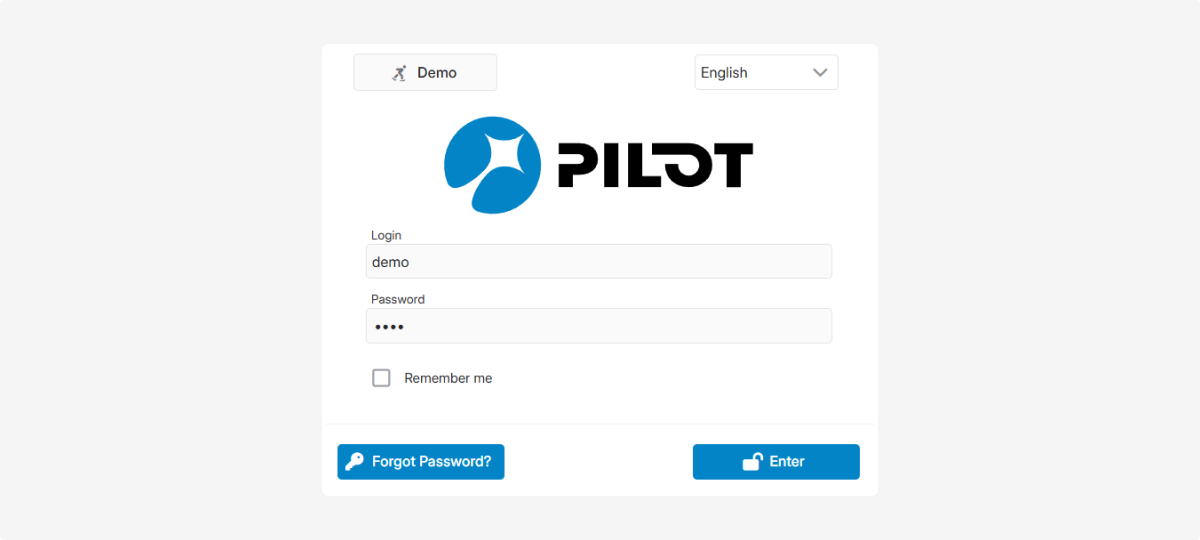
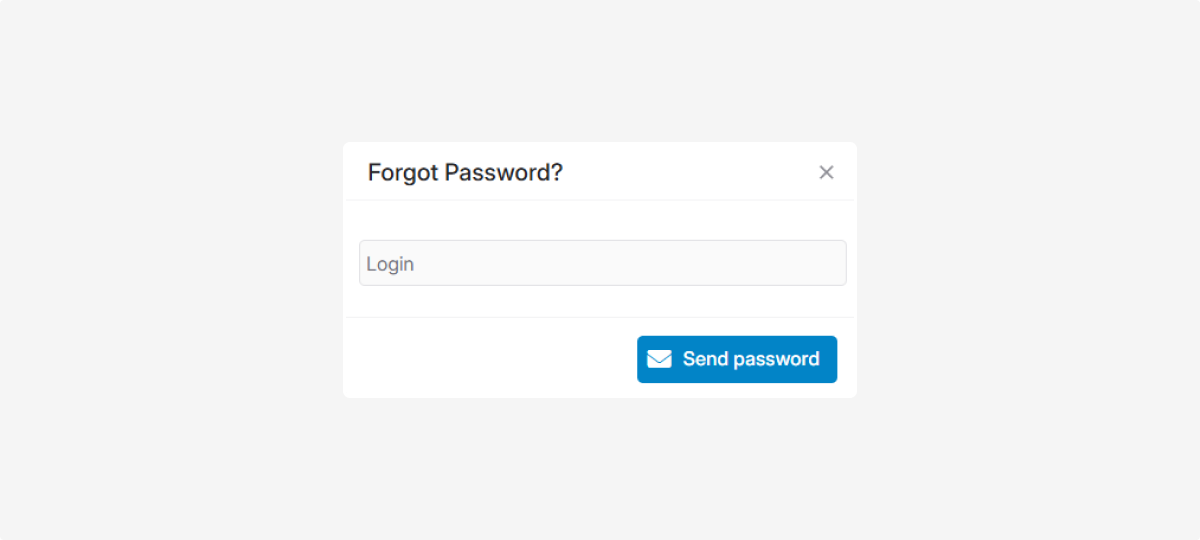
2. In the window that opens, enter your username and click Send password. If the information you entered matches our records, you’ll receive an email at the address you used during registration.
3. Open the email and follow the link provided
4. Create and enter a new password
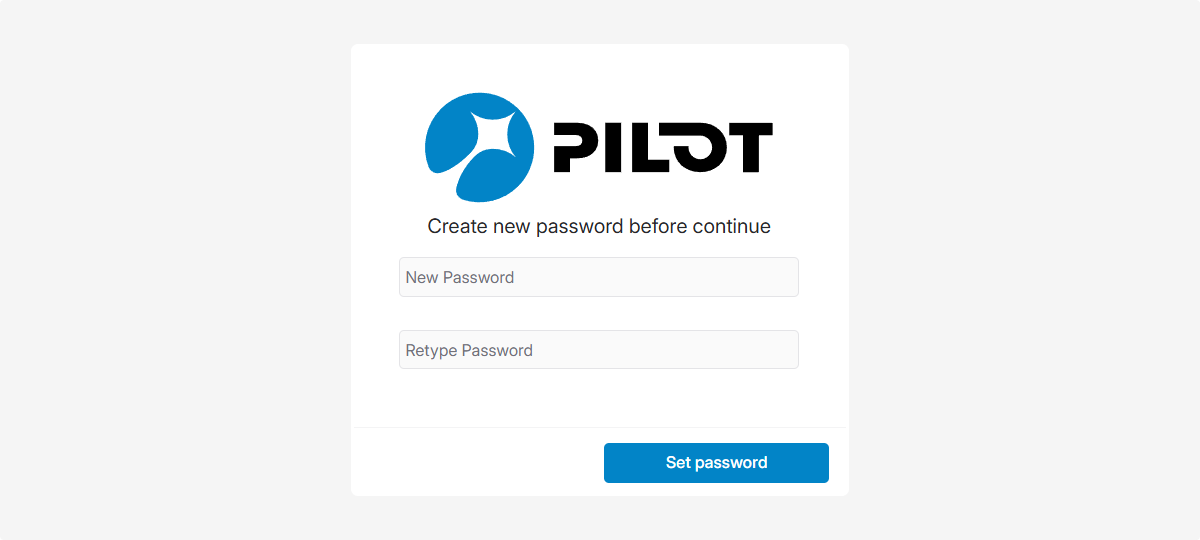
5. Click Set password
6. After you change your password, you’ll be signed in to your account automatically.
If you started the password recovery process by mistake, simply delete the email and continue using your existing credentials.
|
Two-Factor Authentication (2FA) is an additional layer of security for your account.
In addition to your username and password, a one-time code is required to log in. This significantly reduces the risk of unauthorized access, even if your password is compromised.
In the PILOT system, two 2FA methods are available:
-
TOTP Authentication — via an authenticator app
-
Email Authentication — via a verification code sent to your email
Two-factor authentication must be enabled by your contract administrator.
|
TOTP Authentication
— TOTP authentication adds an extra layer of protection by requiring a temporary code from a mobile app.How to Enable TOTP:
-
Before your first sign-in, install an authenticator app for iOS or Android:
2. In the Privacy tab, find the Two-factor authentication section
3. Click Enable
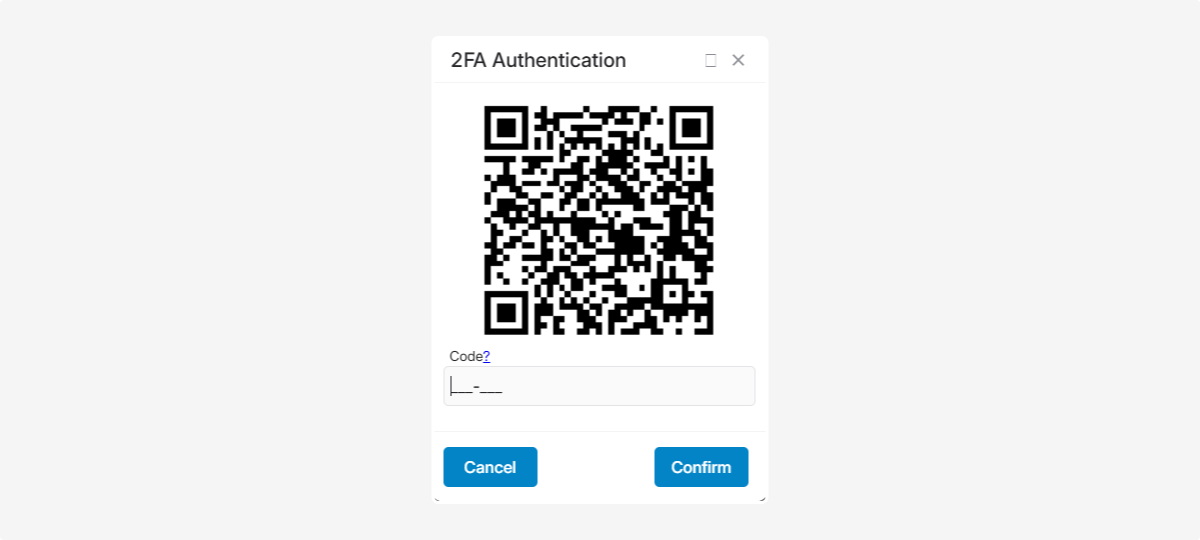
4. Scan the QR code using the authenticator app you installed
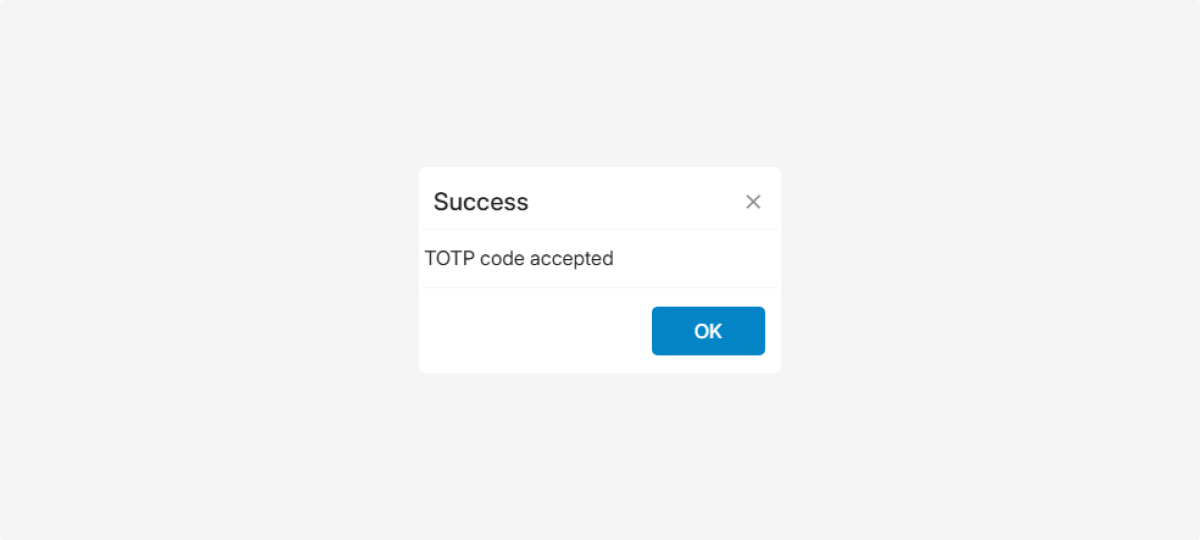
5. Enter the code from the app
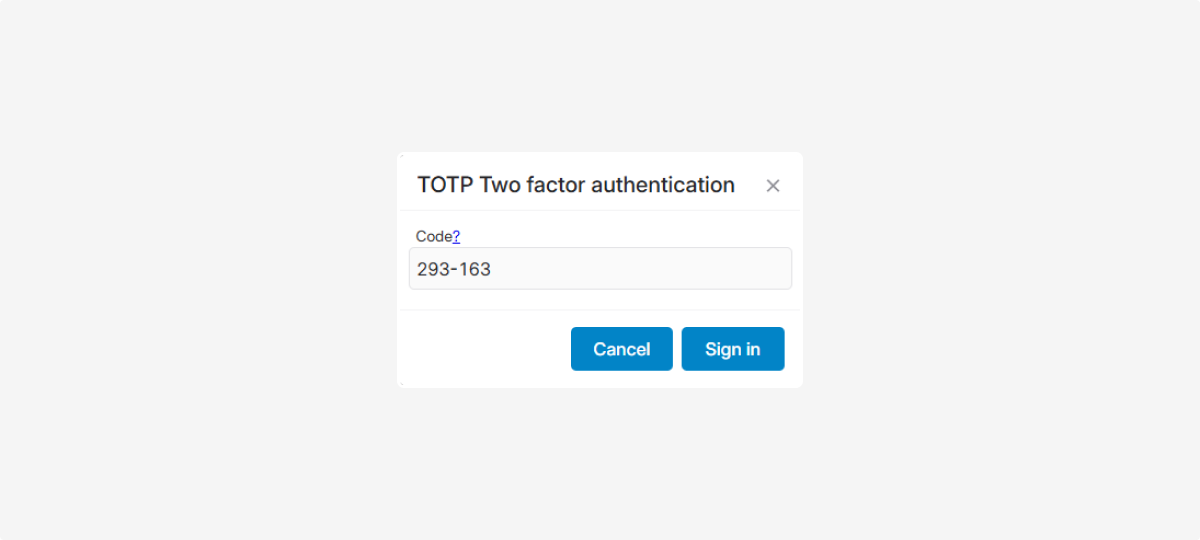
How to Log In with TOTP:
-
Open your browser and go to https://pilot-gps.com/
2. Enter your credentials: login and password
3. Click Enter
4. When prompted, enter the six-digit code from your authenticator app. Open the app on your smartphone, find the six-digit code, and enter it in the field on your computer.

The code refreshes every 30 seconds. If it changes before you finish entering it, wait for the next one and enter that.
|
5. Click Log in
Email Two-Factor Authentication
— with this method, after entering your username and password, the system will send a one-time code to your email.How to Enable Email 2FA
1. Go to the Privacy tab → Two-Factor authentication section
2. Click Enable next to Email Authentication
3. Select a verified email address from the list
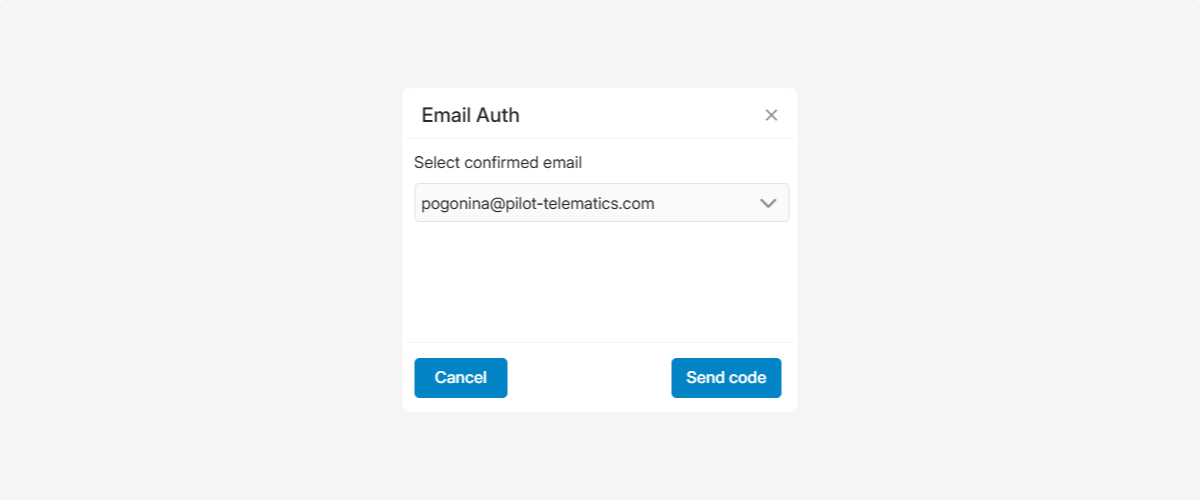
4. Click Send code. A confirmation code will be sent to the selected email
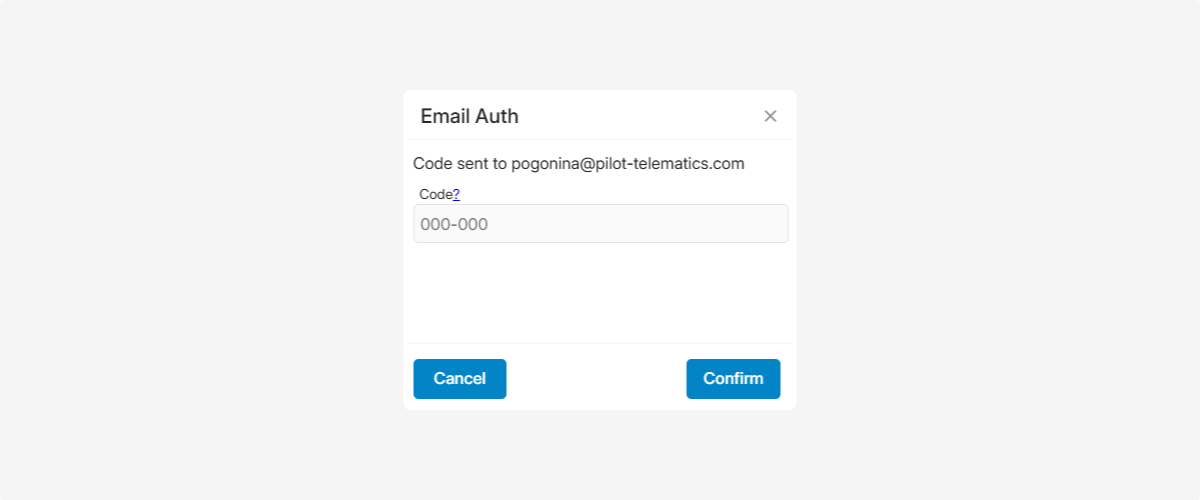
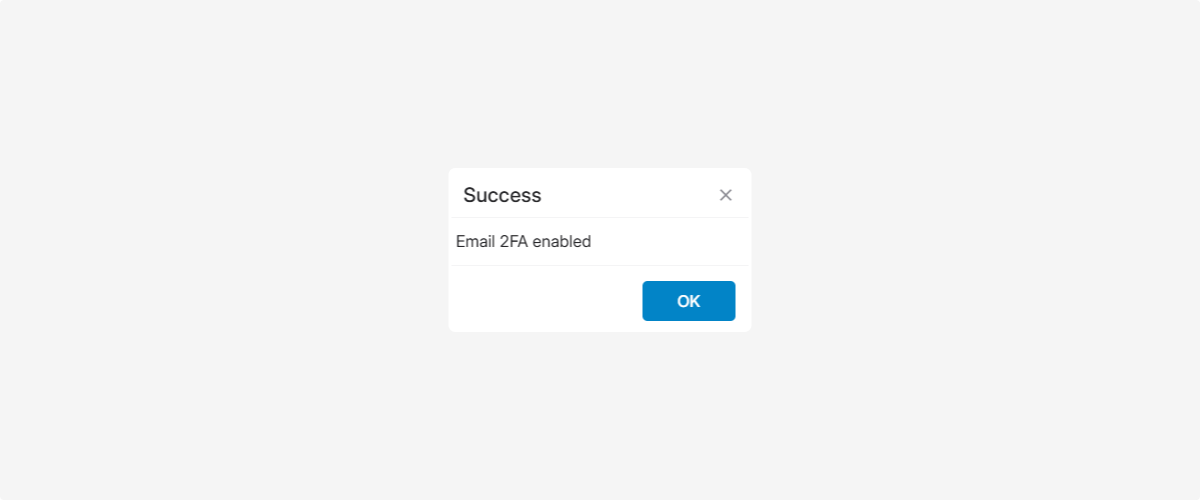
5. Enter the code from the email and confirm
How to log in with Email 2FA
1. Open your browser and go to: https://pilot-gps.com/
2. Enter your username and password
3. Click Log in
4. Enter the one-time code sent to your email
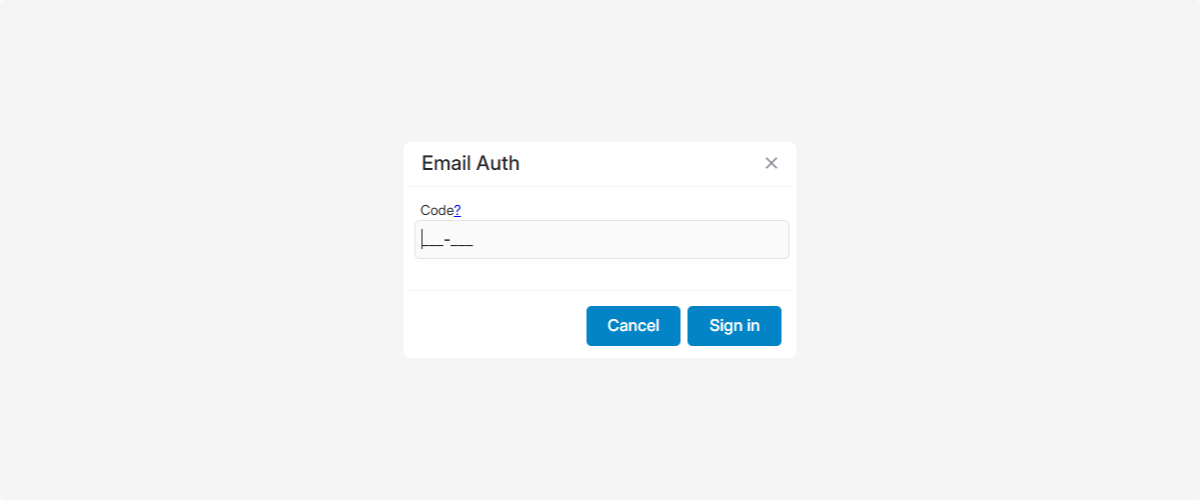
5. Click Log in