Map
The map is a tool that visually shows what’s happening with your objects.
The map displays:
-
Monitoring objects
-
Their current location
-
Movement routes
-
Key geographic points and places
-
Geofences
-
Additional object details, such as status, speed, and direction
The map is available across tabs and sections and usually takes up most of the screen.
To get the widest map view, you can hide the workspace. Click the divider to collapse it.
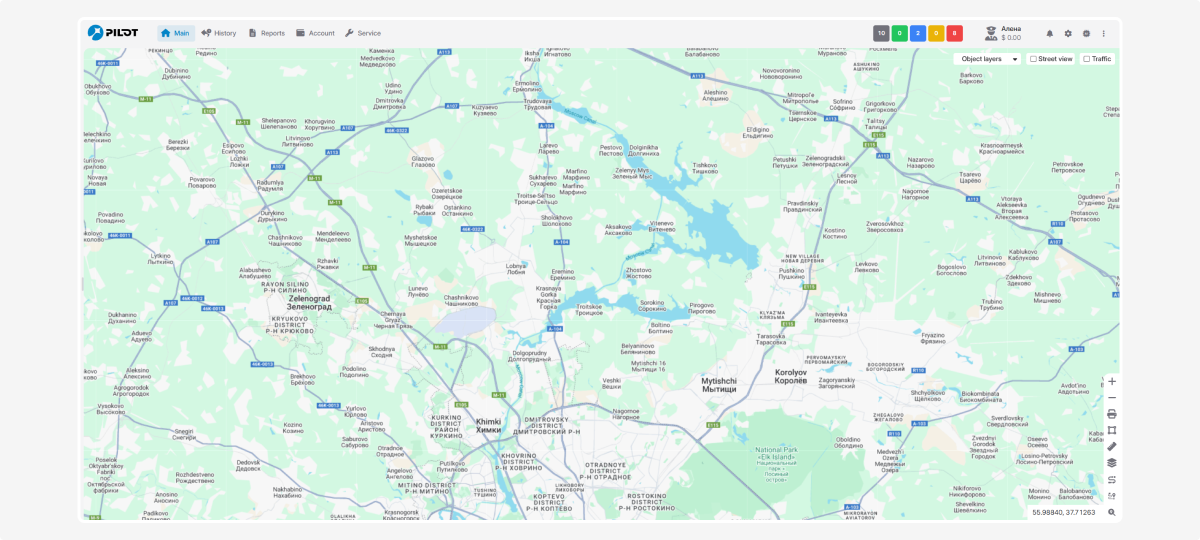
If you want to see only the map and hide all panels, headers, and browser controls, press F11 to enter full-screen mode.
Searching for objects on the map
When you select objects in the list, they automatically appear on the map.
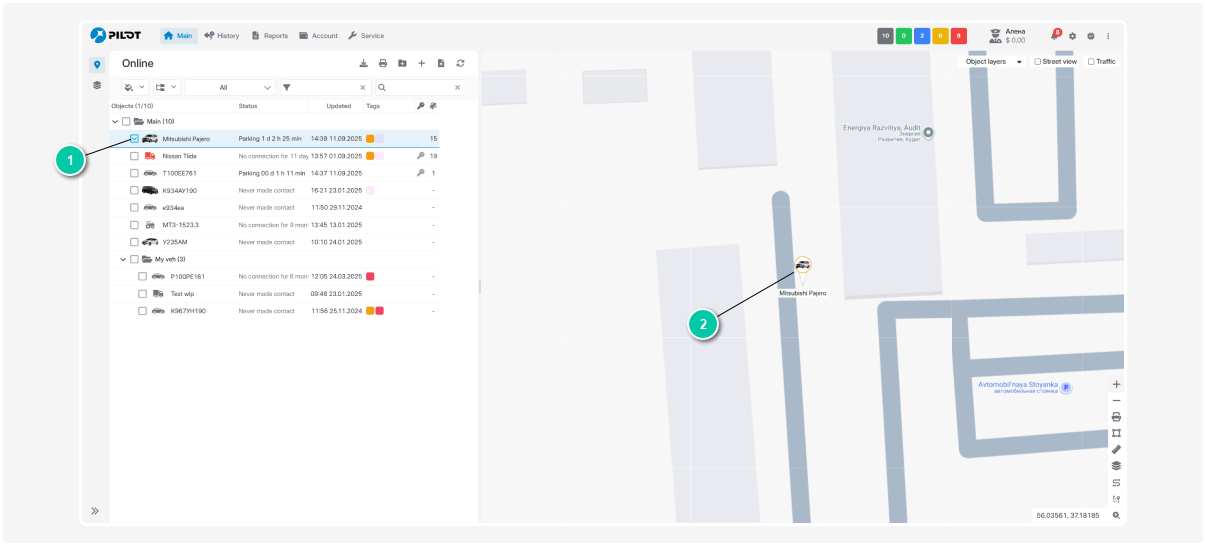
1 — Selecting an object in the list. To select an object, check the box next to it
2 — Object on the map
Moving around the map
To move around the map, press and hold the left mouse button and drag in the desired direction. The map will move with the cursor. To view another area, just drag the map.