PILOT Tracker
PILOT Tracker is an app that turns your smartphone into a GPS tracker. It allows you to track the device's location in real-time and send the data to the server.
How to Install PILOT Tracker
1. Open the Google Play app on your smartphone
2. In the search bar, type Pilot Tracker or click this link
3. Tap Install and wait for the app to install
How to activate the tracker
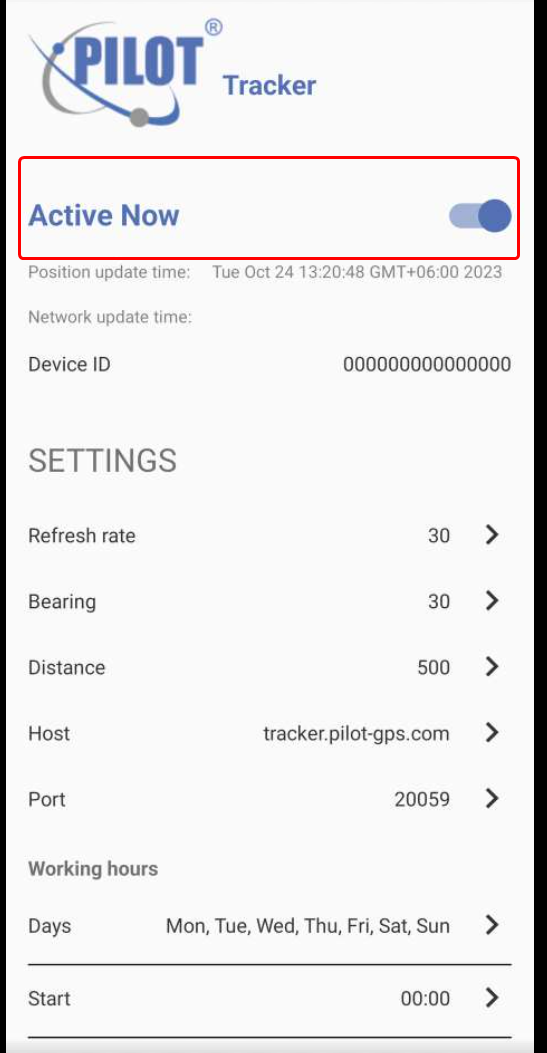
1. Open the app and turn on the Service status toggle. When the service is on, your location data will start being sent

2. Make sure your phone is connected to the internet (via mobile data or Wi-Fi)
3. To link the device to your account in the system, send the Device ID to customer support
How to set tracker parameters
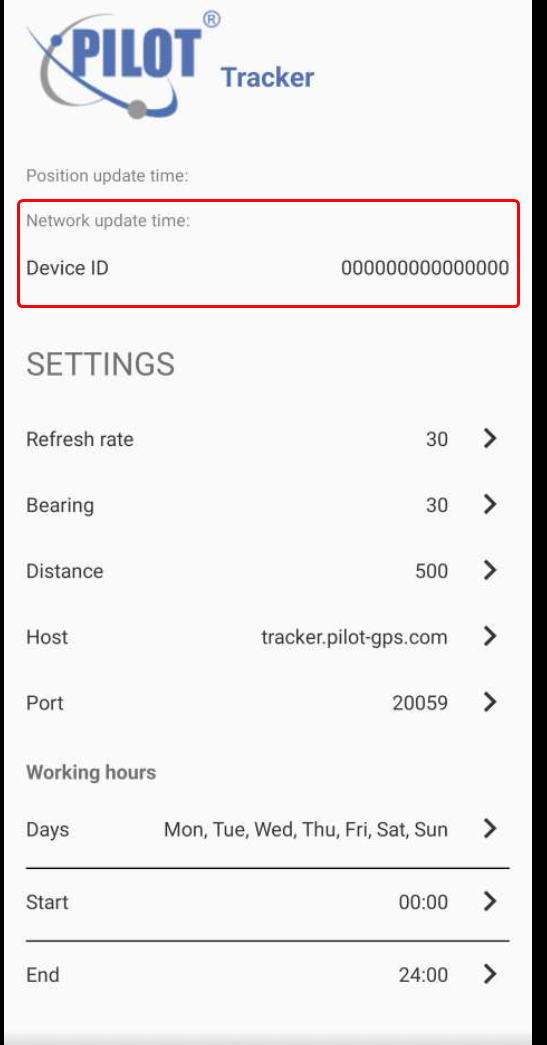
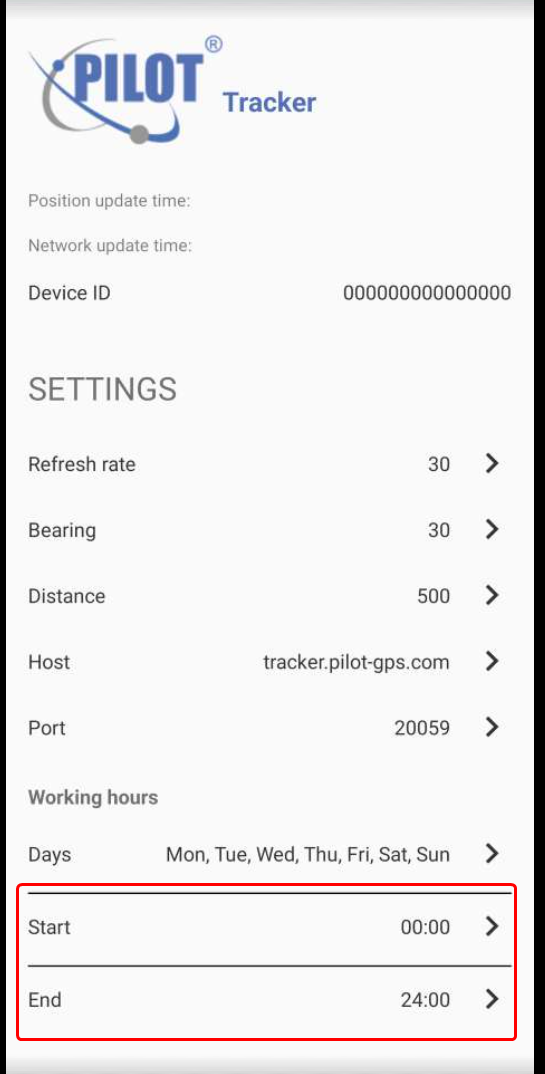
On the main screen of the app, the following settings are available:
Service status
-
If the toggle is on, the tracker is active, and location data is being sent
-
If the toggle is off, the service is stopped, and data is not sent
Device ID
A unique identifier for your device (e.g., 705943). You need to provide this ID to customer support so your device can appear in the system.Server URL
The server address to which location data is sent. You can change this address if needed.Location accuracy
The higher the accuracy, the more precise the track will be, but this will use more battery and data. Choose the optimal setting for your needs.Frequency
Set how often the tracker will send data to the server (e.g., every 5 or 10 seconds). Shorter intervals mean more detailed tracking but higher battery and data consumption.Distance
Set how far the device needs to travel before sending a new point (e.g., every 50 meters). This helps avoid sending data when the object is nearly stationary.Angle
Choose the angle at which a new point will be sent (e.g., if the turning angle exceeds a certain threshold).Offline buffering
If this option is enabled, the tracker will save location data when there's no internet connection. Once the connection is restored, all accumulated data will automatically be sent to the server.Wake lock
If enabled, this option ensures the tracker runs in the background, even when the phone is not in use.
Status tab
The Status tab shows the tracker’s operation log, where you can see the current service status and the activity history.
At the top of the screen, there's a Clear button to remove the current list of messages.