Rule templates
A rule template is a saved set of driving quality settings. It allows you to apply ready-made rules to a vehicle without configuring each rule manually. You can select a template based on the device and vehicle types, apply it to an object, or create your own template.
In this article:
To open the list of templates:
1. Open the vehicle card
2. Go to the Eco Driving tab
3. Expand the Template list
The list contains suitable templates and a separate Universal templates group

Universal templates are not linked to a particular device or vehicle type, so they can be applied to different vehicles
The system also provides ready-made templates for specific telematics devices:
-
CIPIA
-
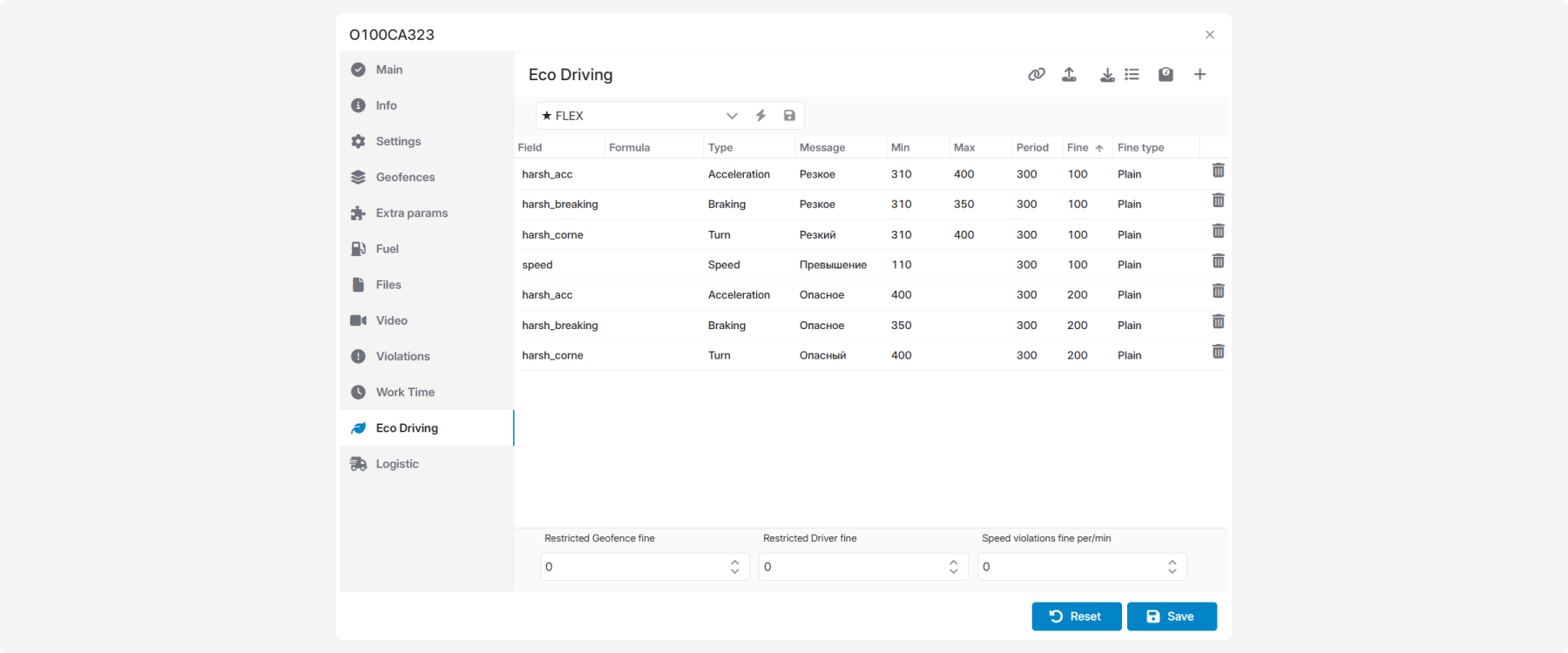
FLEX — for devices using the Flex protocol (for example, Smart 2333)

-
GB100 ECO (Queclink GB100)

-
GV65 ECO (Queclink GV65)
-
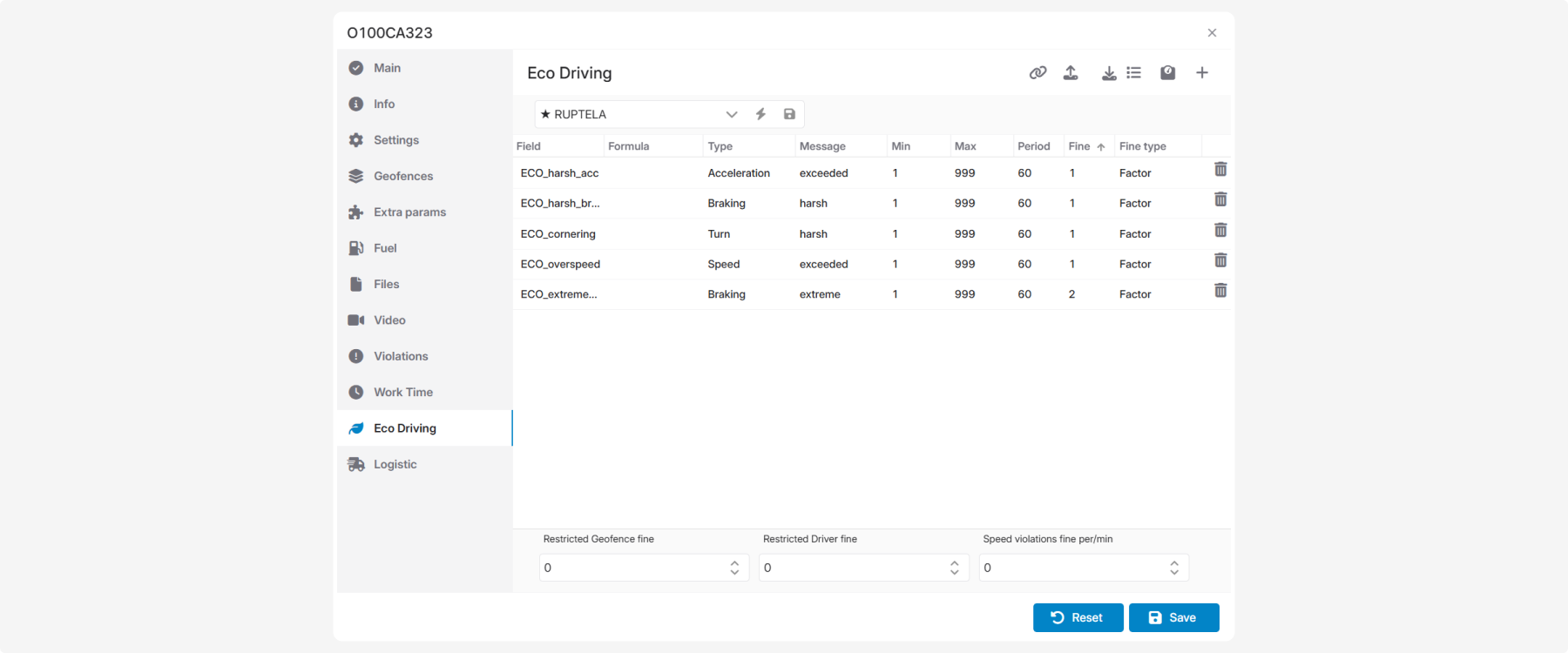
Ruptela

-
Teltonika

Select the template that matches the device installed in the vehicle.
1. Open the Eco Driving tab
2. Select the required template in the Template field
3. Click Apply 

4. The template rules are loaded into the table. Review them and click Save at the bottom of the vehicle card.

When you create a vehicle, PILOT selects templates based on the device and vehicle types. If the vehicle type is not specified, PILOT uses Car to select templates, but does not automatically fill in the vehicle type field.
|
First, configure the driving quality rules. To add a rule:
1. Click the plus icon 
2. Configure the rule parameters
3. Click Save in the rule row
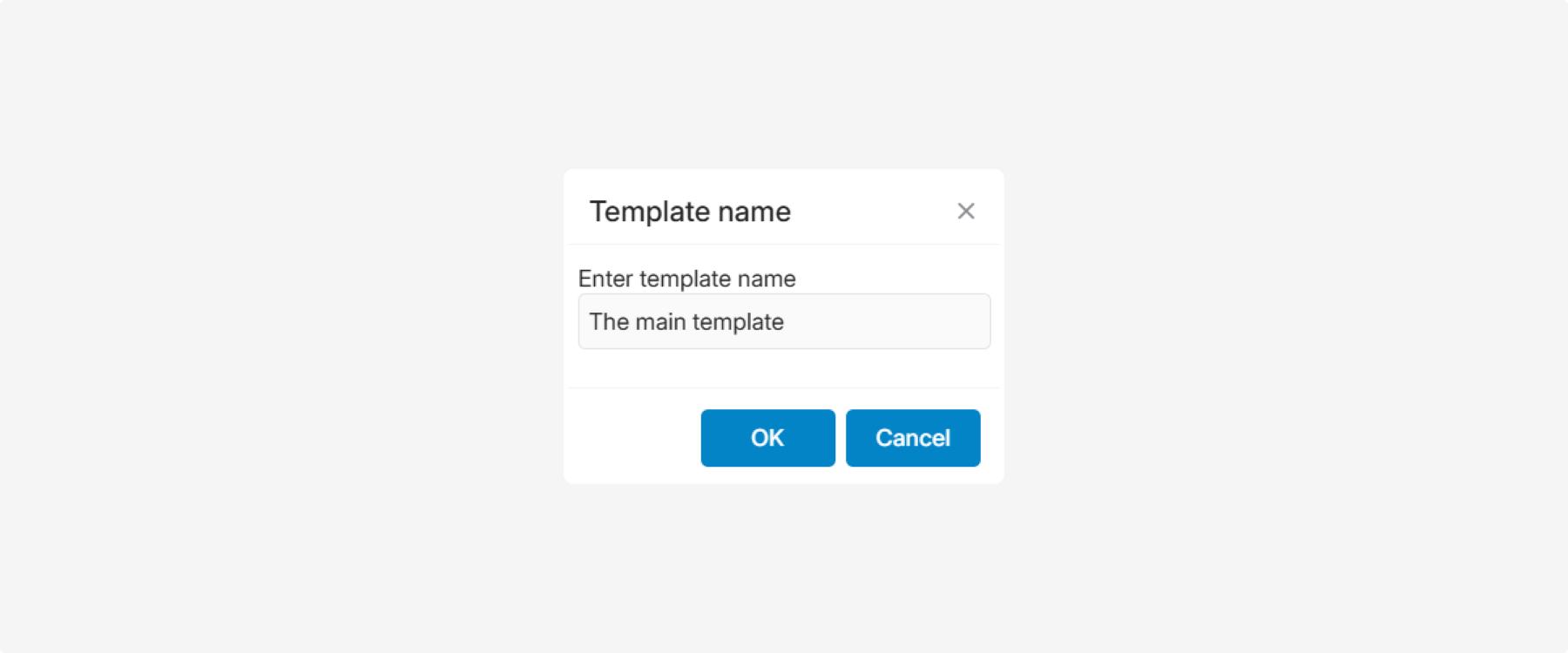
To save the configured rules as a template:
1. Click the save icon  next to the Template field
next to the Template field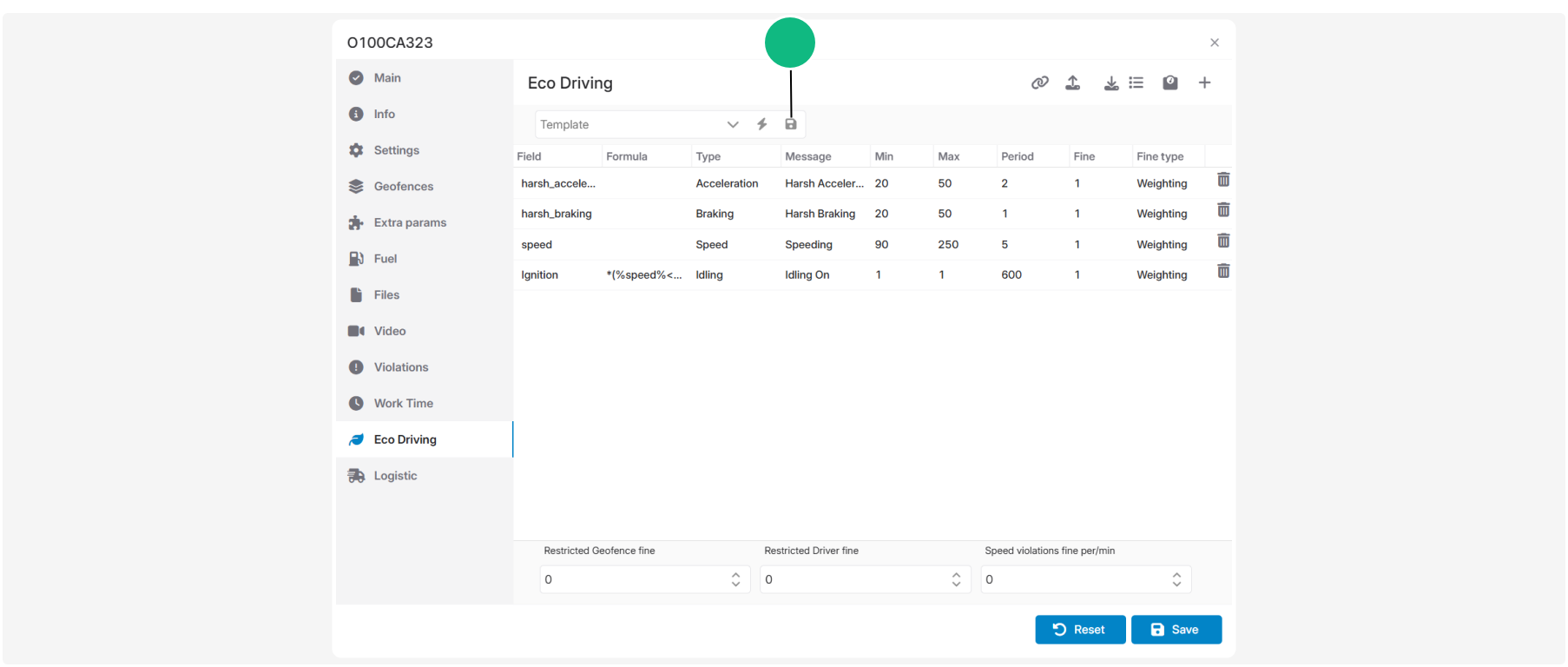
2. In the Save as template window, specify:
-
Template name
-
Device type — optional
-
Vehicle type — optional

3. Click Save
If you leave the device type or vehicle type blank, the template can be used with any value for that parameter.
|
The new template appears in the list of available templates.

Template applicability determines the devices and vehicles for which the template is available.
Template applicability options
A template can be linked to:
-
both a device type and a vehicle type
-
only a device type
-
only a vehicle type
-
neither type — in this case, the template is universal
If no device type is specified, the template can be used with any device. If no vehicle type is specified, the template is available for all vehicle types.
|
To configure template applicability:
1. In the upper-right corner of the Eco Driving window, locate the Eco Driving tools

2. Click the link icon

3. In the Template applicability window, select:
-
Device type
-
Vehicle type
-
Template

4. Click Link
In the Device type field, you can select a specific equipment model.

In the Vehicle type field, you can select a specific vehicle type or leave All vehicle types selected.

In the Template field, select the template whose applicability you want to configure.

For example, you can link a template to the FleetGuide device and the Car vehicle type.

To clear a selected value, click the cross icon in the corresponding field.
After the template is linked, PILOT considers the device and vehicle types when selecting available templates. The template is not applied automatically: you select it and confirm its application.
When a template is applied, its rules are copied to the vehicle settings.
If you edit the rules manually, the settings no longer match the original template. Subsequent changes to the template also do not affect vehicles to which it was previously applied.
|
Import and export allow you to transfer driving quality rules between vehicles or create a backup copy of the current configuration.
In the upper part of the Driving Quality window, locate the Import and Export tools.
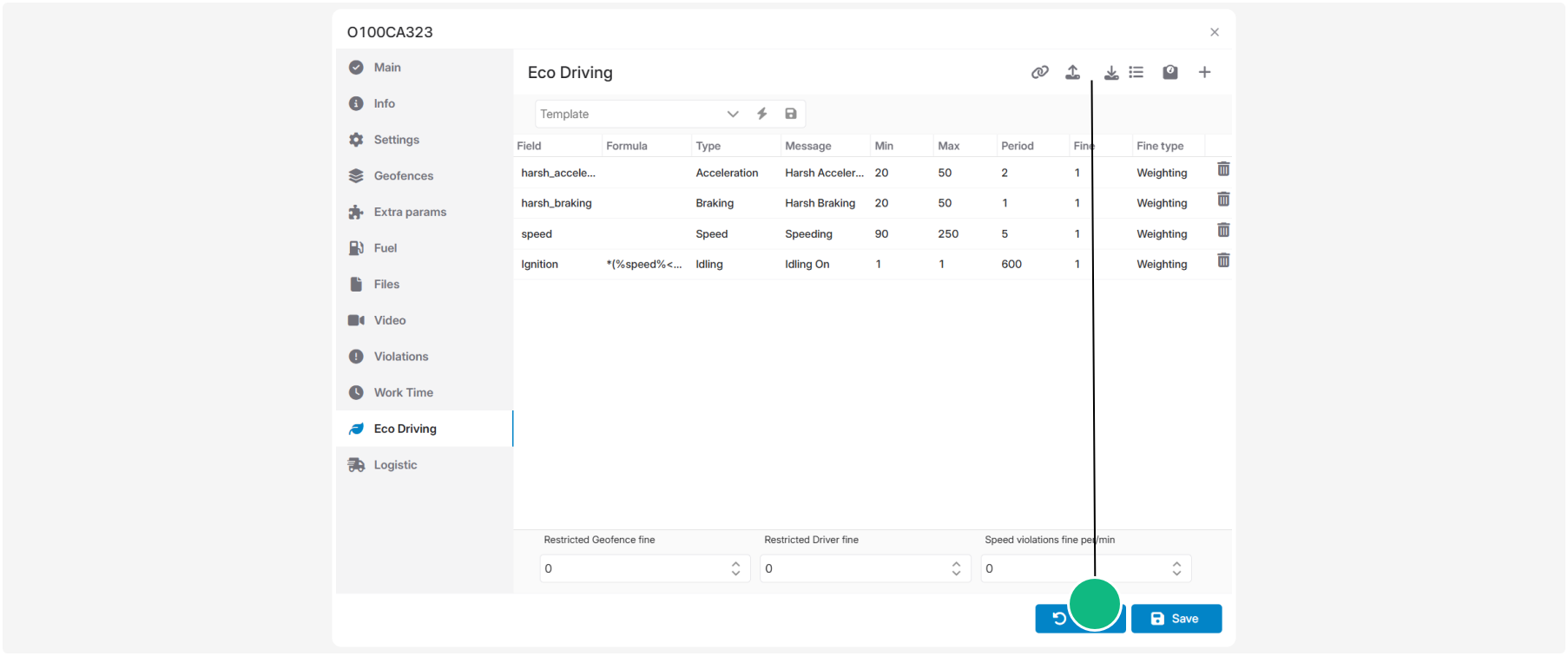
Exporting rules

Export saves the current rule configuration to a JSON file.
To export the rules:
1. Click the Export button
2. Save the JSON file to your computer
The exported file contains all rule settings.
Importing rules

Import loads a previously exported JSON file.
To import rules:
1. Click the Import button
2. Select the JSON file
3. The rules are automatically loaded into the rule table
Imported rules replace the current rule set in the table. If you want to keep the existing configuration, export it before importing another JSON file.
|