Events
The Events module allows you to find events related to vehicles and other monitored objects and view where they occurred on the map.
With this module, you can:
— find events for a selected time period
— view speeding, idling, refueling, fuel theft, maintenance reminders, and other events
— filter events by specific objects and event types
— view where an event occurred on the map
— view notifications

In this article, you will learn how to:
1. Open the Events module from the top menu
2. In the From and To fields, specify the time period you want to search
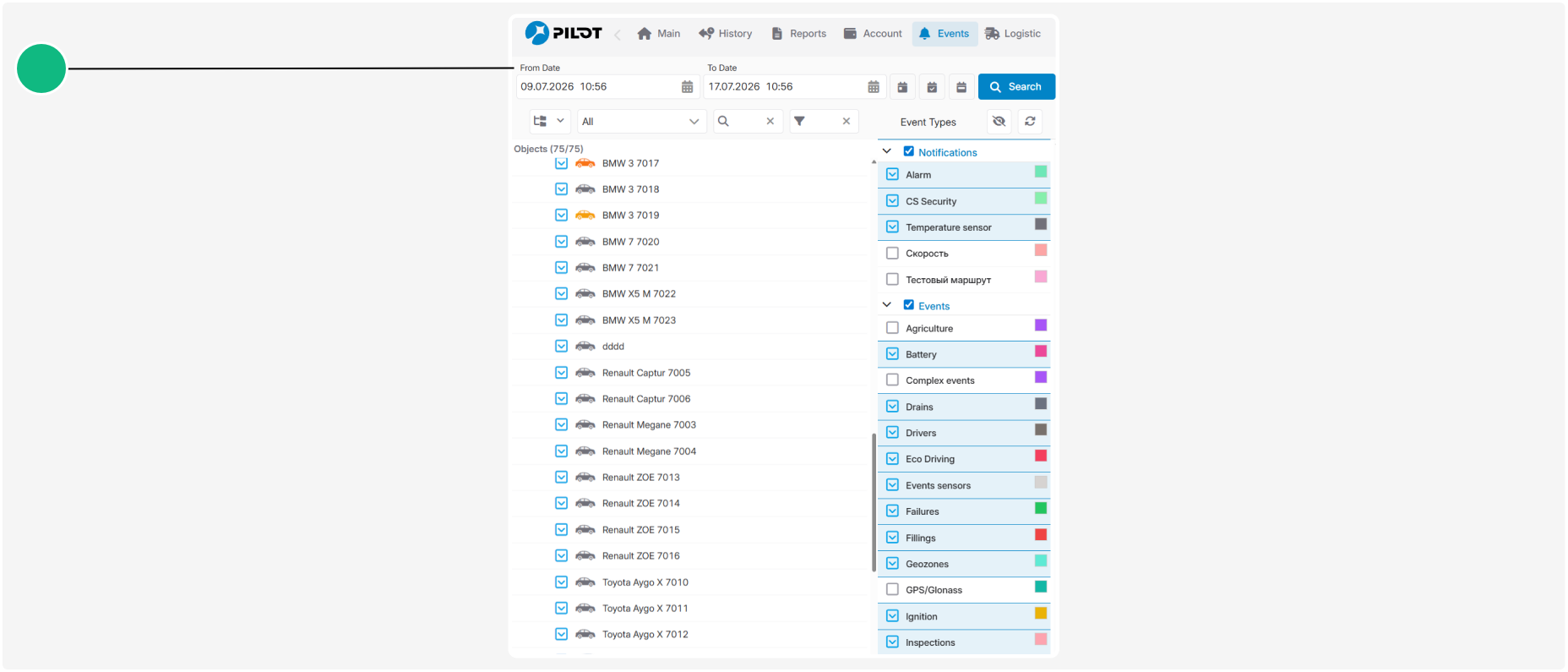
3. In the left pane, select the monitored objects
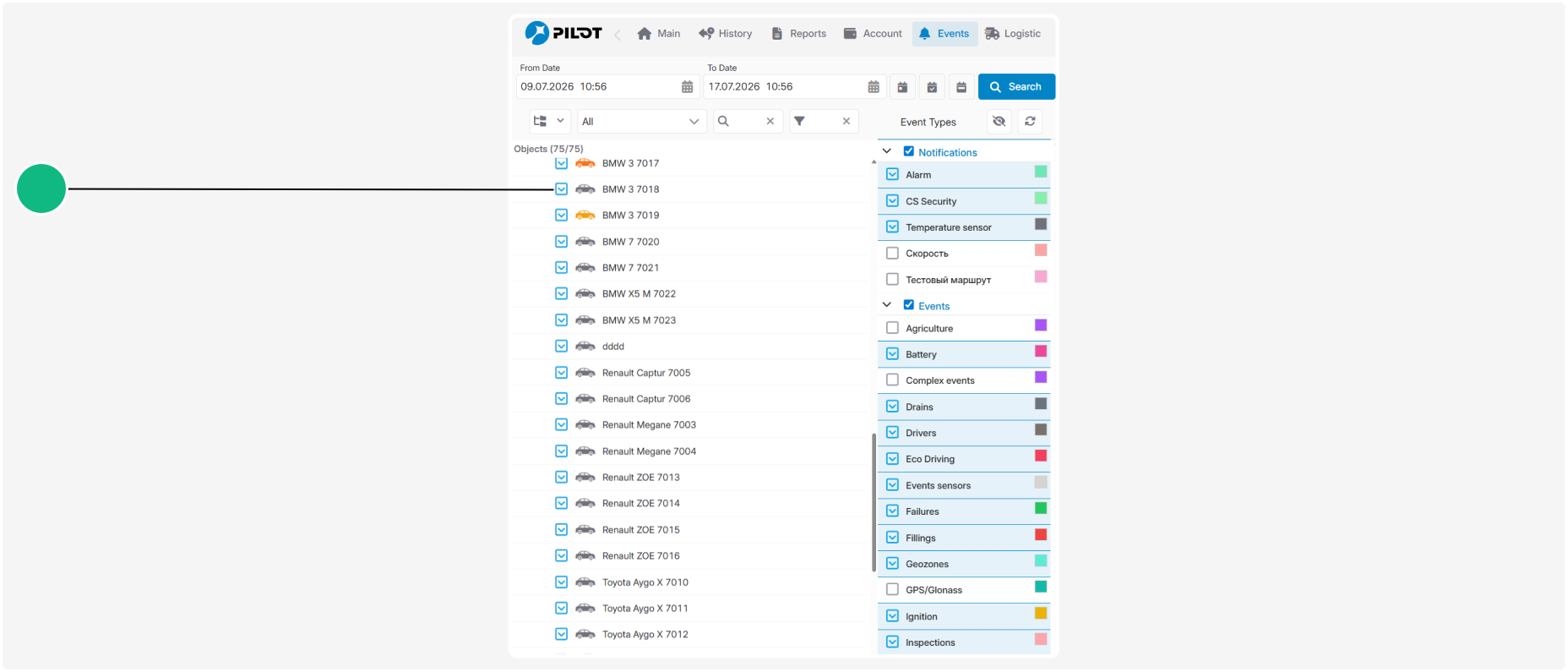
4. In the right pane, select the event types you want to display
You can select:
— an entire event group, such as Notifications or Events
— individual event types within a group, such as Speed, Idle, or Inspections
To expand or collapse an event group, click the arrow next to its name 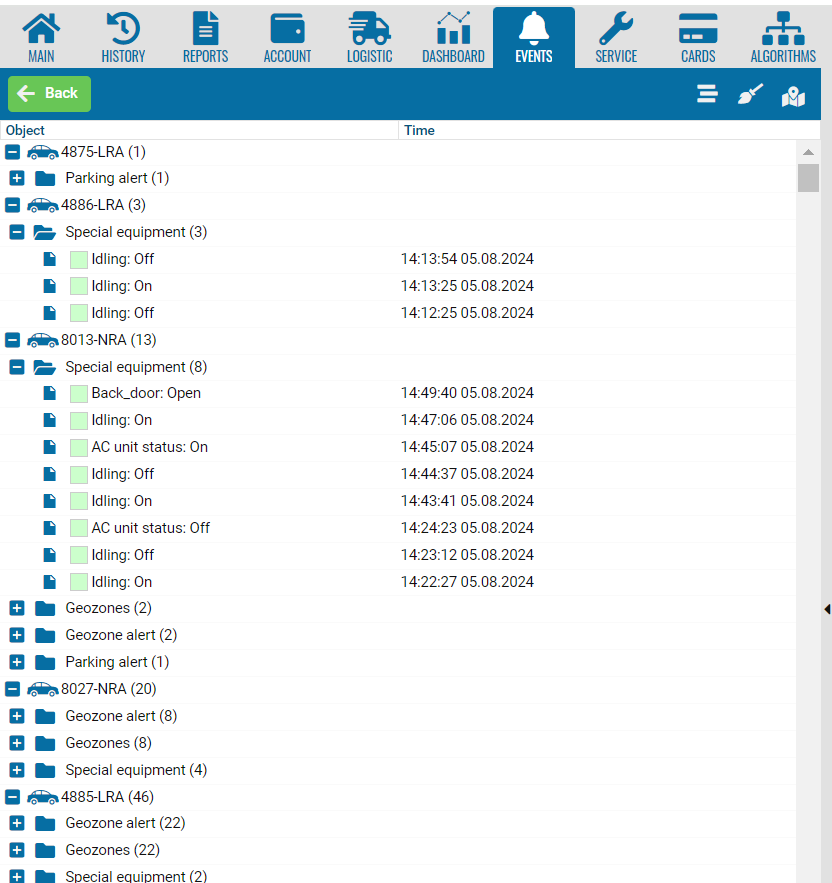 .
.
.
5. Click Search

After the search is complete, the matching events will appear in the list.
By default, the search results are grouped first by object and then by event type. The number in parentheses indicates how many events were found.

To view the events, expand:
1. the monitored object
2. the required event type
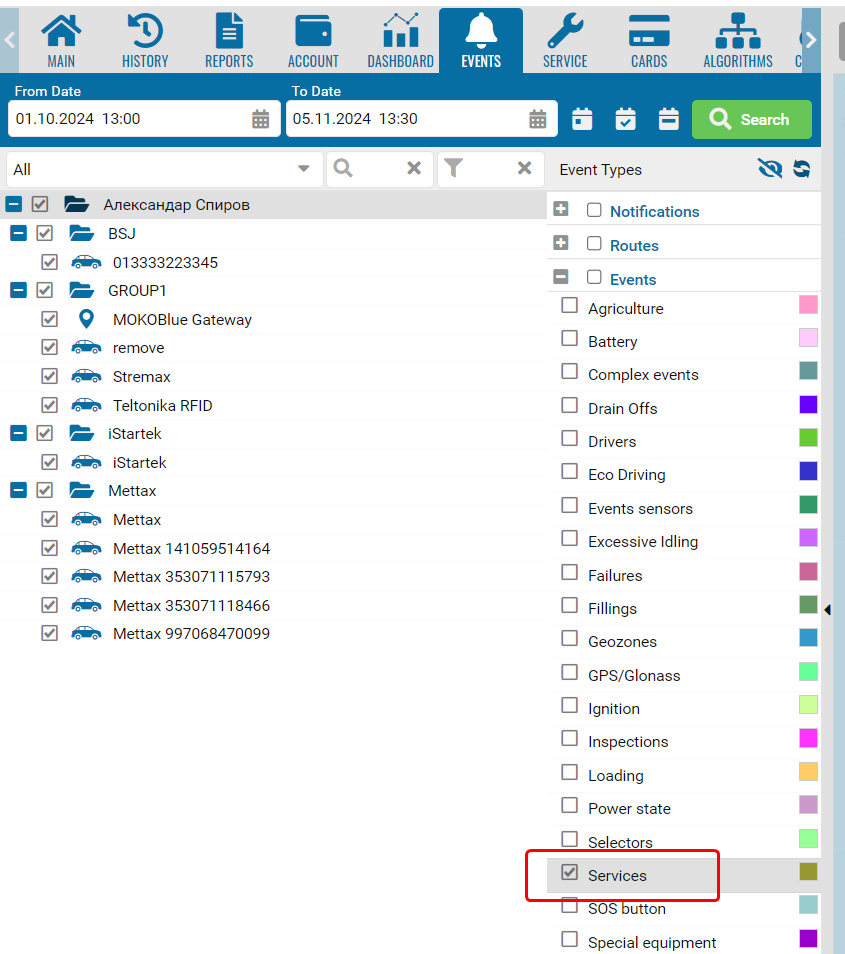
Each event displays:
-
the event name
-
the date and time it was recorded
-
By default, events are grouped by object and event type. To change the list view, click the View button  in the upper-right corner of the panel.
in the upper-right corner of the panel.
The events will be displayed as a single list without grouping.

Each entry shows:
-
the monitored object
-
the date and time
-
the event name or description
Events are sorted by time, with the most recent events displayed first.
To return to the grouped view, click the same button again.
again.To view where an event occurred:
1. Select the event in the list
2. The location where the event was recorded will be highlighted on the map with a colored marker. The marker color matches the color indicator shown next to the event in the list.

To view event details, click the marker on the map.
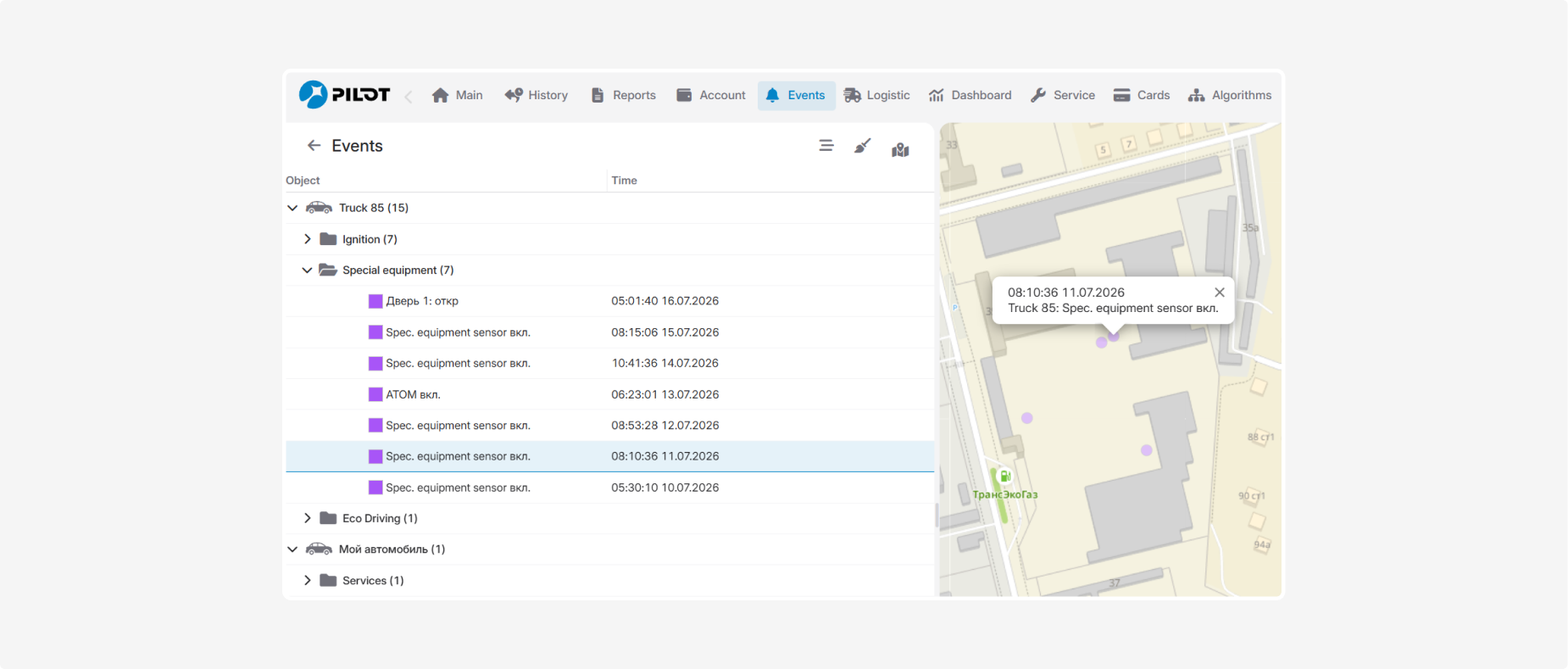
The information pop-up displays:
-
the event date and time
-
the monitored object
-
the event name and description
-
additional information, if available
To close the pop-up, click the × in its upper-right corner or select another marker.
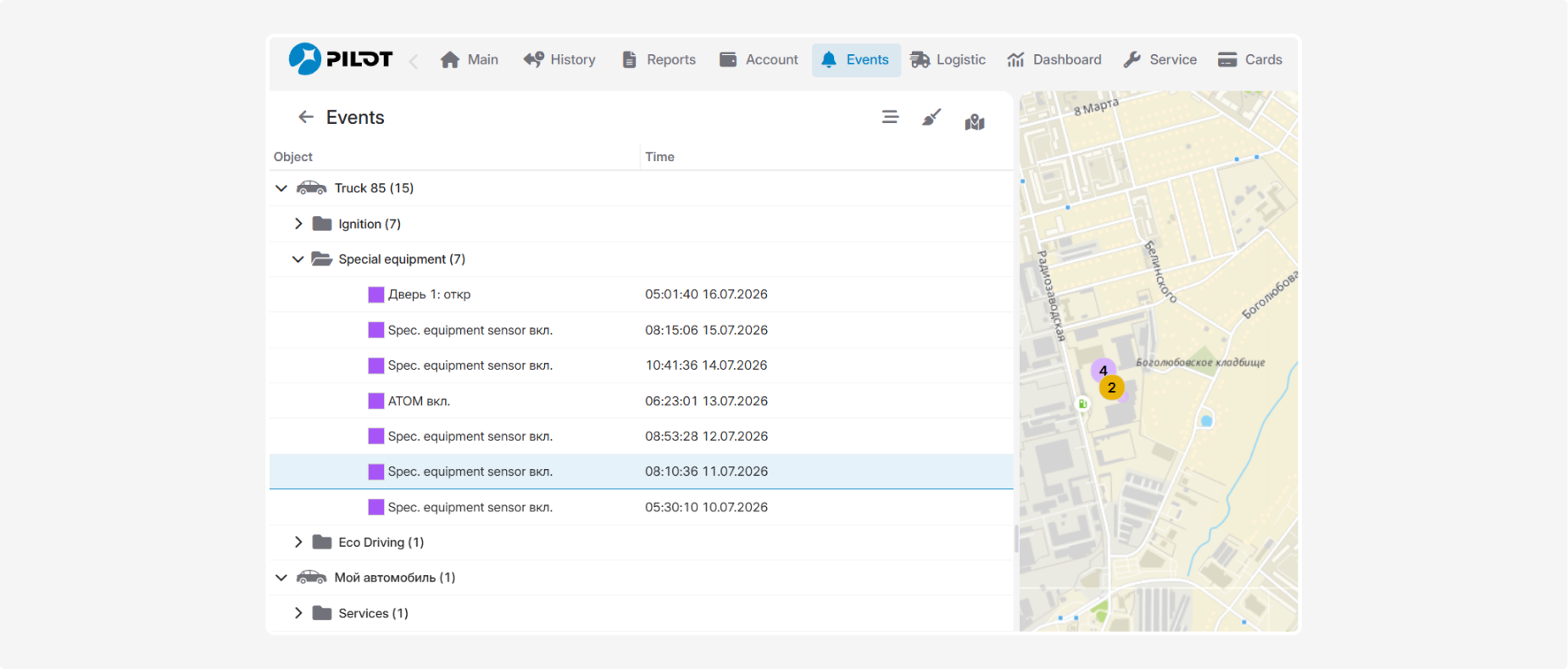
If several events are located close together, they are grouped into a single marker displaying a number. The number indicates how many events are located in that area.
Zoom in on the map to display the individual event markers.
Some events do not contain location coordinates. In this case, no marker is displayed on the map. For example, this may apply to certain maintenance reminders. However, the event remains available in the list and can still be viewed.
To display all found events on the map, click  in the upper-right corner of the Events panel.
in the upper-right corner of the Events panel.
To remove all displayed events from the map, click  .
.
.Each event type has its own display color. The same color is used both in the event list and on the map.
You can change the color if needed.
To do this:
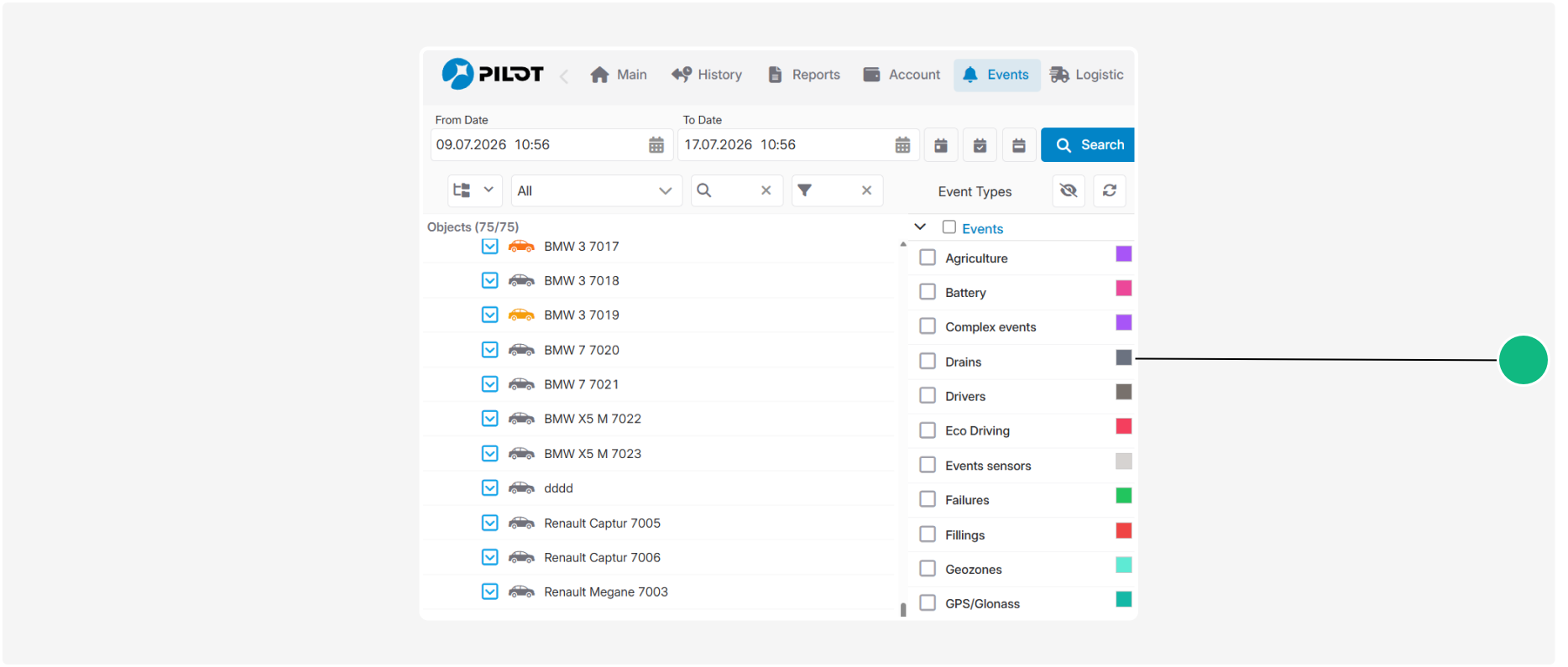
1. In the Event types panel, find the required event type
2. Click the color indicator next to its name
3. Select a new color from the color palette
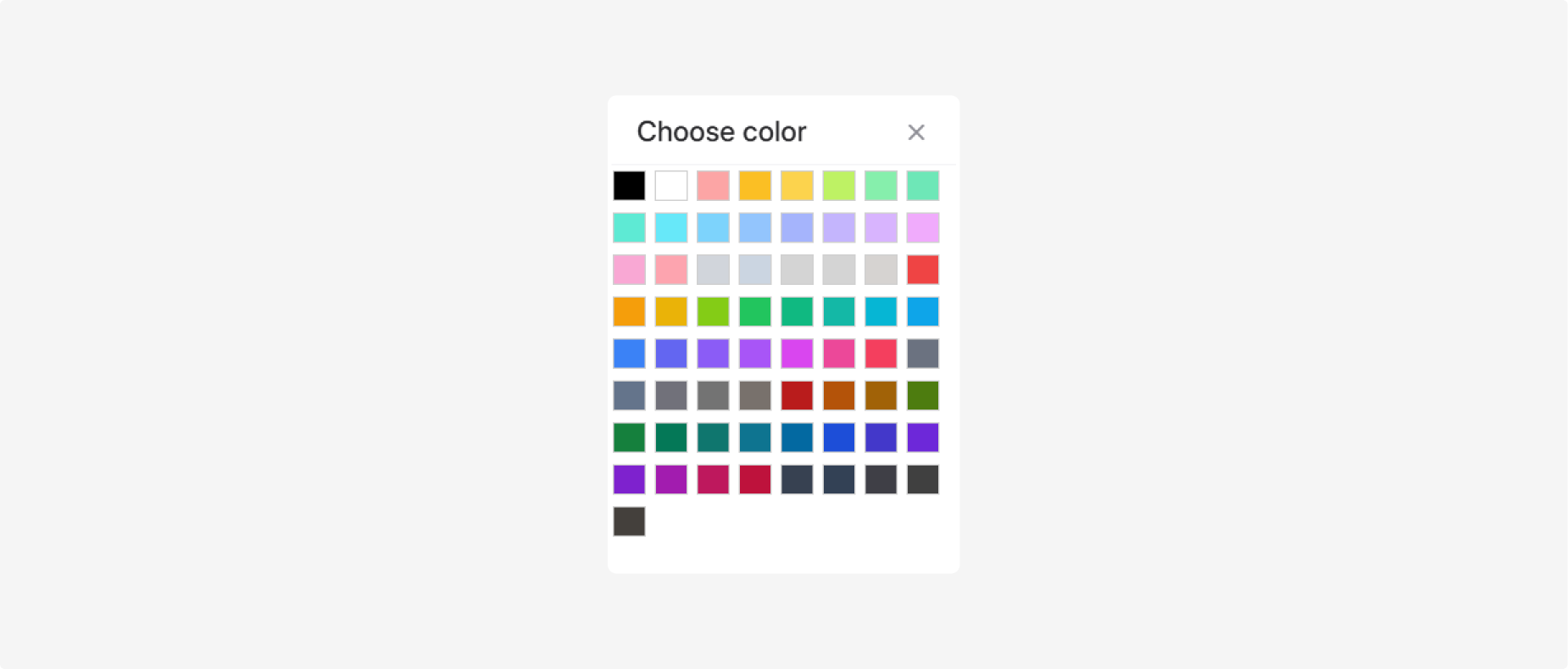
The selected color is applied immediately to that event type in both the event list and on the map.
To see how the Event module works in practice, watch the video “How to use the Event module” on YouTube.
|