Rule templates
A rule template is a predefined set of driving quality rules designed for a specific type of telematics device. Templates allow you to configure Eco Driving quickly without creating each rule manually.
The system includes predefined templates for various GPS trackers and telematics devices. You can also create your own templates based on your existing rule configuration.
Predefined templates
The system provides templates for the following telematics devices:
-
CIPIA

-
FLEX — for devices using the Flex protocol (for example, Smart 2333)

-
GB100 ECO (Queclink GB100)
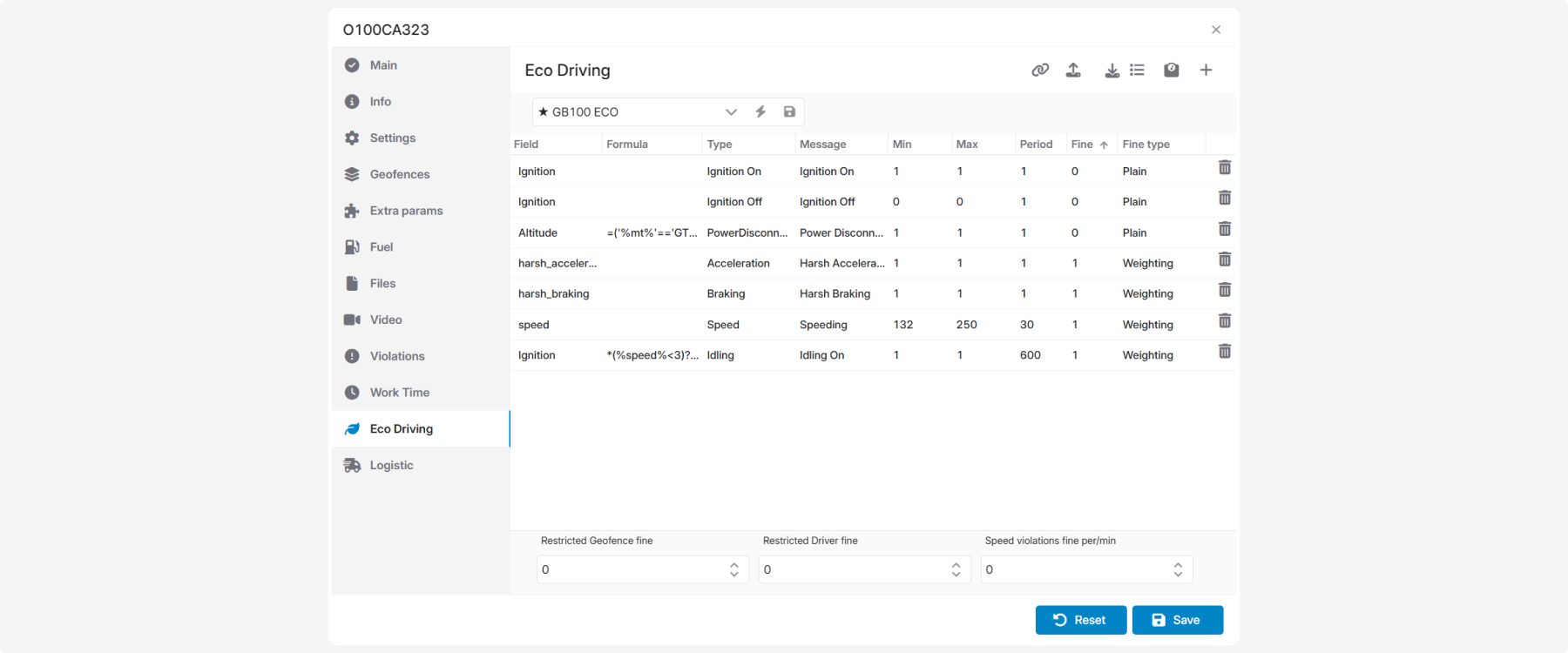
-
GV65 ECO (Queclink GV65)
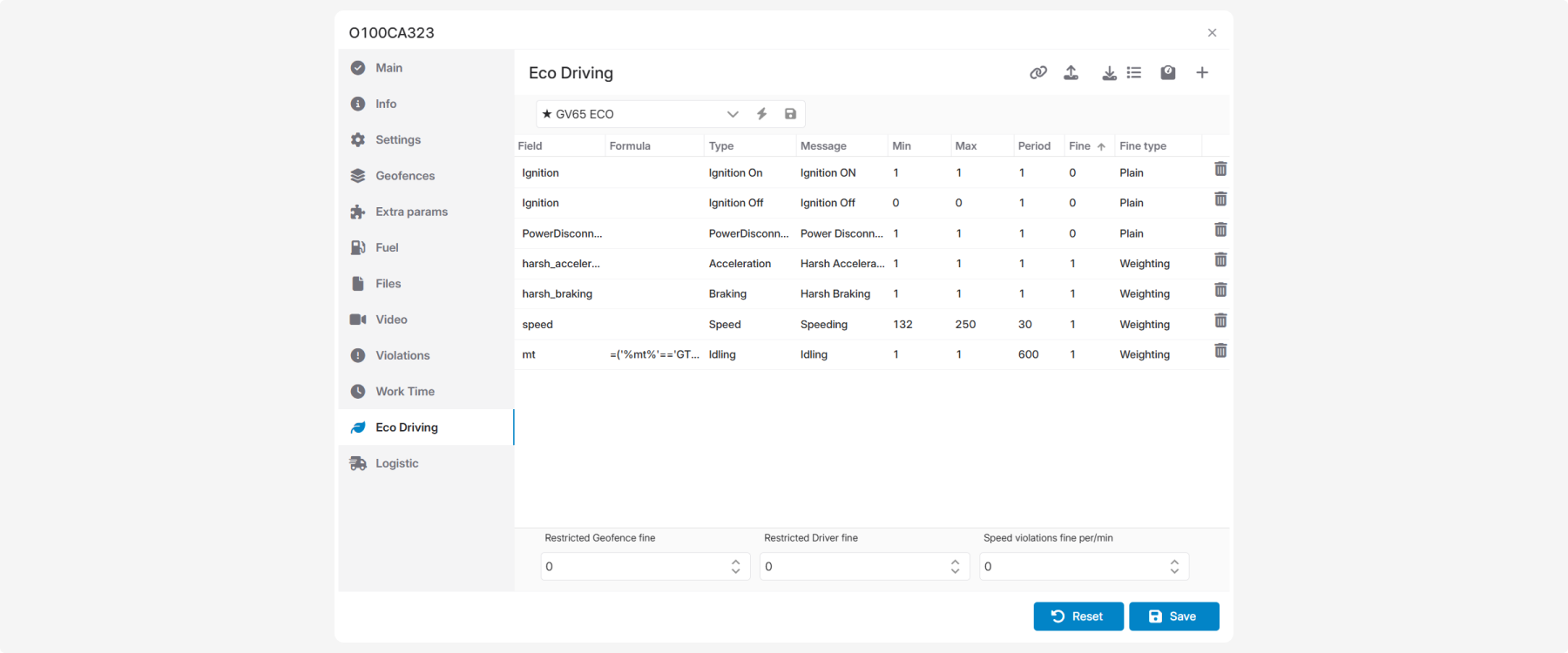
-
Ruptela
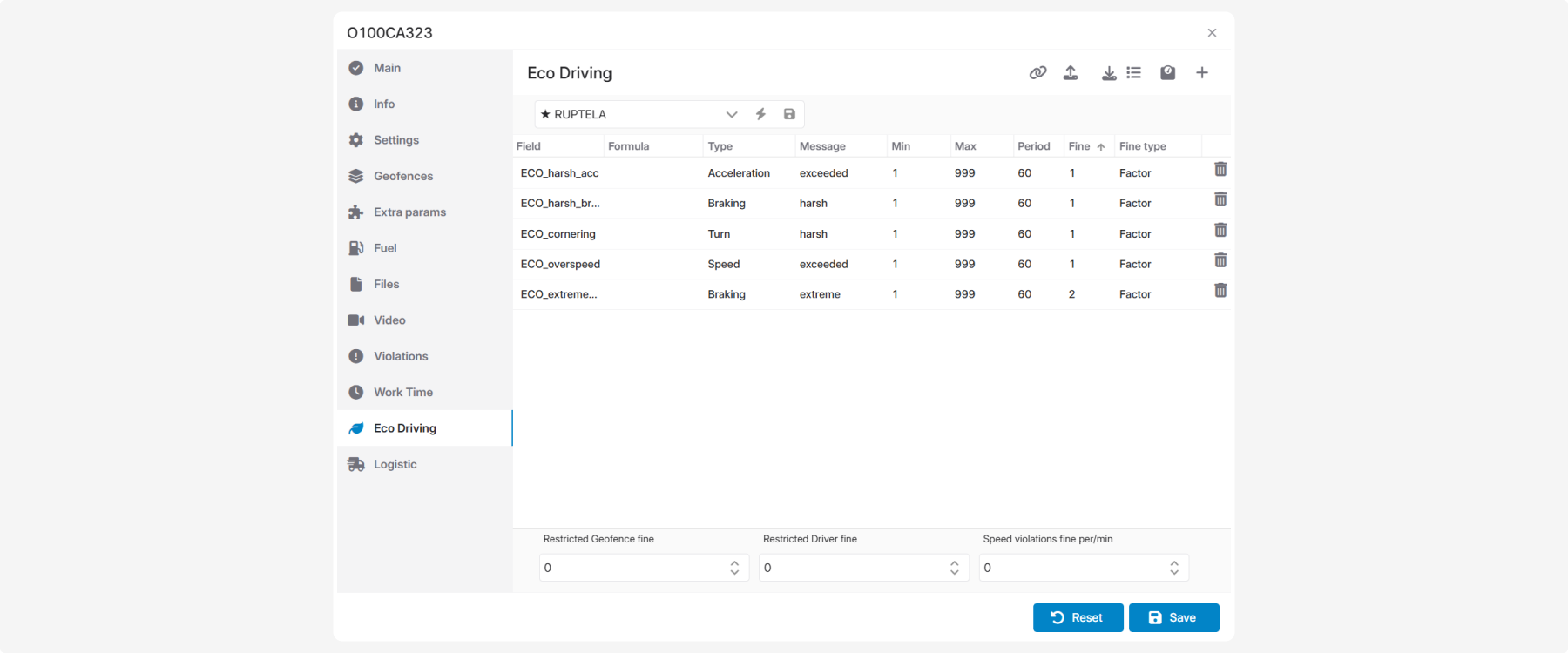
-
Teltonika
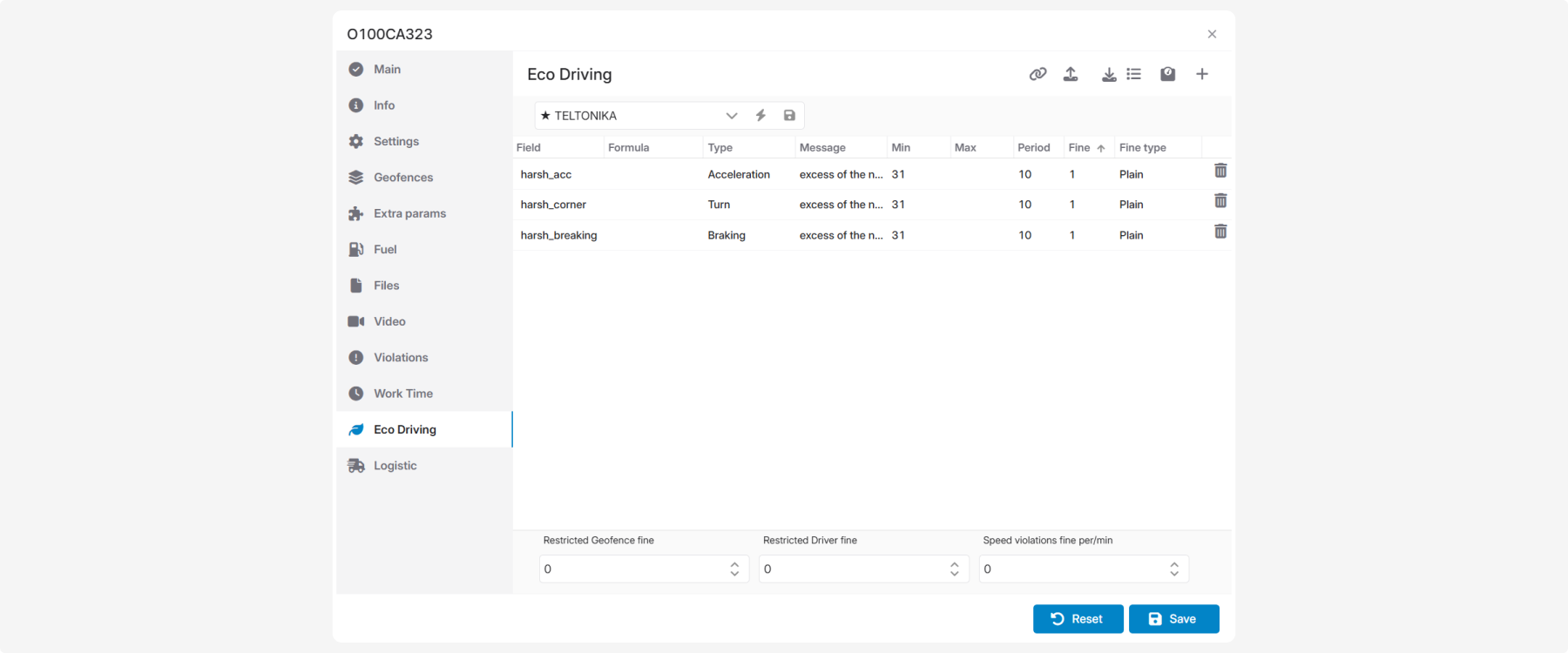
Select the template that matches the device installed in the vehicle.
1. Open the Eco Driving tab
2. Select the required template from the Template list

3. Click Apply 

4. The template rules will be loaded into the rule table
5. Click Save in the lower-right corner of the window
1. Configure the driving quality rules
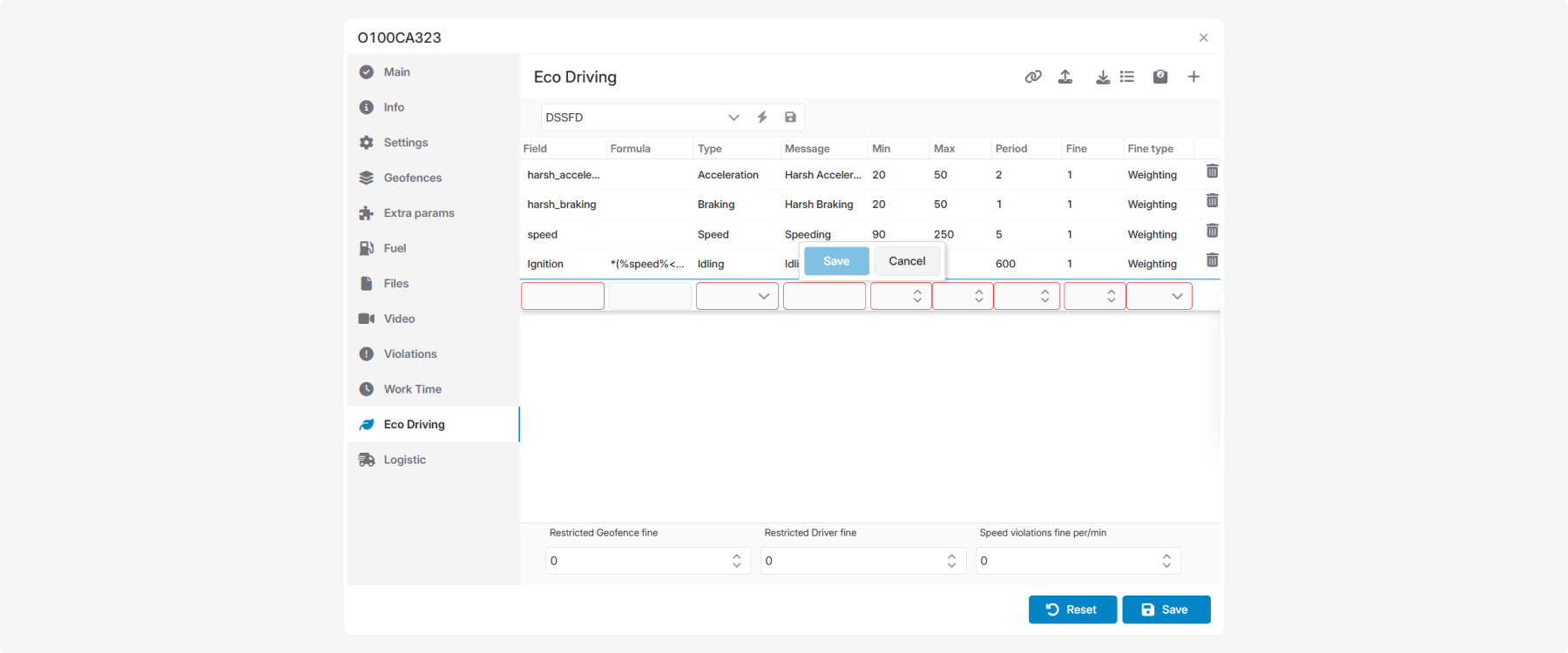
2. In the Template list, select Save as template 

3. Enter a name for the template

4. Click OK
The new template is added to the template list and can be used when configuring other vehicles.

Assigning a template to a device
Different telematics devices support different parameters and driving events.
Assigning a template to a device ensures that the appropriate set of driving quality rules is used for that device type.
To assign a template:
1. In the upper-right corner of the Eco Driving window, locate the Eco Driving tools
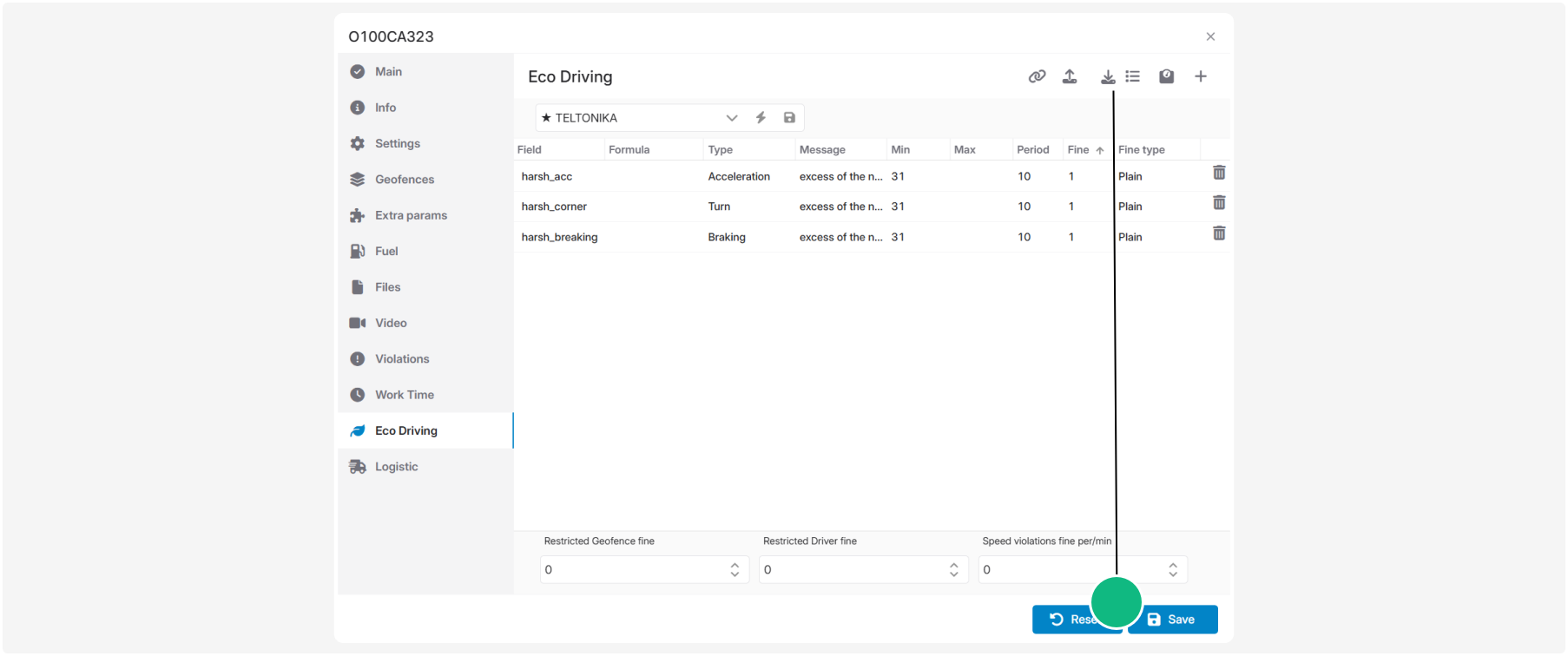
2. Click Link to device

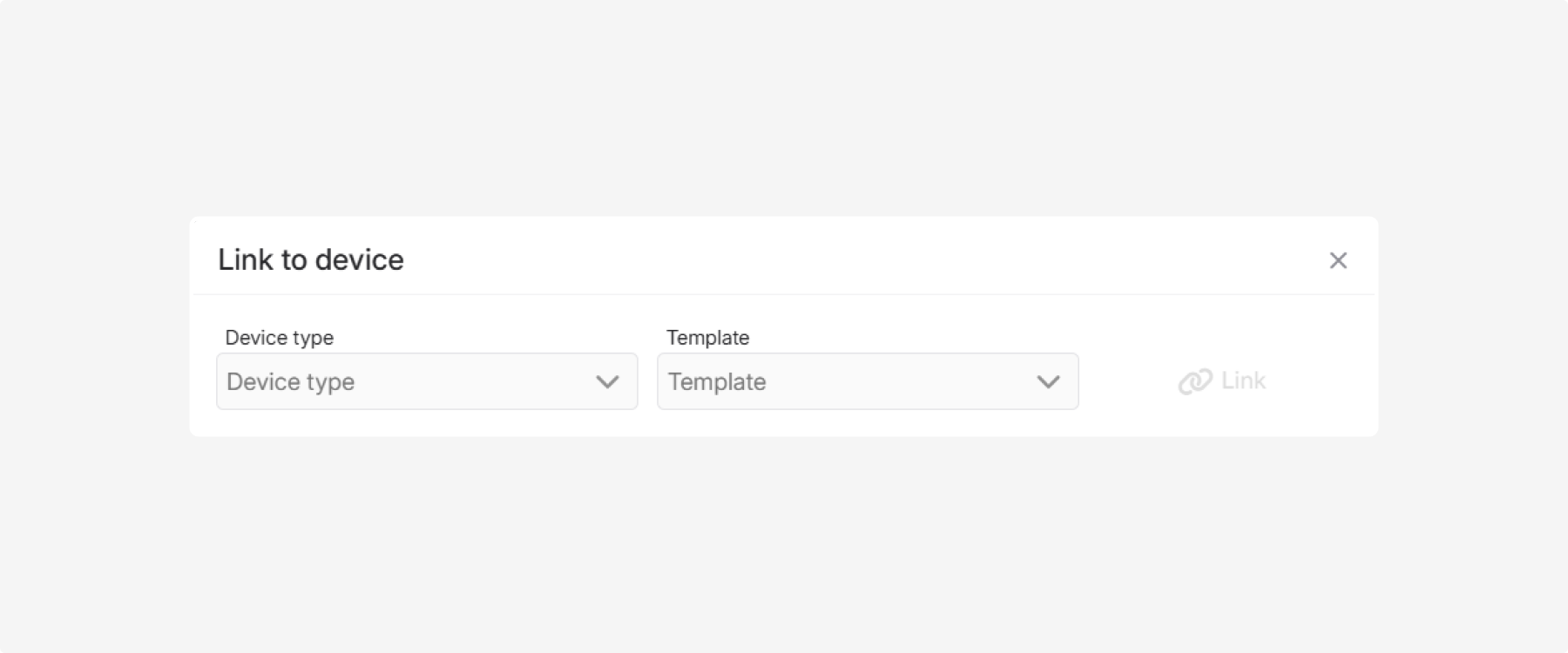
3. Select the device type
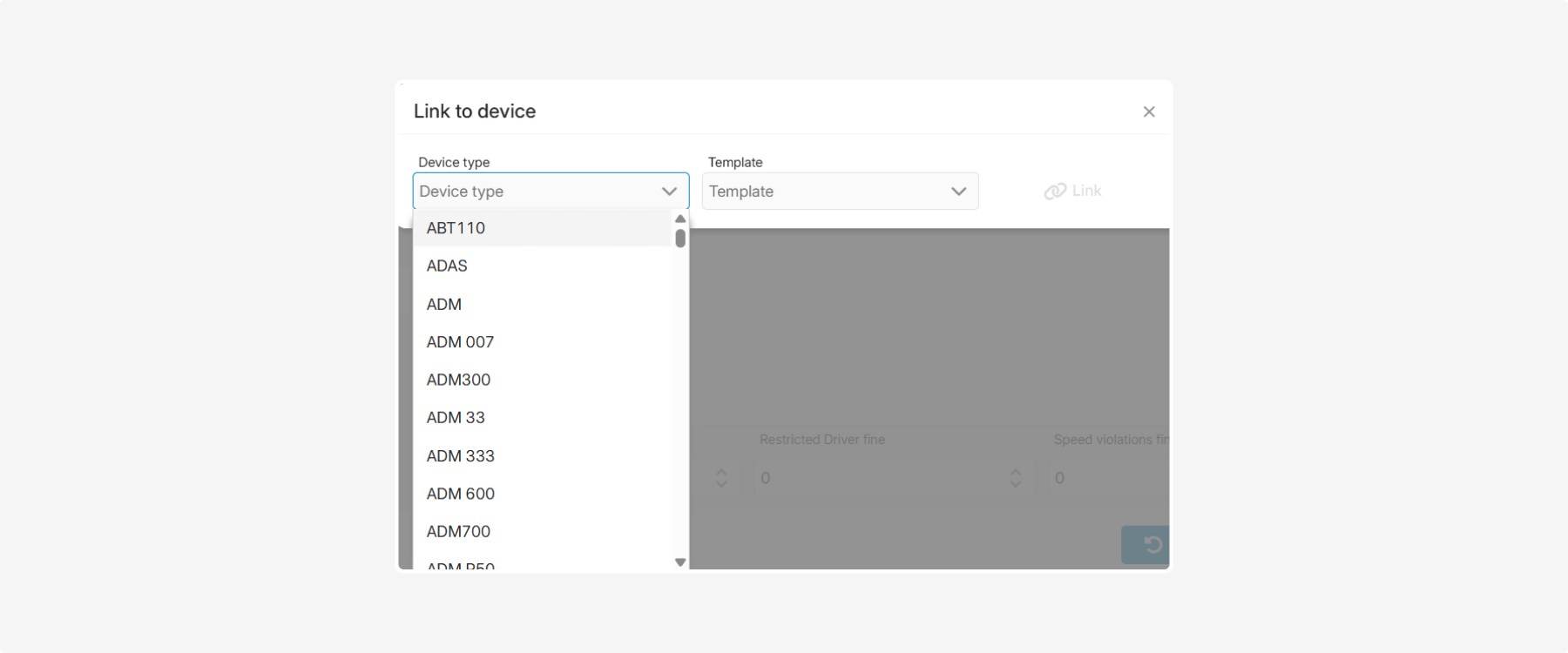
4. Select the template

5. Click Link

Importing and exporting rules
Import and export allow you to transfer driving quality rules between vehicles or create a backup copy of the current configuration.
In the upper part of the Driving Quality window, locate the Import and Export tools.

Exporting rules

Export saves the current rule configuration to a JSON file.
To export the rules:
1. Click the Export button
2. Save the JSON file to your computer
The exported file contains all rule settings.
Importing rules

Import loads a previously exported JSON file.
To import rules:
1. Click the Import button
2. Select the JSON file
3. The rules are automatically loaded into the rule table
Imported rules replace the current rule set in the table. If you want to keep the existing configuration, export it before importing another JSON file.
|