Violations
The Violations module automatically detects vehicle speeding violations.
While the vehicle is moving, the system compares its current speed with the speed limit for the road segment it is traveling on. If the vehicle exceeds the speed limit by more than the configured threshold, the system records a speeding violation.
How to configure violation monitoring
1. Open the object card by double-clicking the object in the object list

2. Go to the Violations tab
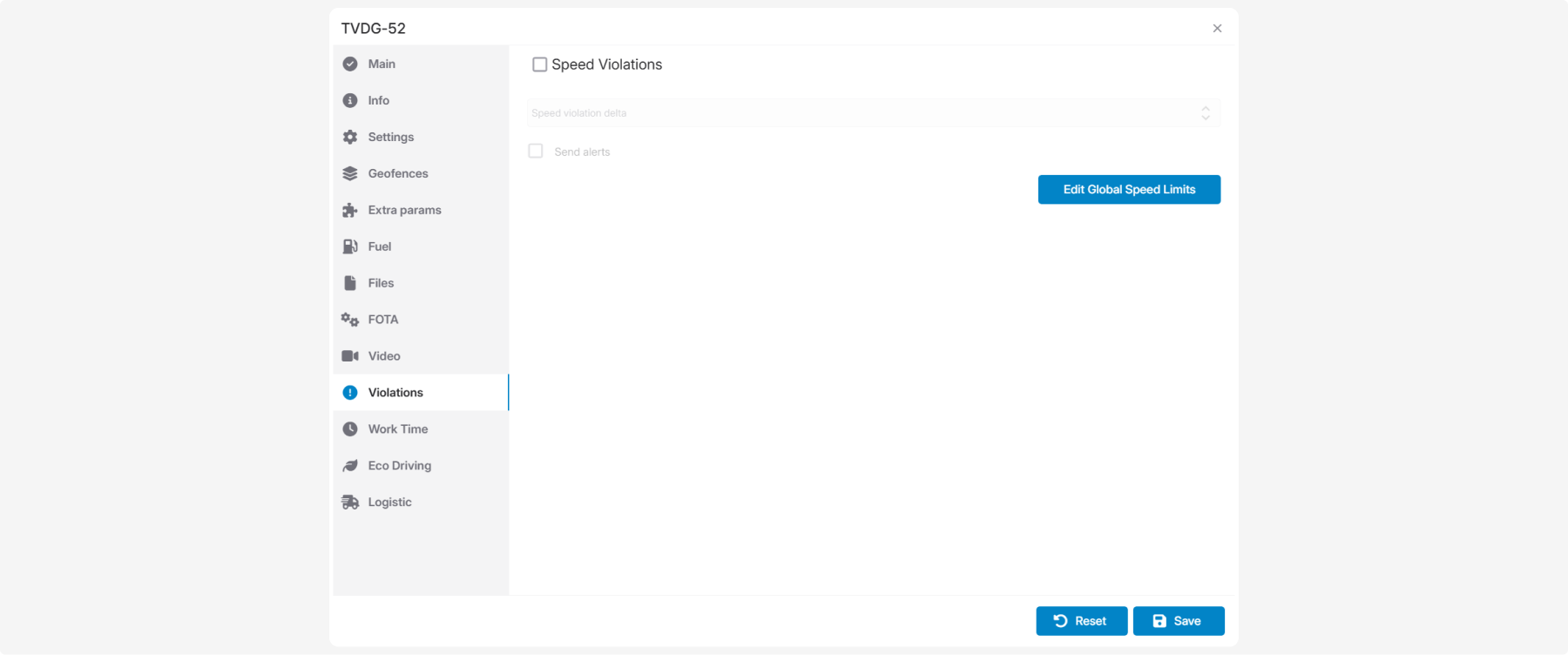
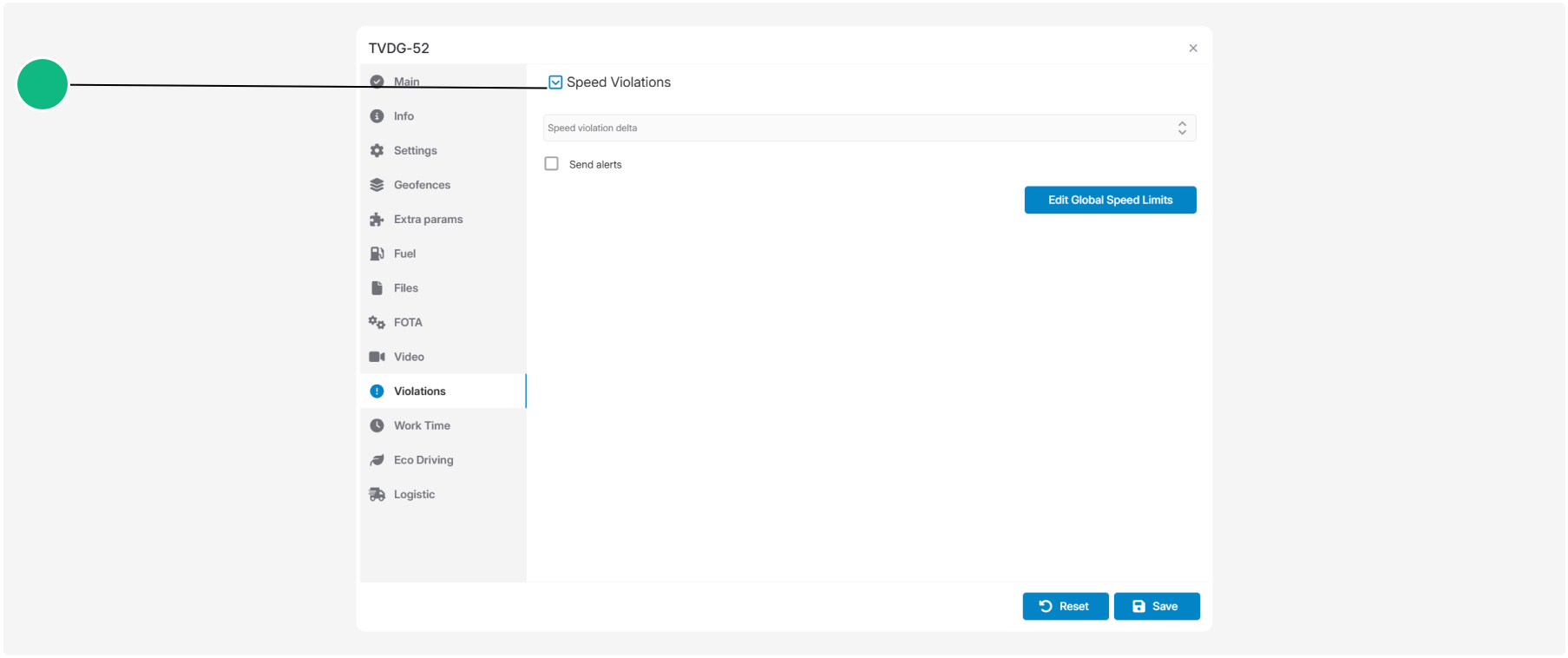
3. Select the Speed violations checkbox to enable speeding detection

4. Enter a value in the Speed violation data exceed threshold field
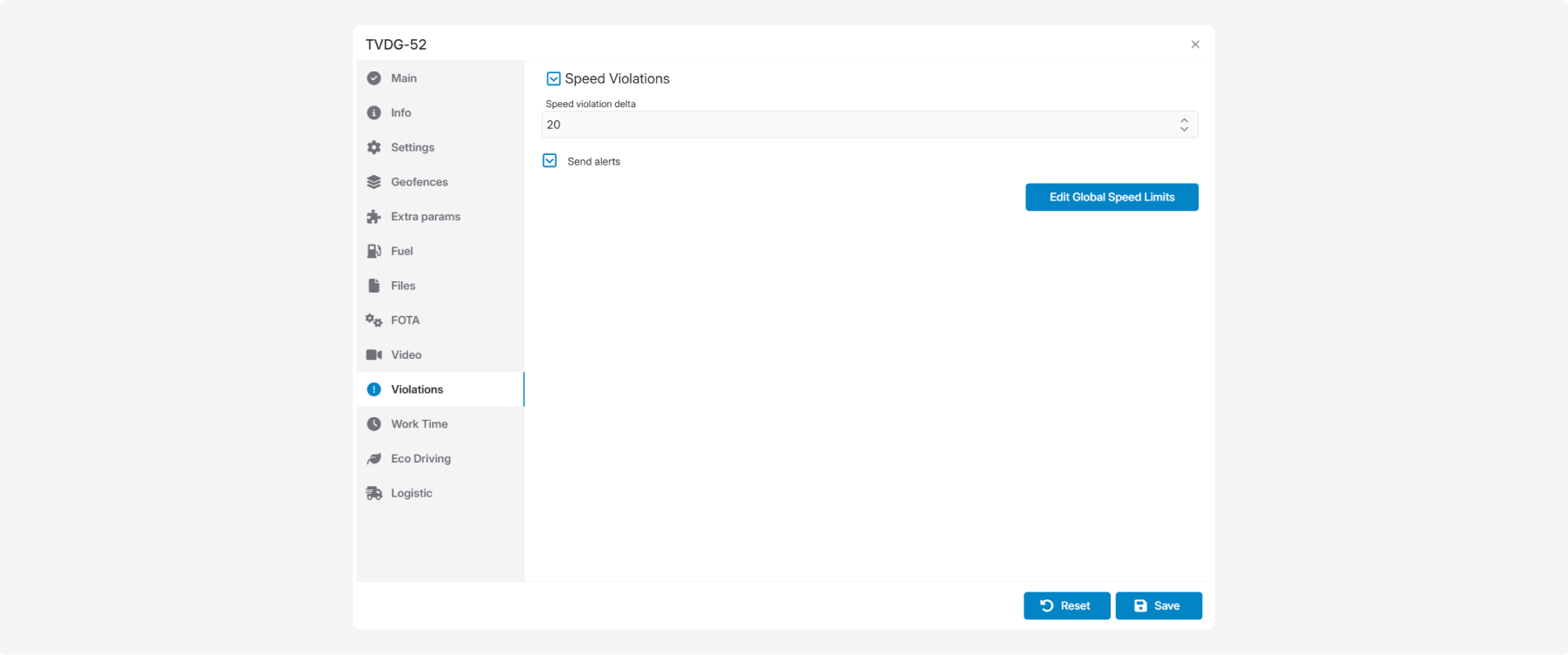
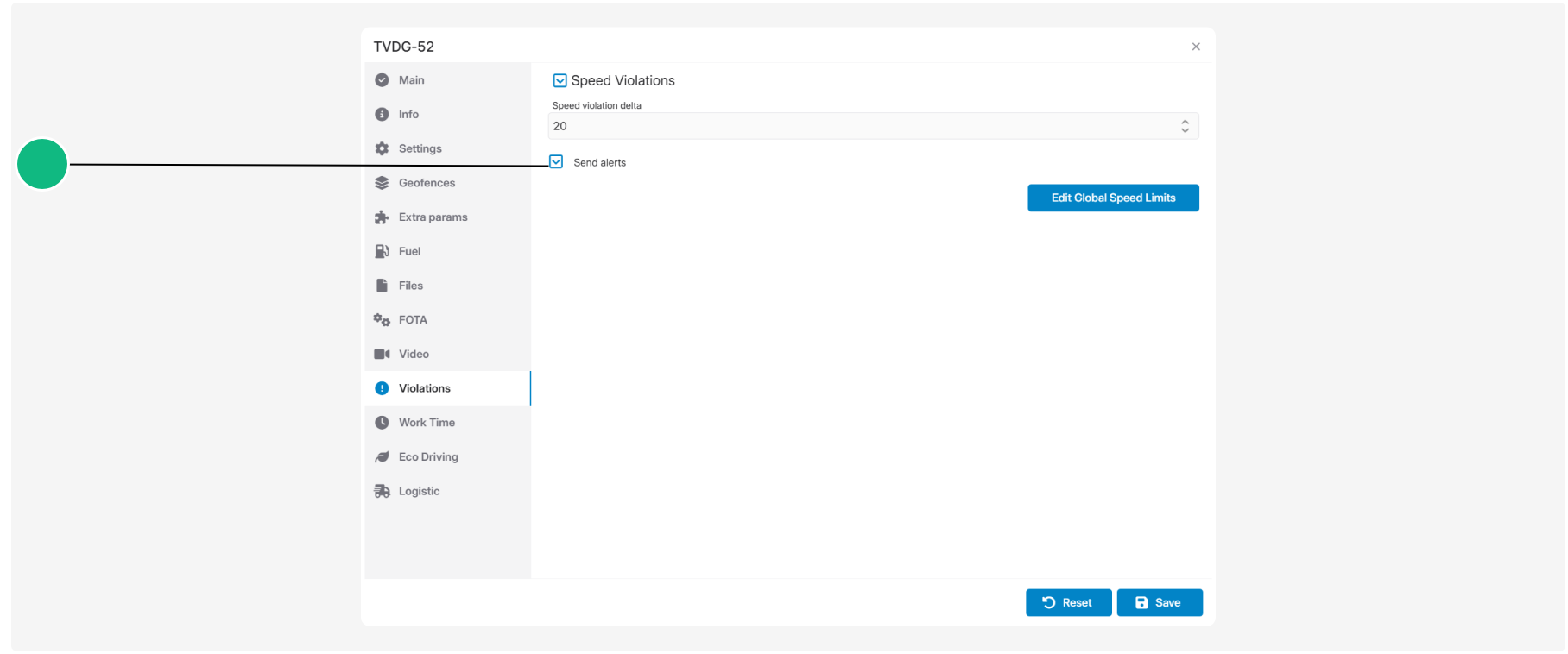
5. If you want to receive notifications, select the Send alerts checkbox
6. Click Save
After saving, the system will automatically monitor speeding violations using the configured settings.
Settings
Speeding violation
Enables or disables speeding detection for the selected object.
When enabled, the system monitors the vehicle's speed and records violations based on the configured settings.
Speed limit exceed threshold
Specifies how much the vehicle's speed must exceed the posted speed limit before a violation is recorded.

For example:
-
Road speed limit: 80 km/h
-
Configured threshold: 20 km/h
In this case, a violation will only be recorded when the vehicle's speed exceeds 100 km/h.
Send notifications
When enabled, the system sends a notification each time a speeding violation is recorded.
All recorded speeding violations are also available in the Events module.
Speed limits
To determine whether a vehicle is speeding, the system uses speed limits assigned to each road segment.
By default, these values are based on OpenStreetMap (OSM) road classifications. The system stores speed limits for each road type and uses them when calculating speeding violations.
If necessary, you can modify these values by clicking Edit global speed limits.
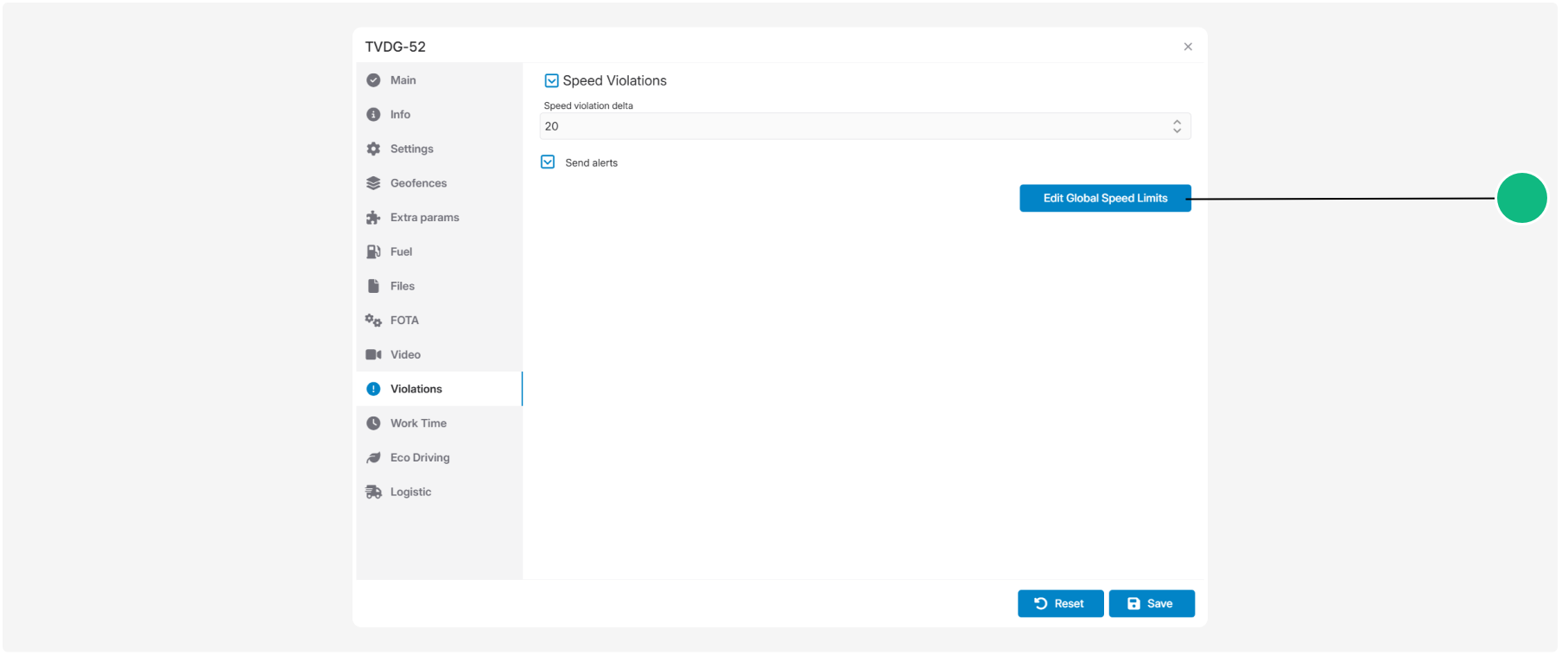
A table containing speed limits for different road types and vehicle categories will open.
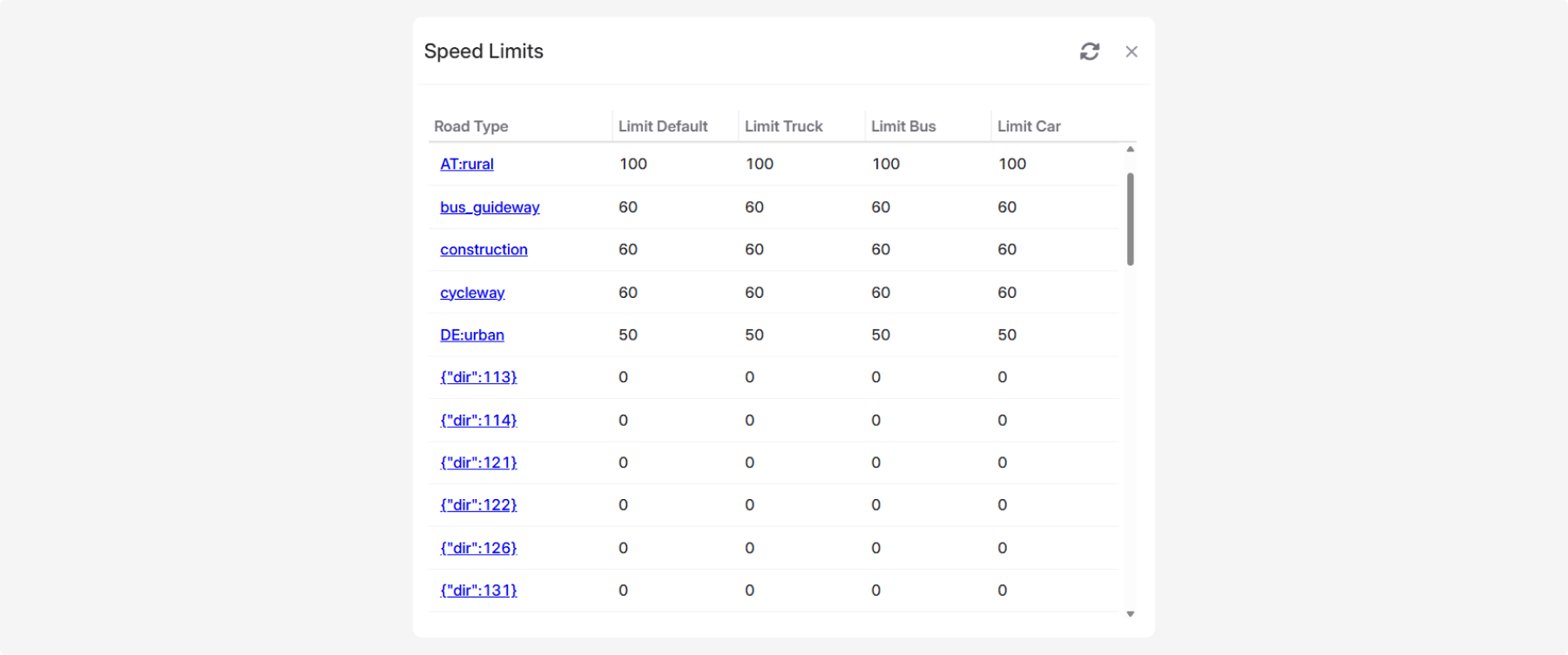
The first column lists road types defined by OpenStreetMap. Road types are displayed using OSM's internal identifiers. For example:
-
AT — rural roads in Austria
-
DE — urban roads in Germany
-
bus_guideway — roads reserved for buses
You can configure separate speed limits for each vehicle category:
-
Limit default— default value
-
Limit truck — for trucks
-
Limit bus — for buses
-
Limit car — for passenger vehicles
If a custom speed limit is specified for a vehicle category, the system uses that value when determining speeding violations.
How to change a speed limit
1. Click Edit global speed limits
2. Find the required road type
3. Double-click the cell for the appropriate vehicle category

4. Enter the new speed limit
5. Click Save
6. Close the window, then click Save in the object card