Dictionary
The Dictionary section allows you to create and manage structured data lists that are used across tasks, vehicles, and drivers.
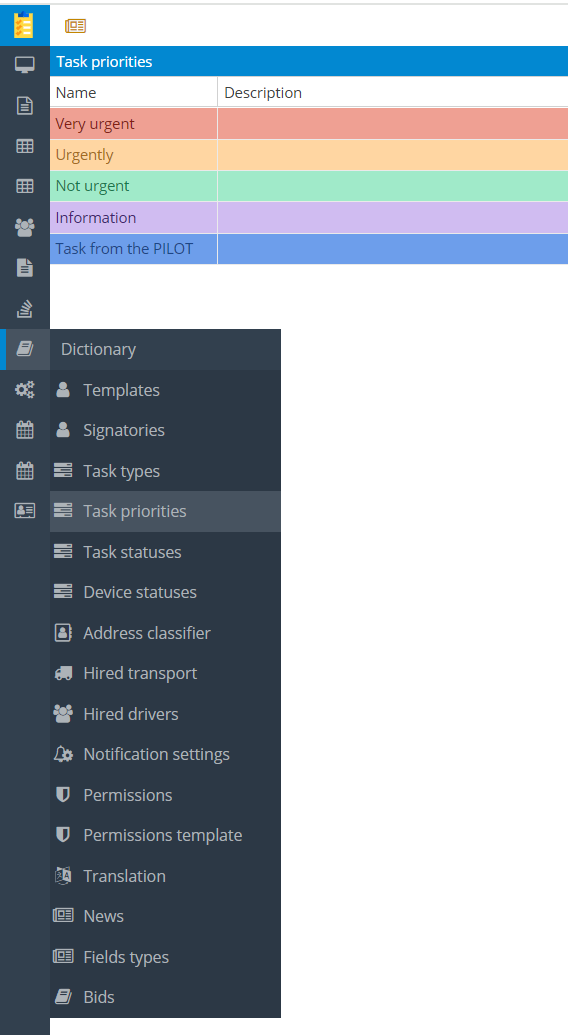
For example, dictionaries can store:
— task statuses
— cargo types
— drivers
Using dictionaries simplifies daily work: instead of entering the same data manually each time, you select values from predefined lists.
How to enable the Dictionary section
1. The Dictionary section is not always available in the PTM menu and is enabled on request. To activate it, please contact technical support
2. After activation, the section will be empty. The system does not include predefined dictionaries by default. You can create and configure dictionaries based on your business needs.
How to create a dictionary
1. Open the Dictionary section
2. In the Handbooks list panel, click Add 
3. The Add new dictionary window will open

On the left, define general dictionary information:
-
Name — the display name of the dictionary (for example: Cargo type, Cancellation reasons)
-
Alias — the technical identifier of the dictionary
-
Primary key, Foreign key, Display key, Parent alias — these fields define the dictionary structure and relationships with other system tables
If you’re unsure how to configure these fields, we recommend contacting technical support.
|
On the right, define the dictionary row structure:
4. Click Add above the table on the right
5. Specify:
-
Column alias — internal field name
-
Type — select the data type
Optional settings:
-
Is null — allows the field to be left blank
-
Unique — ensures all values in the field are unique
-
Formula — the field value is calculated automatically6. Repeat steps 4–5 for all fields required in the dictionary.
When finished:
7. Click Save
8. The new dictionary will appear in the list on the left
9. Select the dictionary from the Handbook list

On the right, the Handbook data table will open, where you can:
— add new entries
— edit existing records
— delete rows
If creating the dictionary structure is difficult, contact technical support. Once the structure is ready, you can manage the data independently.
|
Dictionary examples
The Dictionary section supports a wide range of data lists. Since the section starts empty, you fully control which dictionaries exist in your system.
Below are common examples.
Templates dictionary
The Templates dictionary stores all task and document templates.

Template defines:
— which fields appear in the task card
— which columns are shown in the task list
— which Driver reports can be generated for tasks
How to add a template:
1. Go to Dictionary → Templates
2. Click Add
Template window opens. Fill in:
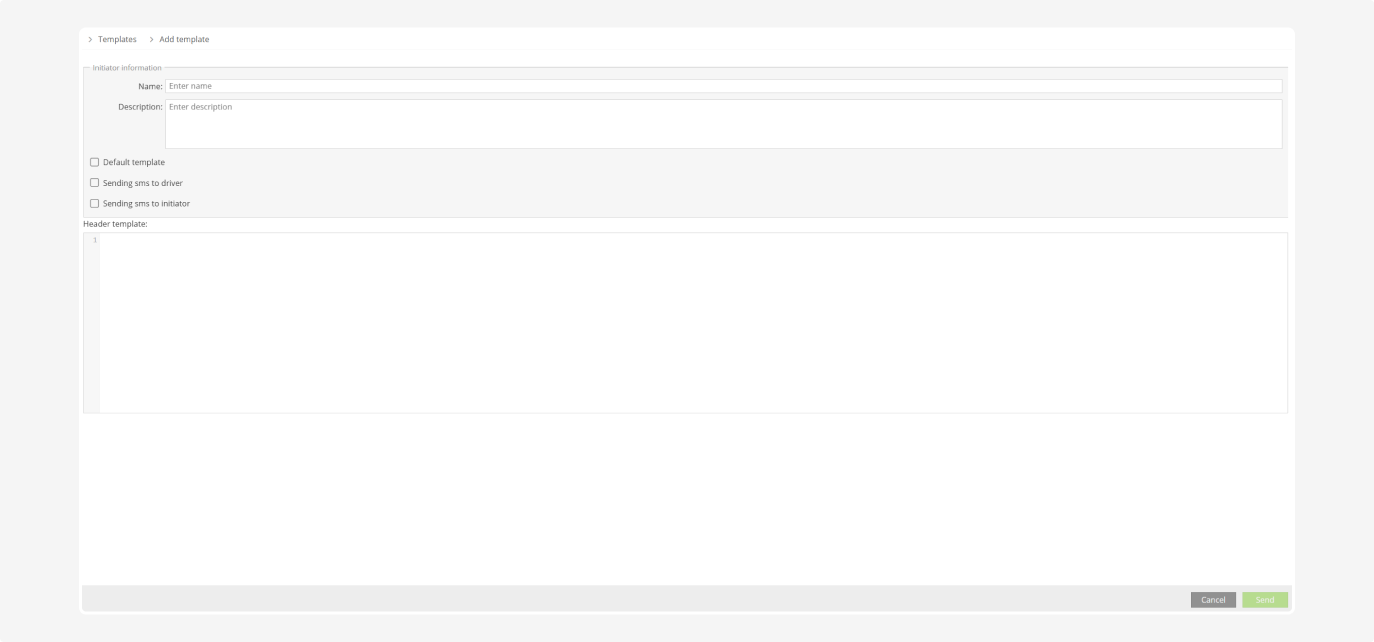
1. A clear template name (for example, City Delivery, Service Visit)
2. A short description of the template’s purpose
3. Optional settings:
-
Default template — automatically selected when creating a new task
-
Send SMS to driver — sends an SMS when a task is created
-
Send SMS to initiator — sends an SMS to the task creator4. Header template — technical configuration for table headers and Excel exports (contact support if you’re unsure)5. Click Send. The template will appear in the list
After creating a template, configure its fields.
Click Parameters to define:
— which fields appear in the task card
— the order of fields
— which columns appear in the task list
— required and system fields
How to add a field to a template:
1. In Templates, select the required template

3. Will open the field table

4. Click Add
4. Fill in:

-
Type — data type
-
Alias — internal field name
-
Name — field label in the interface
-
Group name
-
Default value
-
Weight — controls field order
-
Settings:— Calculated by formula— Field is allow blank— Field is active— Field can be deleted— Visible only in edit mode— Show warehouse name— Show Ticket ID— Is the index of the key to search
-
Permission templates — roles that can access the field
-
Read-only for selected roles5. Click Save. The new field will be added to the template
1. Go to Dictionary → Templates
2. Select a template
3. Click Act of accomplished works

If the button is not visible, check permission templates or contact support.
|
4. The list of acts for the template opens

5. Click Add
6. Fill in:

-
Name — report name
-
Existing file — use an existing file template if needed
-
File — upload a custom template if required7. Write the act text in the Editor tab
Auto-inserting task data:
-
On the right, in Parameters for act, select fields from:
-
Basic — task ID, dates, addresses, totals
-
Executor — data filled in by the driver in the mobile app (these fields must appear after the basic fields)
-
Template — fields specific to the selected template

2. Copy the selected fields into the acr text

3. Mark the report as Default for the template

3. Click Save
Now, tasks created using this template can generate and print the configured driver report.
Watch the video to learn how to create and use task templates.
|
Signatories
Defines who signs documents and in what order.

Watch the video to learn how to manage users and signatories.
|
Task types
Defines task categories such as Delivery, Repair, Logistics.

Watch the video to learn how to create task types.
|
Task priorities
Defines urgency levels: Not urgent, Urgent, Critical, etc.

Task statuses
Defines all possible task states: New, In Progress, Completed, etc.

Address classifier
Stores previously used addresses for quick reuse.

Watch the video to learn how to add a new address using the Address classifier.
|
Drivers
Stores contract driver information used for task assignment.

Notification settings
This dictionary defines notification rules and delivery channels.

How to add a notification — click Add and complete the form:
and complete the form:
1. Notification Information
-
Name — descriptive rule name
-
Event — the trigger event
-
Resources — specific vehicles or All
2. Options
-
Event color — highlight color in the UI
-
Delivery channels: Email, SMS, Telegram, Push, Browser alert, Mobile push
-
For all users
-
Geofence address
3. Conditions
-
Task template
-
Task types
-
Device statuses
-
Task statuses
-
Time in status4. Click Save
The notification rule becomes active immediately.
Permission templates define access levels for users, ensuring everyone can see and edit only what they are allowed to.
