How to create a task
To create a new task in PTM, click the Add button above the task table on the Dashboard — a task creation form will open.

Task creation form
The Task form is where you define all the important parameters for the task. It is divided into several sections:

Top section (Left side)

-
Template — select the task type, which will determine the structure of fields for the task
-
Vehicle — choose the vehicle that will be used for the task
-
Driver and Driver’s Phone — enter the driver's full name and contact number
-
Trailer Plate — enter the trailer number, if one is being used for transport
-
Route Name — internal route identification
-
Cargo Name — specify the cargo being transported
-
Minimum / Maximum Temperature — if temperature control is required, set the minimum and maximum temperatures
Top section (Right side)

Task Information — here, you will see the key route details:
-
Address List — the primary address/route with options to edit, delete, or add new points to the route
Details:
-
Coordinates of Route Points — the geographical coordinates for each route stop.
-
Redirect this point — use this point as a redirect address.
-
Visit Time — the scheduled arrival time.
-
Warehouse — the warehouse or location name.
-
Time at Stop — how long the vehicle should stay at the stop.
-
Radius — the allowable deviation from the route point (in meters).
-
Add Address — button to add another route point.
-
Start Time and End Time — specify the start and end time for completing the task.
-
Description — a field for any additional comments about the task.
Act of accomplished works
If a Act of accomplished works template has been created for the task template in advance, it can be assigned to the task. In this case, the driver will be able not only to complete the task in the Pilot Driver mobile application but also to fill out a Act of accomplished works as a task report.
Two configuration options are available:
-
Act of accomplished works for a route point— assign a separate act of accomplished works template to a specific route point. Select the required template from the list of previously created report templates.
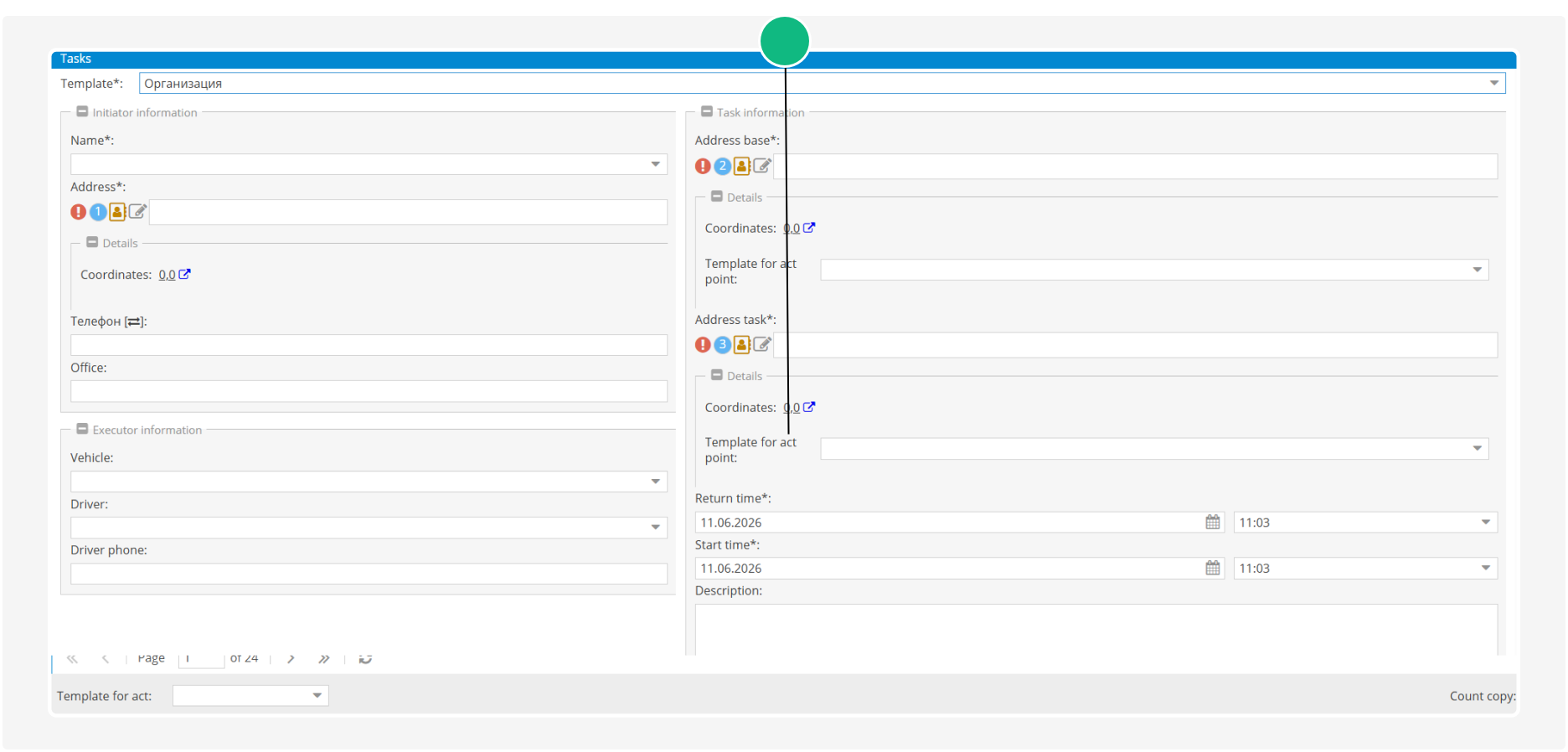
-
Main act of accomplished works — assign an act of accomplished work template to the entire task. This template is selected in the lower section of the task card.
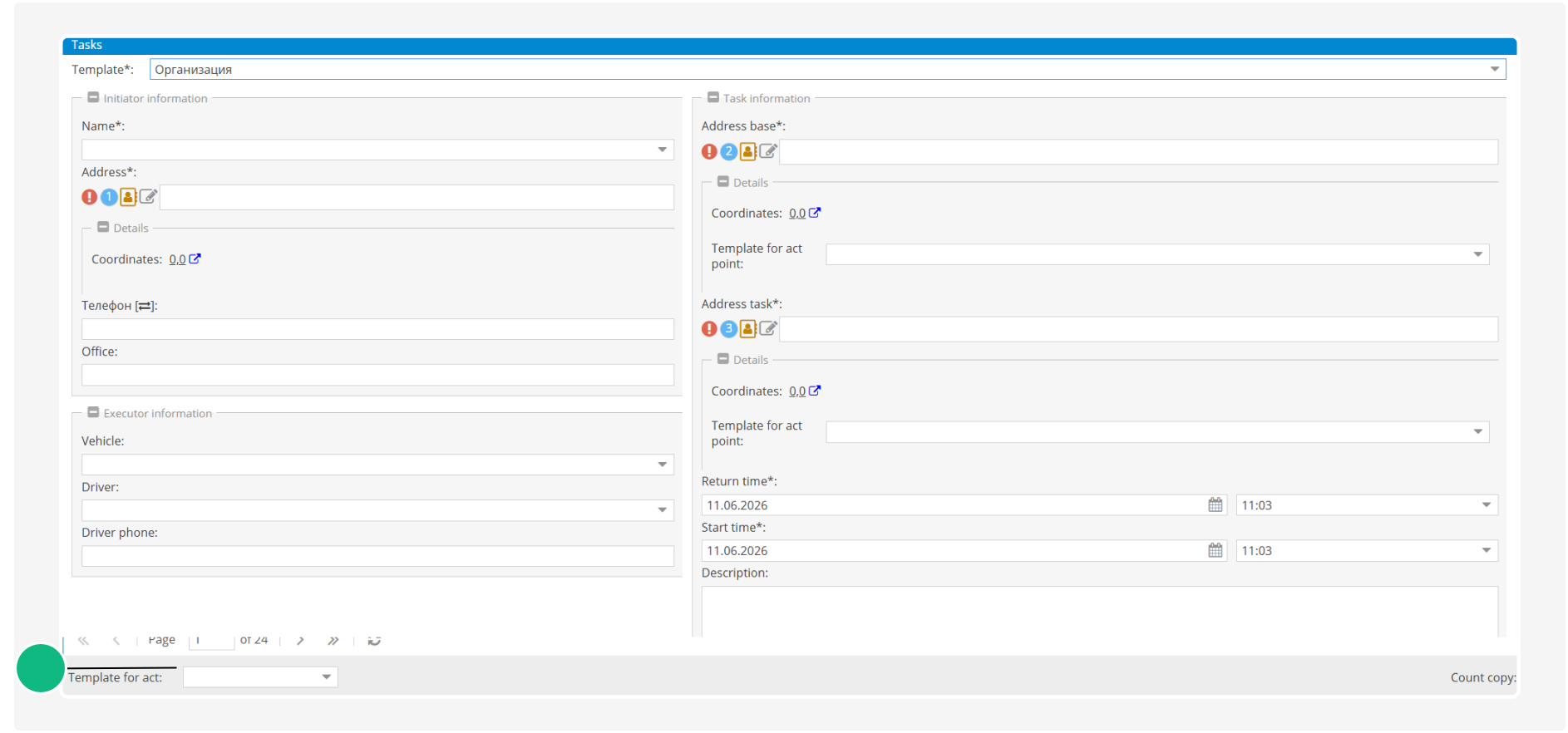
If no separate report template is assigned to a route point, the Main act of accomplished workst will be used.
After the task is created, the selected reports will become available to the driver in the Pilot Driver application. Depending on the configuration, the driver can complete reports either for individual route points or for the task as a whole.
Map

On the map, the route will be displayed with all the task's route points marked.
Bottom section

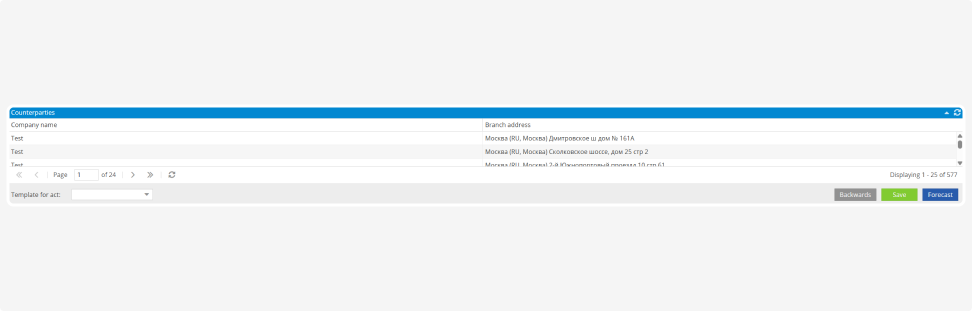
Counterparties — in this section, you can select the company that will be associated with the task.
Template for act — choose a report template for completed tasks, if configured in the system.
Control buttons at the bottom of the form
-
Backwards — if you decide not to save the task, you can go back to the task table without saving any changes
-
Save — after entering all the details, click this button to save the task and start processing it
-
Forecast — use this button to calculate a forecast for the route
Watch the video to learn how to create a task and send it to a vehicle.
And also watch the video how to create a task using templates.
|
How to create a task from a template
To quickly create a new task based on an existing one, use the Create from template feature:
1. Right-click on a task row in the task table
2. In the task menu that appears, select Create from template
3. The system will automatically generate a new task with all the basic data copied from the original task (such as client, route, cargo, parameters)
4. You can then edit the task by selecting "Edit" in the menu. This will open the task form, where you can make any necessary changes
