Dashboard
The Task management dashboard is a section in PTM where you can see all the created tasks and manage them. This dashboard serves as the window to view and handle tasks that have been assigned or are in progress.

In this guide, we will cover:
In the center of the panel, you'll see a table with the created tasks. Each row in the table represents an individual task. The columns in the table show task-related data, such as:
-
Task ID – the unique task number in the system
-
Time of arrival – when the task was created
-
Task type – scheduled time or estimated completion time for the task
-
Order type – the category of the task (e.g., "Delivery," "Booking," etc.)
-
Status – the current status of the task
-
Scheduled date and time – planned arrival/departure time
-
Actual date and time – the actual arrival and departure times (from the tracker or driver)
-
Vehicle – the vehicle assigned to the task
-
Driver – the name of the driver assigned to the task
-
Driver accepted – when the driver confirmed receiving the task
-
Started moving – the actual time the vehicle started moving
-
Task started – the time the task was initiated
-
Task completed – the time the task was completed

At the top of the task table, there is a task management panel with buttons that allow quick task management.


-
Add – create a new task
-
Edit – open a selected task for editing
-
Delete – delete selected tasks
-
Filter settings
 – configure filters to display only the tasks you need

-
Start vehicle rebinding
 – initiate automatic reallocation and replacement of vehicles in tasks. Use this button when you need to update vehicle assignments (for example, when the fleet changes).
Once the process is completed, a window with results will appear:
-
Tasks found – how many tasks were processed
-
Virtual vehicles – how many tasks were linked to virtual vehicles
-
Real vehicles – how many tasks were assigned to real vehicles
-
Substitutions made – how many tasks were assigned a new vehicle
-
Tasks recalculated – how many tasks were recalculated (routes, times, mileage, etc., after vehicle reassignment)

On the right side of the task list panel, you will find three buttons for working with task templates:

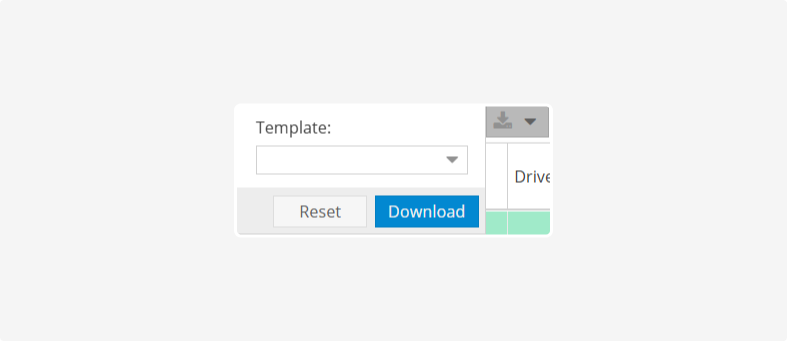
Download task template
 – this button allows you to download an Excel template for mass task creation.
Click on this button to open a window:

1. Select the desired task type (e.g., "Organization," "Private Person," "Trip Sheet," "Booking," etc.). The choice will determine the columns in the Excel file
2. Click Download to get the template file
3. Open the downloaded file and fill it with your data (addresses, dates, drivers, loads, etc.).
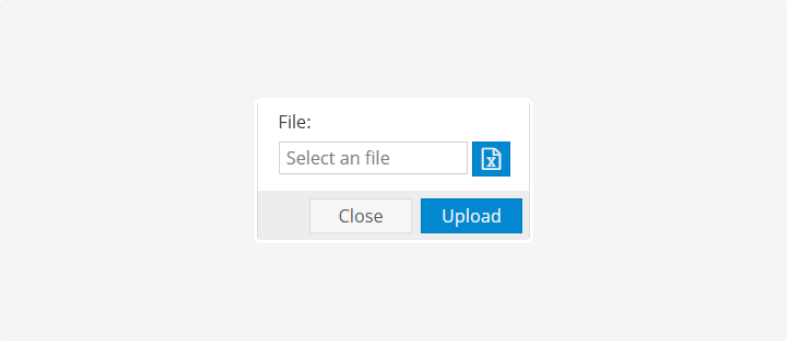
Upload tasks from template
 – this button is used to upload tasks from a previously filled template
Click this button to open a window:
1. Click on the Excel icon and choose the template file from your device.
2. Click Upload. The system will read the rows from the file and create or update tasks based on the data in the template
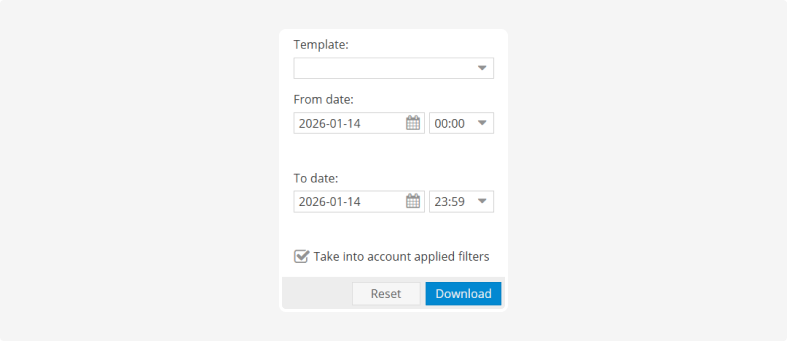
Export to Excel
 – this button downloads the task list in Excel format.
Click this button to open a window:
1. In the Template field, select the template. The template choice determines the columns that will appear in the Excel file
2. In the From and To fields, specify the period for which you want to export tasks
3. If you want to include only tasks shown in the table with your applied filters (status, vehicle, etc.), check the box Take into account applied filters
4. Click Download and the system will generate an Excel file with tasks based on the selected template and filters
Template downloading will only work if it has been pre-configured in the system. If no template is set up, the system will show an error. Templates can be set in the Templates section during template editing, where parameters visible in the task table and exported to Excel are defined.
When you right-click on a task row in the log, a task menu will appear with various actions for the selected task:

1. Create by template
Creates a new task by copying the main fields from the current task (client, route, load, parameters, etc.) so you don't have to fill them in again. The task will be copied with the status "Not Assigned."
2. Pin task
The dispatcher assigns themselves as responsible for the task.
3. Export for customer
Exports task data to a file, which can be sent to the requester (client). This export works through a configured template.
4. Assign a logistican
Opens a submenu where you can choose the logistician responsible for completing this task.
5. Edit
Opens the task card to modify its parameters.
6. Delete
Deletes the task from the system.
7. Audit statuses
Displays the status change history of the task.
8. Task audit
Displays the full history of changes for the task (creation, editing, dispatcher assignment, etc.).

9. Set status
Opens a submenu to choose a new status for the task, such as "Closed," "Client Refused," "Visited," "In Progress," and others.
10. Signatories
Allows you to view or assign responsible signatories for the task or related documents.
11. Print
Prints the task document.
12. Work Completed Act
Generates and prints a work completion act for the task, available after the task is completed and if there is data for the act.
Some items in the menu may be grayed out and unavailable until the task reaches the required status or necessary data is filled in.
|
Above the task management panel and the task table, you will find buttons to open additional workspaces:
-
Resources
-
Tasks
-
Signature
-
Tenders


Resources
After clicking, the panel opens, showing resources (vehicles and drivers). In this section, you can see:
-
The status of resources (online/offline)
-
Current or next task
-
Schedule and base addressUse this area to track who is available, who is busy, and who can be assigned to the next task.

Tasks
The main workspace where all tasks are displayed. Here you can: -
Create, edit, and filter tasks
-
Assign resources
-
Track task status
Signature
A section for working with electronic signatures for tasks and related documents.Tenders
The section for working with transport tenders. With this panel, you can: -
Create tenders based on tasks
-
Send tenders to contractors and carriers
-
Track received proposals