How to сonnect LogBook
To set up LogBook, you need to complete two steps:
1. Activate the LogBook module in the admin panel
2. Connect LogBook in the user interface
Connecting the LogBook module in the Admin panel
1.Log into the admin panel using your username and password
2. Select the contract to which you want to add the LogBook module
3. Right-click on the contract — a context menu will open
4. In the menu, choose the Edit option
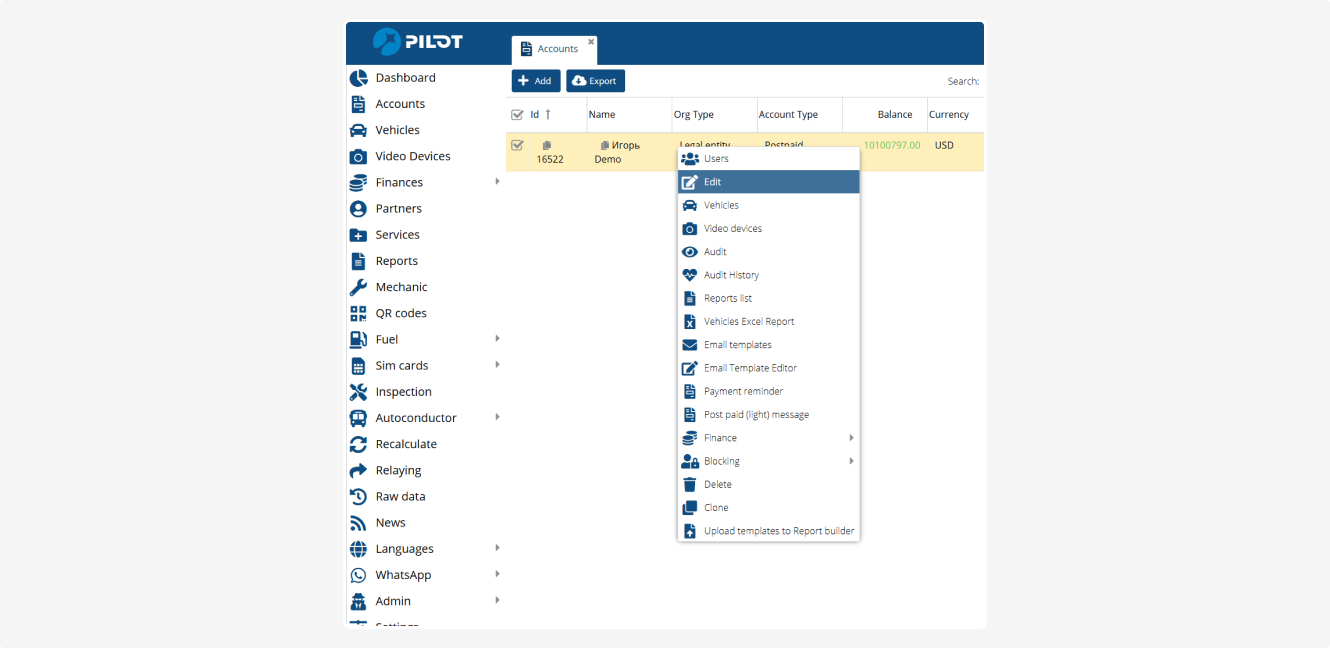
5. In the contract settings window, go to the Module settings tab
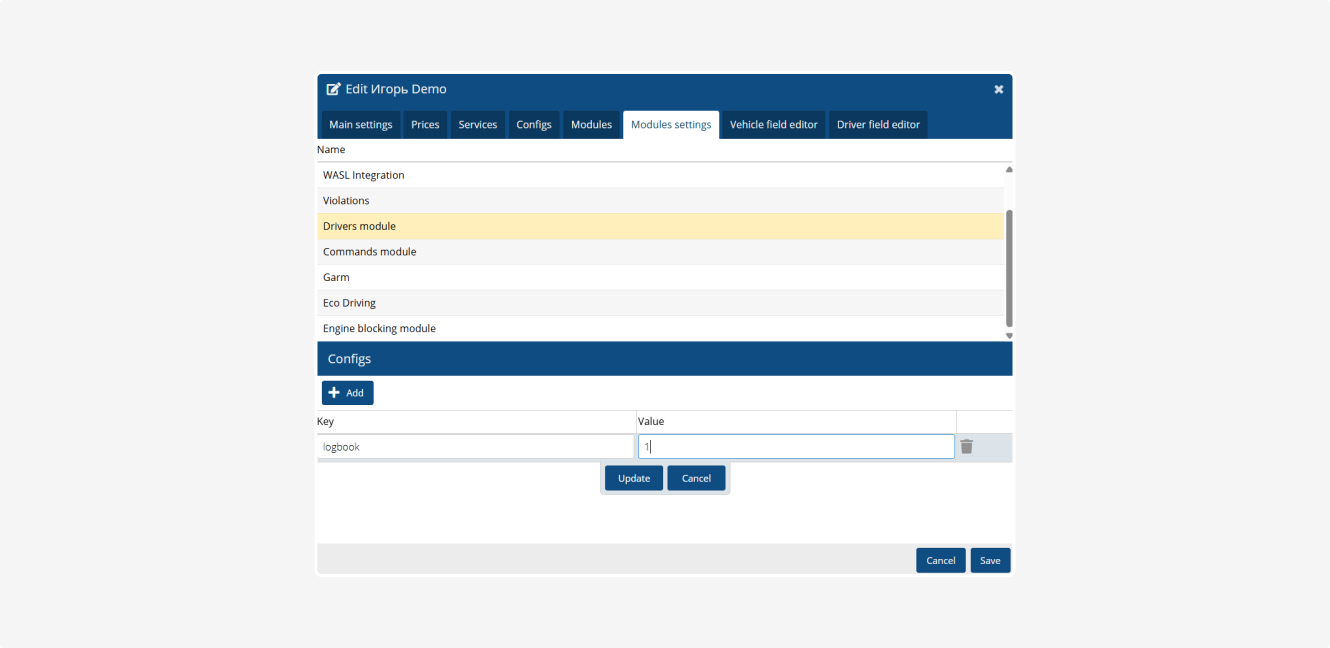
6. Select the Drivers module and set the key for it: logbook=1
7. After adding the key, click Update and save the contract settings
Connecting LogBook in the User account interface
1. Go to the user’s account
2. In the Main section, navigate to the Drivers tab
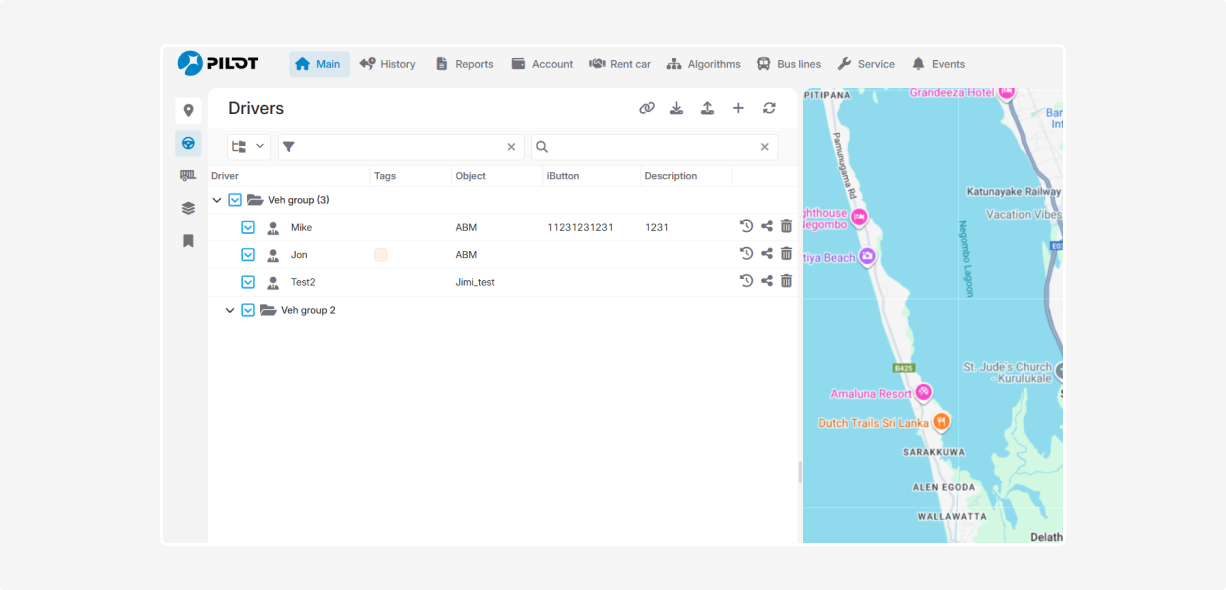
3. Choose the driver you want to enable LogBook for, and open their profile — double-click on their name in the list
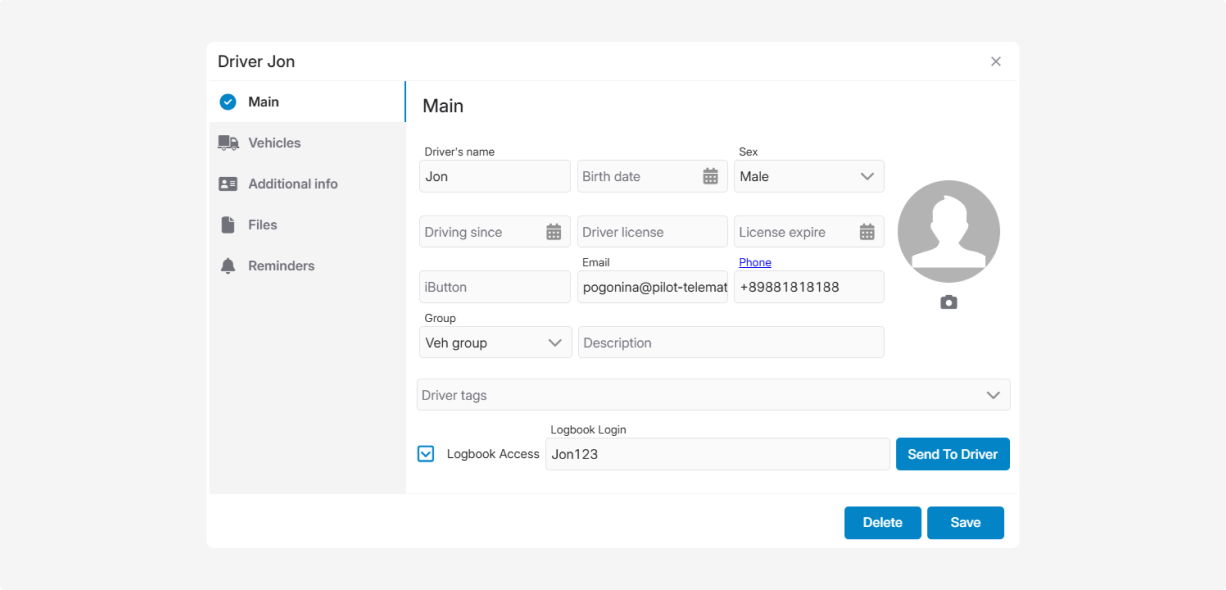
4. Enable the LogBook module for the selected driver by checking the LogBook Access checkbox
5. Set the driver’s login for access to the portal
6. Click the Send to Driver button. An email will be sent to the address listed in the driver’s profile with a link to access the LogBook portal
Please ensure that the driver’s email is valid; otherwise, they will not receive the access email.
|
For proper password and portal access configuration, we recommend contacting technical support.
|