Interface overview
After logging into the PILOT Task Manager (PTM) dispatcher panel, you’ll land on the main page. Here, you will find tools for managing tasks, users, and settings. Below is a brief overview of the main interface elements.

Left menu
The left menu contains the main sections of PILOT Task Manager

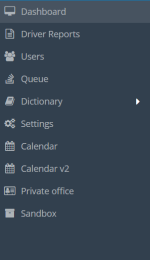
Main sections in the menu:
-
DashboardThis section displays the tasks you are working on. You can view, open, and manage them.
-
Driver reportsA list of acts related to tasks, such as work completion reports or acceptance and transfer acts.
-
UsersManage system users: roles, permissions, and settings.
-
QueueTasks that are not yet assigned or require processing.
-
DictionaryAuxiliary data and settings used when creating tasks.
-
SettingsGeneral settings for working with the PTM module.
-
Calendar / Calendar v2View tasks in a calendar format.
-
Privatw officeAccess your personal settings and information.
The left menu can be collapsed or expanded to create more screen space for working. To do this, click the arrow  at the bottom of the menu.
at the bottom of the menu.The left arrow collapses the menu to icons. The right arrow expands the menu and shows the section names.


Top panel
At the top of the screen, in the top-right corner, you’ll find the account and notification controls:


 Reset table settings – removes saved column order and filters in the browser. Use this to restore tables to their default view if they appear incorrectly
 Sound – turns sound notifications on or off
 Bell – displays system notifications, such as new tasks
 Envelope – important messages, like SMS balance reminders
 Account Name – displays the current user’s name
 Language – choose the interface language
 Log out – logs you out of the system
 Profile Icon – takes you to your personal account
Profile
To go to your personal account, click on the profile icon in the top-right corner.
in the top-right corner.
In your personal account, you can view and edit your profile details:
-
Name
-
Email
-
Password
-
Date of Birth
-
Phone numbers
-
Additional info: Address, Position, Department, Description
To edit your data, click Edit, make changes, and then click Save.

Workspace
In the center of the screen, you’ll find the workspace. This is where the main content of the selected section is displayed: task lists, calendar, users, etc.
The content of the workspace changes based on which section you select in the left menu.