How to assign a route to an asset
To allow the system to track route-related events and generate reports for a specific asset, you need to assign the route to a vehicle.
1. Go to Main → Online
2. Find the asset you want to assign the route to
3. Right-click on the asset and select Route

4. In the window that opens, select the routes you want to assign to the selected object
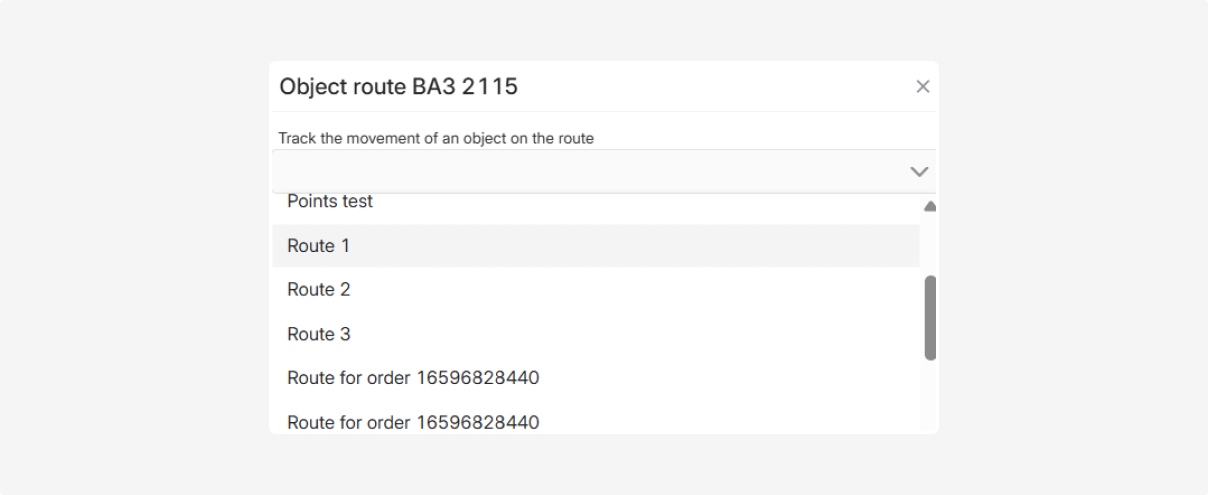
5. Click Save to confirm the assignment
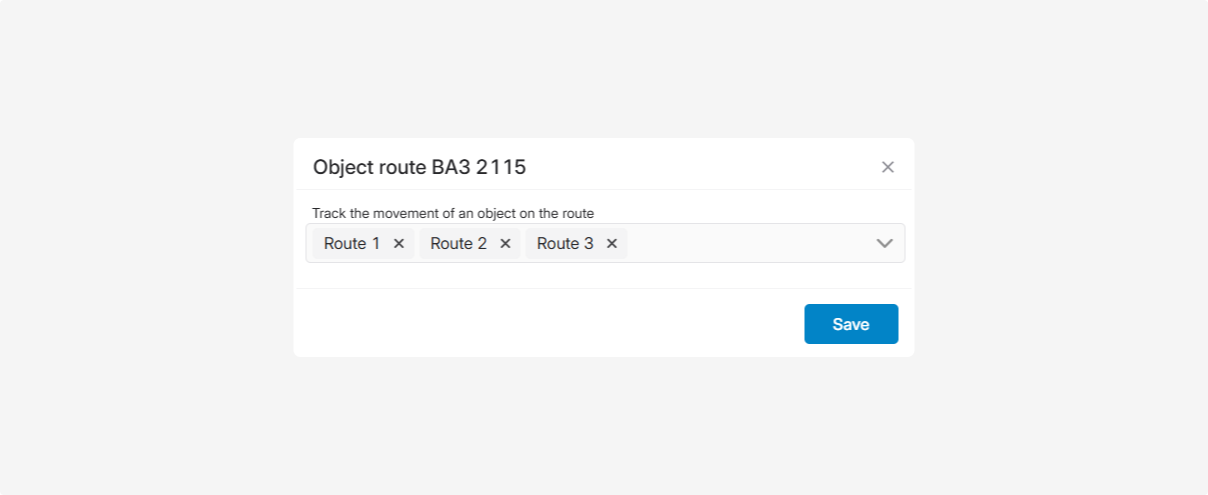
After saving, the system will prompt you to recalculate reports because routes have been changed or reassigned for this asset. Recalculation ensures that all data is up to date and that reports correctly reflect the updated route configuration.
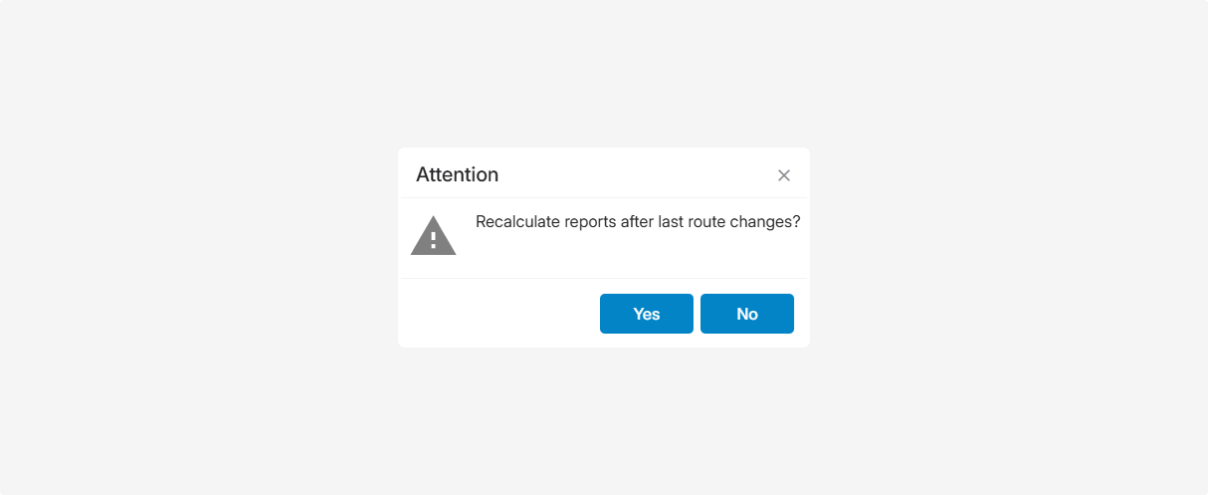
If you want to recalculate reports, click Yes, specify the recalculation period (start and end dates), and click Start calculate
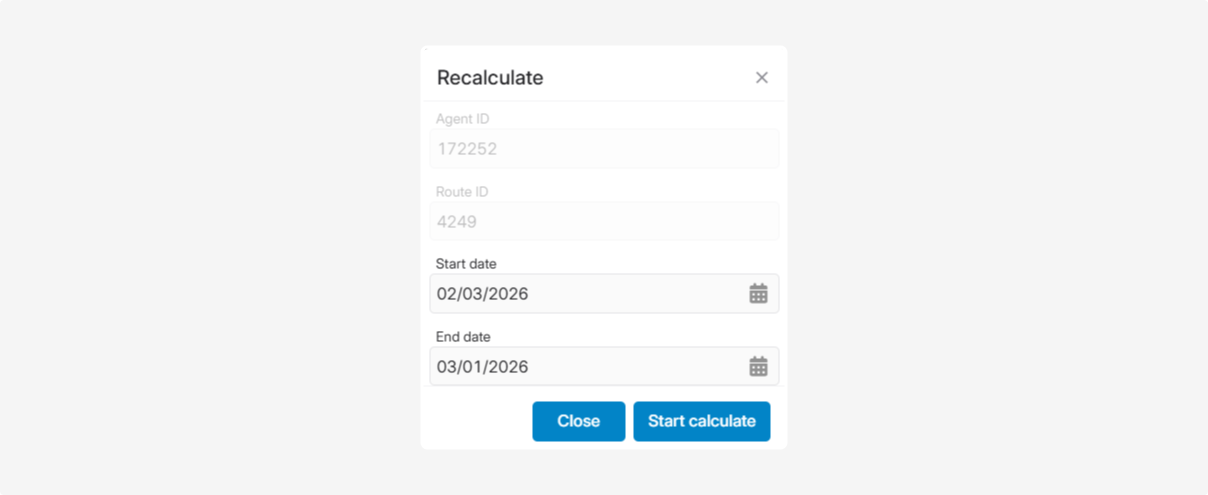
Report recalculation runs in the background. Once completed, the data will be updated automatically.